
Copy a server's settings
Put all of a server's settings in a file, then put them back on this server, on another one, or with another bot.
On this page
+export puts all of a server's settings in a file: to keep them aside before big changes, take them to a new server, or move to another bot without setting everything up again. +import puts them back, on this server or another, showing you everything before it writes anything.
The file can also carry the server's structure: its roles, its channels, the members' roles, its Discord settings and its emojis. Such a file, saved on the bot, is a backup. For a single custom command, see export and import commands; for the whole bot and all its servers, copy the whole bot.
Export the settings
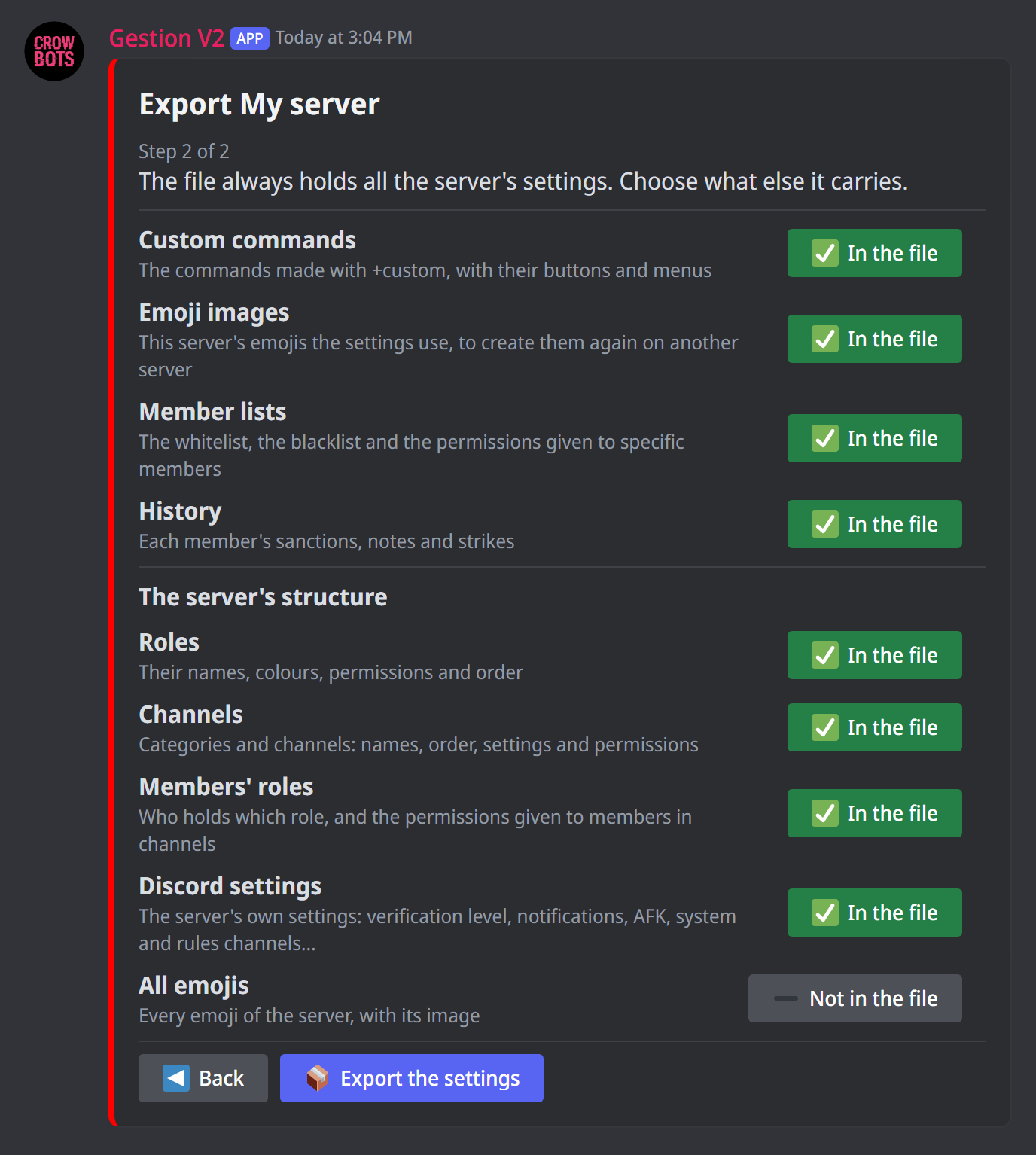
- Type
+export(level 3 by default,exportpermission), then click A server. The choice only shows if you can export something of it. - When the bot is on several servers, pick the server in the menu, then click Next: from level 10, any server the bot is in.
- The panel lists what the file can carry besides the settings, one line for each thing with its In the file or Not in the file button. Everything is in the file by default; remove what you don't want:
- Custom commands (custompermission): the commands made with+custom, with their buttons and menus. Without them, the settings that run a command (a ticket option, the welcome message…) are linked, on import, to the server's command with the same keyword;
- Emoji images: this server's emojis the settings use, so they can be created again on another server;
- Member lists (wlpermission): the whitelist, the blacklist and the permissions given to specific members;
- History: each member's sanctions, notes and strikes. It only shows with thesanctionsandclear all sanctionspermissions (level 3 by default);
- with thebackuppermission (level 10 by default), the server's structure: Roles, Channels, Members' roles (only with Roles), Discord settings and All emojis. All emojis aren't in the file by default: the panel says under their line what they add to the file, and the Emoji images button turns to Already in All emojis when they are in, since they already hold them. - Click Export the settings. Back returns to the step before without losing your choices.
The file holds only the settings you could change yourself: each one takes the permission of the command that sets it (prefix for the prefix, join settings for the welcome…). When some are left out, a line of the panel says so.
The bot sends you the file alone, under the panel; Send it to my DMs sends it to your DMs too. It is named after the server, followed by .crow. To put it back, send +import with this file attached. Save on the bot also keeps it on the bot, under the name you choose: +import without a file finds it, on any of the bot's servers (the saved files). A file too big for Discord to send here comes to you as a download link. It only opens on a Crow Bots bot. Keep it to yourself: it holds all the server's settings and, as you chose, its trusted members and its history. Keep a file with the history like a password: before giving a file to someone else, take History out of the file.
What the file holds
Every setting of the server that you could change yourself, in groups: general settings, permissions, logs, automod, server security, antihack, arrivals and departures, mutes and voice moderation, tickets, temporary voice channels, channel tools, giveaways, suggestions and reports, boost message and support role, alerts, reminders, custom commands, automatic backups, rolemenus and forms. With them, the name and details of each role, channel, emoji and sticker they use, so they can be found or created again elsewhere. With the structure, it also holds the parts chosen: every role, every channel, the members' roles, the Discord settings, every emoji.
It never holds:
- what is happening on the server right now: temporary sanctions in progress, open tickets and modmails, locked nicknames;
- the settings you couldn't change yourself, with the permission of the command that sets them;
- the bot's own settings: the commands' levels (
+change), the aliases, its profile; a bot file holds them; - the server's messages.
A setting that uses a role or channel deleted since is saved empty, as if nothing were set: the bot already ignored it. A mention of that role or channel in a text stays as it is.
Import a file
- Send
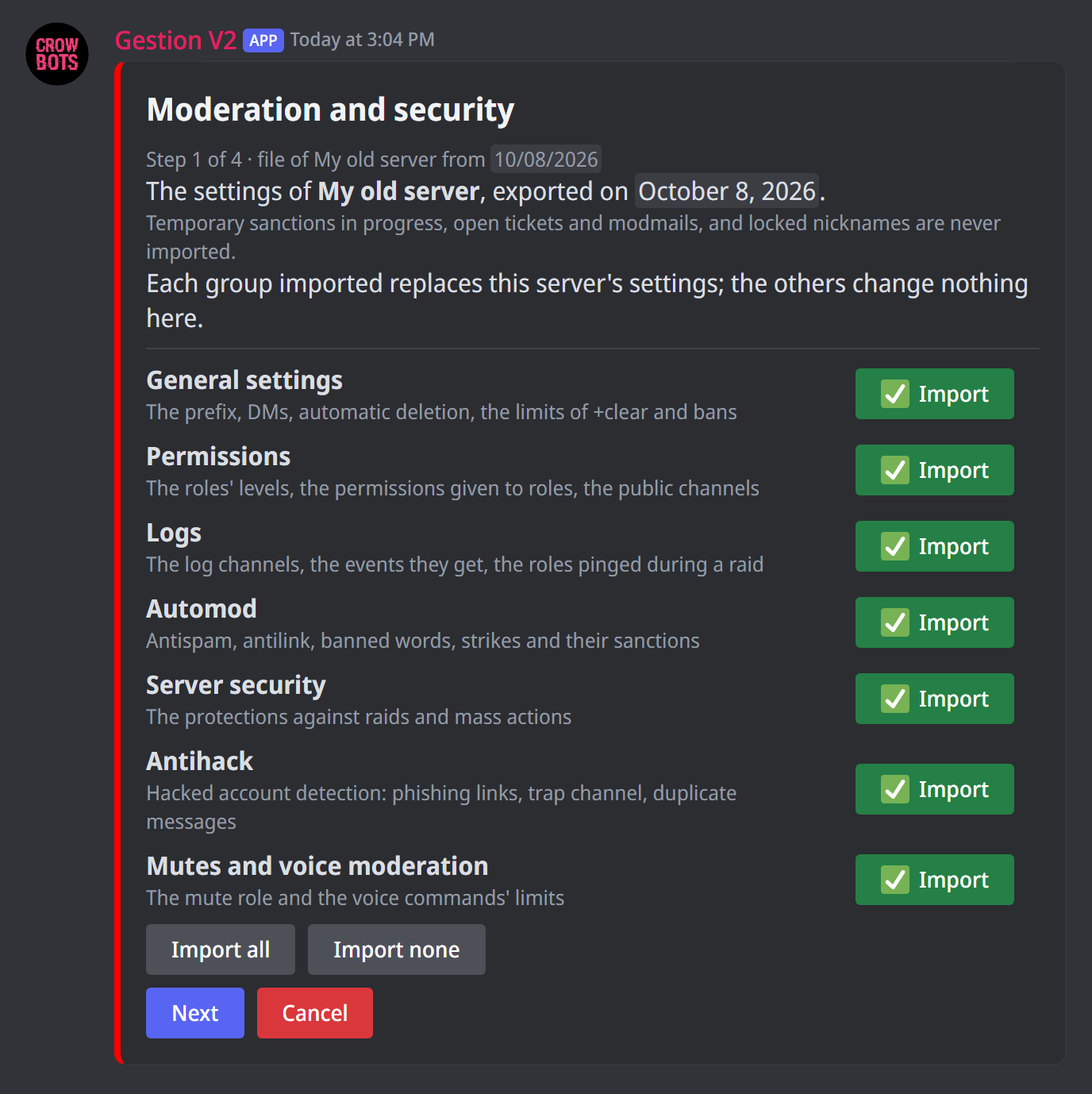
+importwith the file attached, or reply+importto the message holding the file (level 3 by default,importpermission). Without a file,+importlists the files saved on the bot: choose one, then Import. A file too big to attach is sent through a link. - The panel goes step by step, one question at a time; Next goes to the next one, Back returns without losing your choices, and a step with nothing to choose is skipped. The first one shows the server the file comes from and its date.
- If the file holds the server's structure, the first step chooses what it rebuilds.
- The settings come next, on three pages: Moderation and security (general settings, permissions, member lists, logs, automod, server security, antihack, mutes, history), Members: welcome, roles, tickets (arrivals and departures, rolemenus, forms, tickets, boost message and support role, suggestions and reports) and Channels and automation (temporary voice channels, channel tools, giveaways, alerts, reminders, automatic backups). Each group has its line, which says what it holds, and its Import or Don't import button; Import all and Import none decide for the page. Only the groups imported replace this server's settings, the others change nothing here.
- The last step, with the
custompermission, chooses how the file's custom commands come: Add to the server's, Replace all (the server's commands that aren't in the file are deleted) or Don't import. The menu below chooses which ones, all by default; Search finds one by part of its keyword, All and None decide for those listed. A setting or a command that calls a command left out is linked to the server's command with the same keyword, else its link is removed. With Replace all, the confirmation says how many of the server's commands will be deleted, and which settings left out lose a command they ran. - Next then goes to the conflicts if there are any, then the roles, channels and other items, then the confirmation.
- Import applies everything. Nothing is written before.
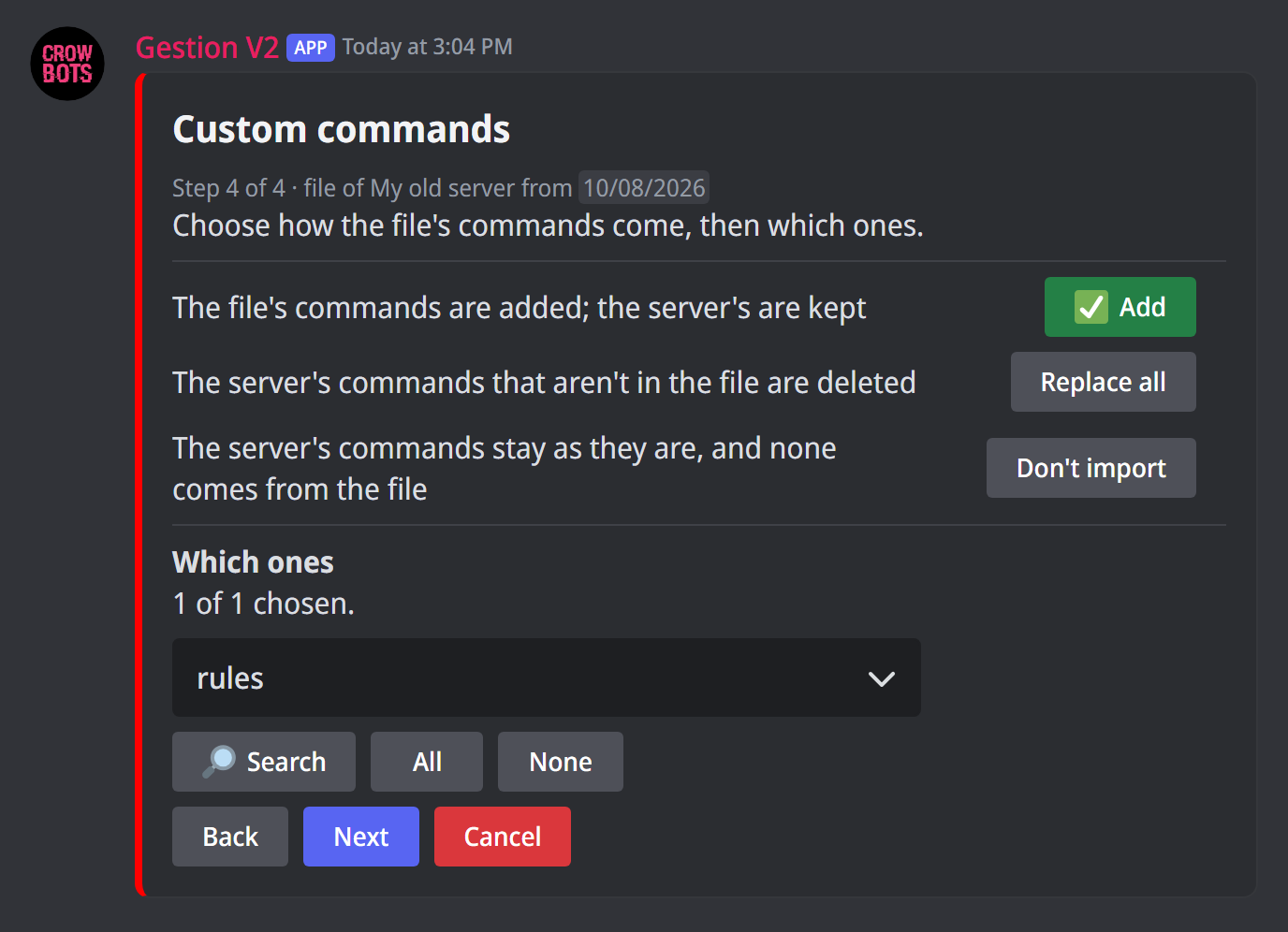
The member lists only come if the file holds them and you import them; you can only import them if you could set them yourself (+wl). Their line says who they hold.
On the server the file comes from
With the same server and the same bot, the import puts the settings back as in the file: there is usually nothing to choose. The file's custom commands go back in their place; keep those made since also keeps the commands added after the export.
What the server no longer has (a role deleted since, a channel, a panel's message) is listed with its options, as below, and can also be kept as written in the file.
The server's structure
When the file holds the structure, the import's first step shows it (backup permission): roles, channels, members' roles (only with the roles), Discord settings, emojis, each with what it changes on Discord and its Rebuild or Don't rebuild button; Rebuild all and Rebuild none decide for all. Each part chosen is rebuilt on Discord as the file has it, then the settings are written onto it.
- On the server the file comes from, everything is chosen, and Delete what the file doesn't have (its line shows with the roles or the channels) is on: the roles and channels the file doesn't have are deleted. Elsewhere, nothing is chosen or deleted by default.
- The settings' roles, channels and emojis that the structure rebuilds are restored from the file: the items page counts them, without asking you anything.
- The confirmation says what will be created, edited and deleted. The messages of a deleted channel are lost, even for the undo file.
- A file that holds only the structure, like an automatic backup, imports no settings.
How to make a backup, put it back after a raid or rebuild a lost server: see backups.
Roles, channels and other items
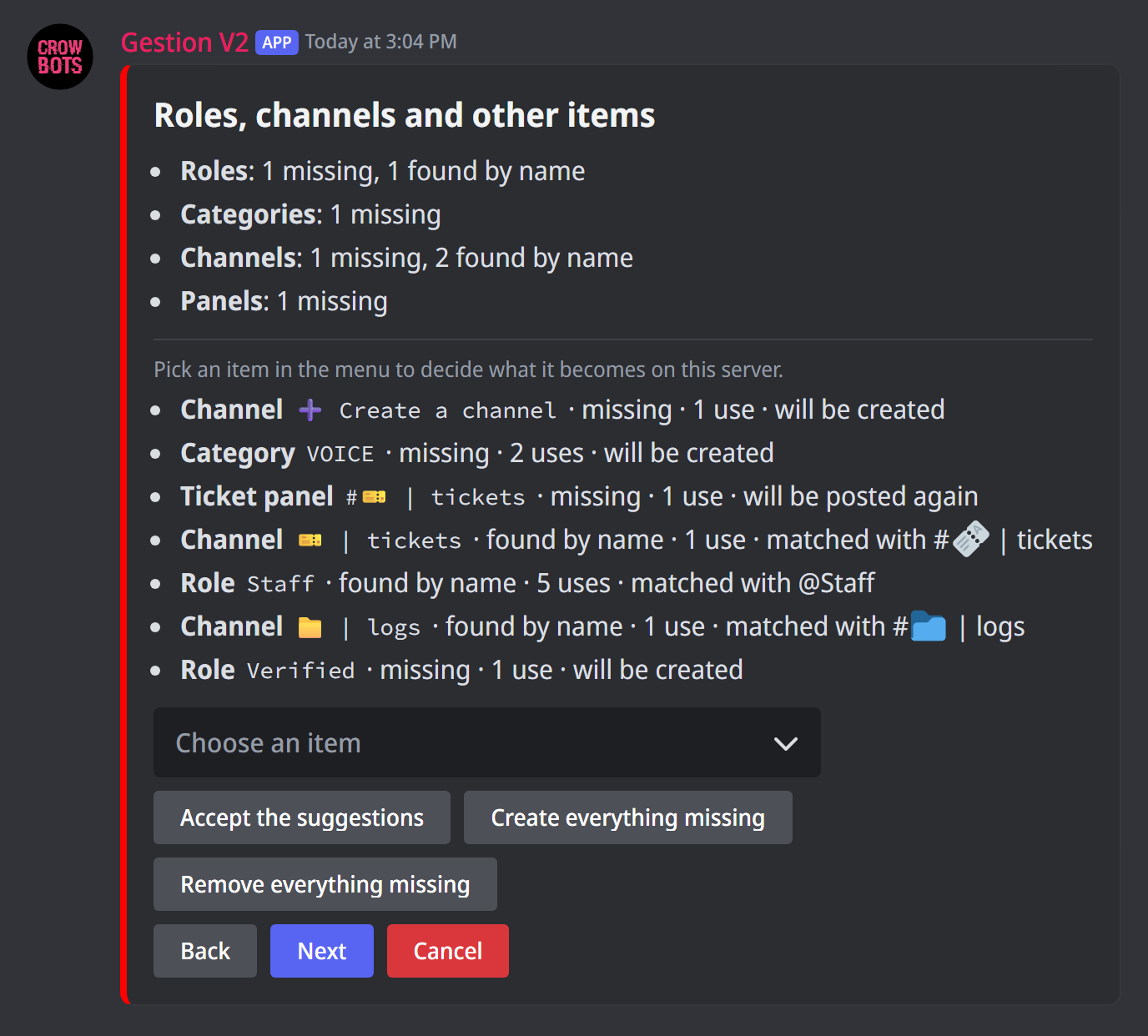
Each role, category, channel, emoji, sticker, panel and command the settings use shows up once, with its number of uses. Your choice applies to all of them. Only those that need a decision are listed: found by name (an item with the same name exists here), missing, not usable everywhere (it exists, but some uses can't take it), or on another server the bot is in. A panel is named after its feature: ticket panel, rolemenu, form or verification button.
By default, the bot picks what makes the setting work:
- a role, category or channel is matched with this server's one of the same name; else it is created; else, when that isn't possible, it is removed;
- an emoji is matched by its name, else added to the server from the file when it was an emoji of the original server, else removed; a sticker is matched by its name, else removed;
- a channel of another server the bot is in (the logs, for instance) stays the other server's, unless this server has a channel of the same name;
- without the custom commands group, a setting that runs a command (a ticket option, the welcome message, a reminder…) is linked to this server's command with the same keyword, else its link is removed.
Picking an item in the menu shows its uses and its options: Match with an item of this server, Create, Keep, Remove, and for an emoji Replace with another emoji. The Accept the suggestions (each item found by name is matched with it), Create everything missing and Remove everything missing (each missing item) buttons decide for all at once. A replacement emoji is given as it is (😀) or by the name of a server emoji.
- A role is only accepted where you could put it yourself in the setting; a use that can't take it is flagged and loses it, the others keep it.
- You can only create what you could create yourself in Discord. A created role has the original's permissions, without those you don't have, and lands at the bottom of the role list.
- A created channel goes in its category, kept, matched or created too, with its permissions for
@everyoneand for the roles that come with the import. A role that only shows up in a created channel's permissions is matched by its name, else it is left out of them: the report says so. - Discord limits a server's roles and channels, and the channels per category: past that, the bot creates nothing more, and a channel whose category is full is created outside any category. If the server has already created many roles and channels in the hour, the confirmation says how long to wait.
- A mention removed from a text becomes plain text:
@Name,#name,:name:.
Panels
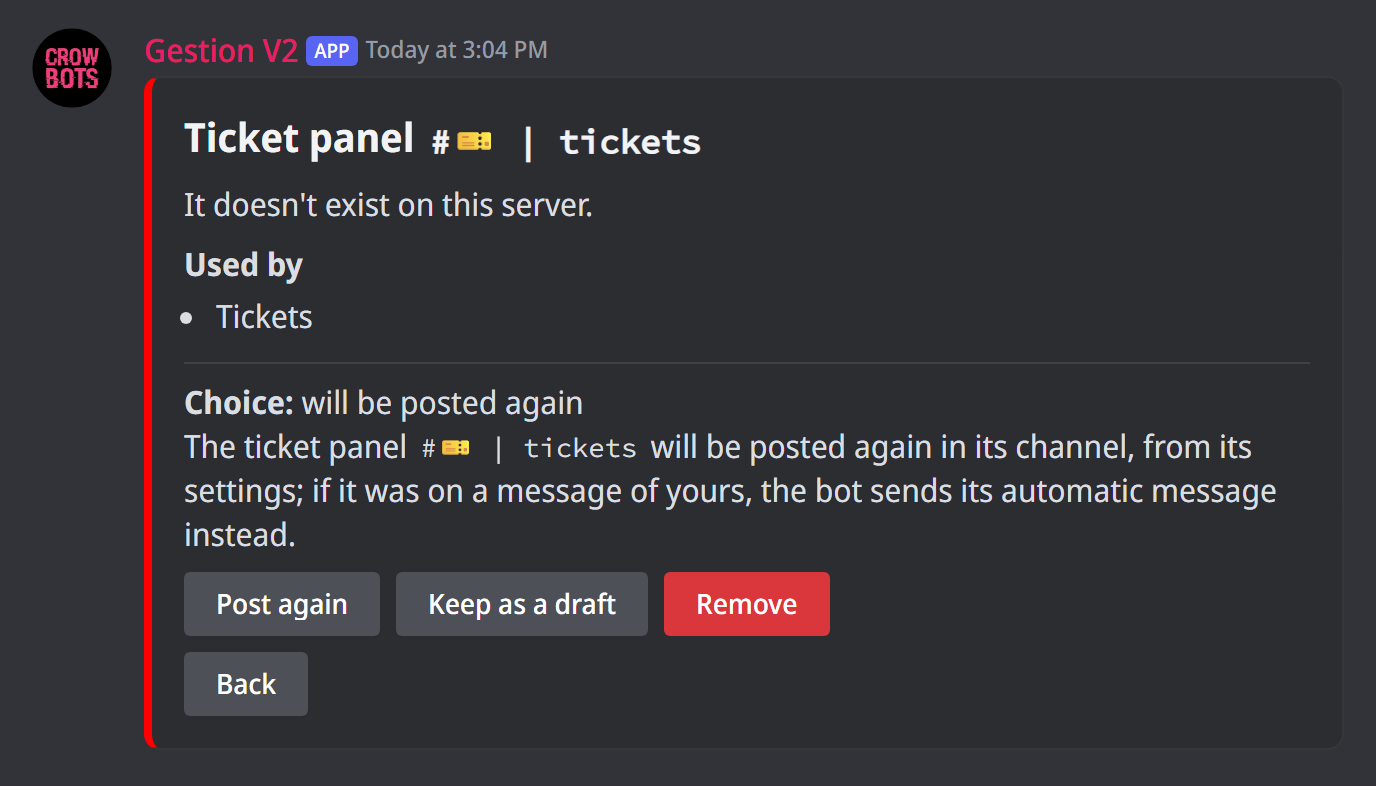
A ticket panel, a rolemenu, a form or the verification button whose message is not on this server, or wasn't posted by this bot, no longer works as it is. By default, it is posted again in its channel from its settings; if it was on a message of yours, the bot sends its automatic message instead. You can also remove it with its settings, and a ticket panel can be kept as a draft, to publish later from +ticket settings. A reaction rolemenu on another account's message works as it is: it is kept. A message the bot couldn't read is kept as it is by default, as it may still work. A panel that can't be posted again (its channel is removed) is kept as a draft if it is a ticket panel, else removed.
Several items onto one
When two items of the file are matched with the same item of this server, where only one setting can exist (two channels with their automatic reactions onto one, two roles with a permission level onto one…), the items page lists them. By default, they are merged when possible: everyone's reactions (5 at most), or the highest level; else the one that comes first in the file is kept. You can choose which one to keep for each, or for all with Merge all and Keep the first everywhere.
Conflicts
A conflicts page opens after the choices' steps when there are some:
- a keyword already taken: the file's command is renamed by default, or replaces the server's (the confirmation says what runs it), or is not imported; Rename all, Replace all and Import none decide for all;
- too many commands: with the file, the server would pass 500 custom commands. Replace all its commands with the file's, don't import some commands, or remove the commands group.
What is not imported
What only holds where the file comes from is not imported, and the confirmation says so before the import:
- the servers a giveaway requires that this bot is not in;
- the permissions this bot doesn't have;
- the permissions of commands at or above your level, left as they are on this server, as
+set permrefuses them.
Only the settings you could change yourself are imported, each with the permission of the command that sets it: the others stay as they are on this server, and the confirmation and the report say so. A group holding some of them is offered like any other.
A reminder due only once whose time has passed is never imported; a repeating reminder resumes at its next time.
From another server or another bot, the roles' levels stay between 1 and 9, and alerts announce nothing older than the import. The report command stays as it was on this server: +report settings turns it on or off. When the antihack's trap channel changes, its warning is posted in the new channel.
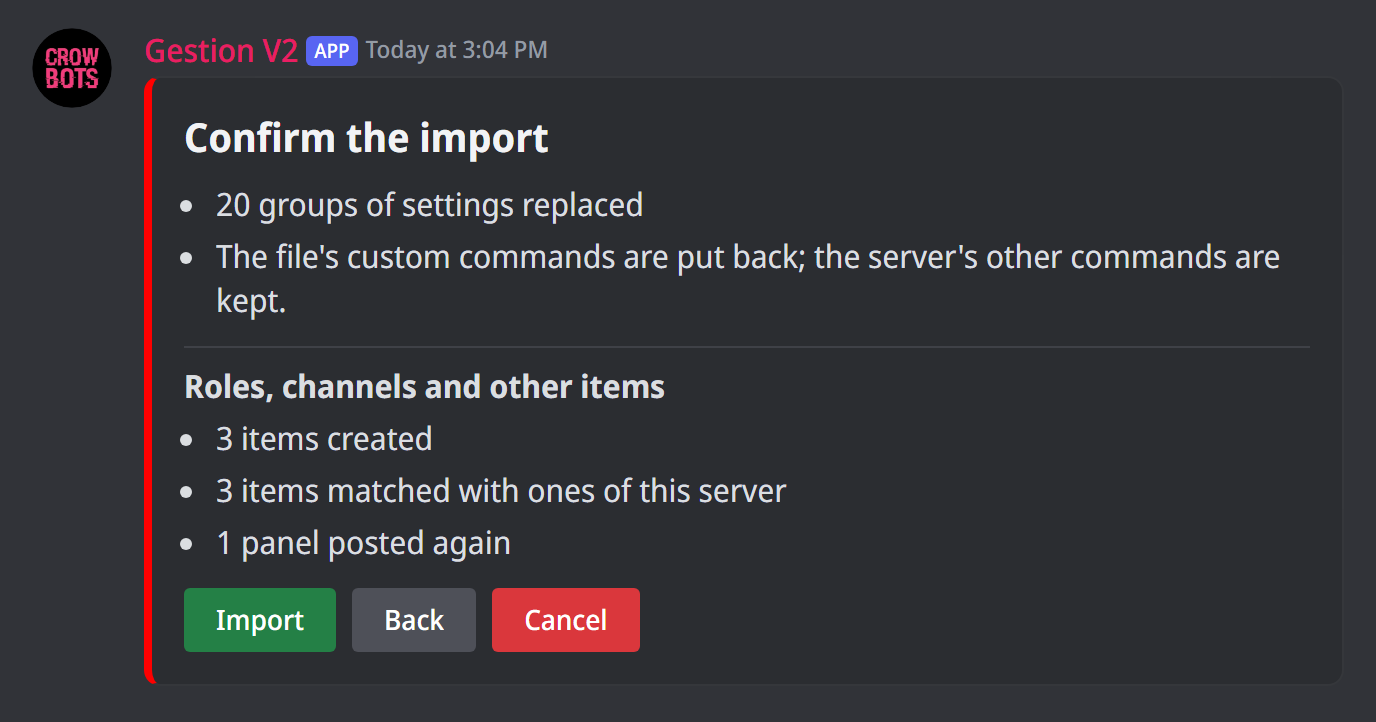
The confirmation also flags a role with dangerous permissions that the bot would hand out by itself (verification, support role, rolemenus, commands), and someone who used a settings panel on this server in the last 10 minutes: what they change there after the import may be lost.
History
When the file holds the history (sanctions, notes and strikes), History has its line on the Moderation and security page, with what it holds. It imports onto any server, with this bot or another, with the clear all sanctions permission (level 3 by default), and only if you add it. It is added to the server's without counting anything twice: what was given since the export is kept, and what was deleted since comes back.
Undo an import
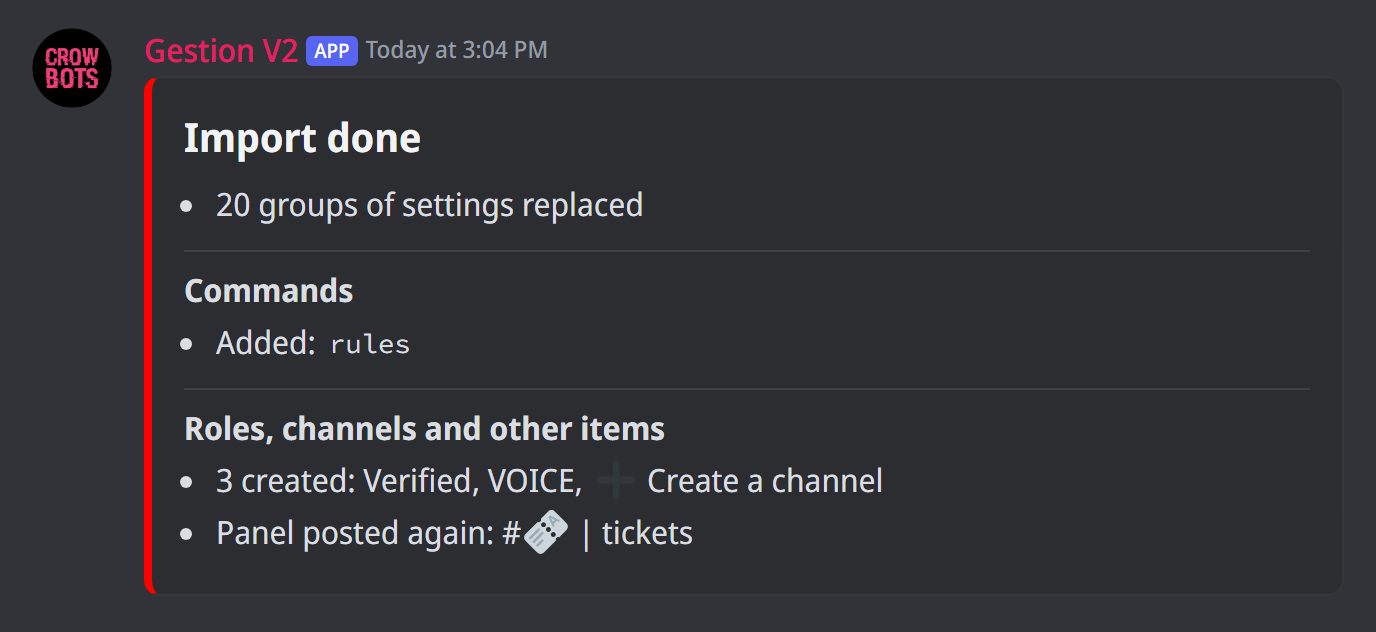
Before writing, the bot sends you an undo file, to you alone, with the server's current settings that you can change, and the history if the import brings some. Imported on this server, it puts everything back as it was, deletes the panels the import posted again, and puts the history back as it was. When the import rebuilds the structure, it also holds the roles, channels, members' roles and Discord settings from before, and deletes the emojis the import added; the messages of the deleted channels don't come back. Anything changed since the import is lost. Too big to be sent to you here, the undo file comes as a link; if it can't reach you at all, nothing is imported.
After the import, a member who clicks a settings panel opened before the import is told, privately, that the settings changed: they open it again to see them.
A file too big for Discord
Discord limits the size of the files a message can carry. Past it, the file goes through a link, on this site.
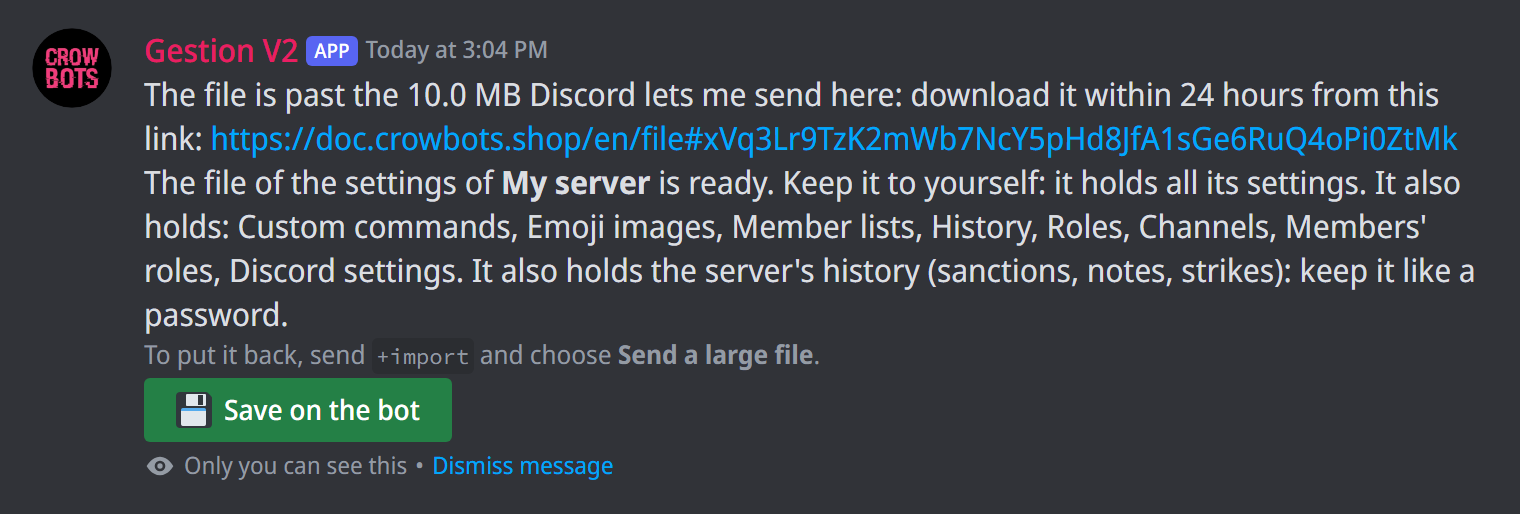
Getting the file. When an export's file is too big for Discord to send here, the bot sends you instead, to you alone, a download link valid 24 hours, with Save on the bot. Open it, then click Download. When the file comes to your direct messages, the link comes there too.
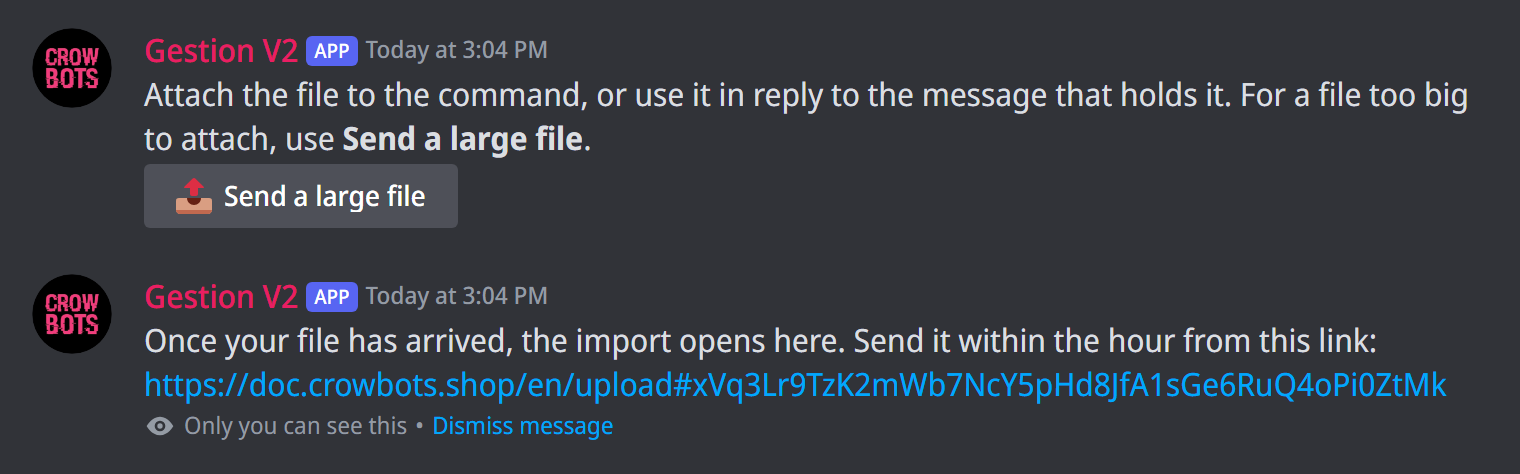
Sending a file to import it. A file too big to attach to +import is sent through a link:
- Send
+importwithout a file, then click Send a large file, under the list of saved files, or under the bot's answer when there are none. The button is in direct messages too, for a bot file. - The bot answers you alone with a link valid one hour. Open it, choose the file, then click Send.
- As soon as the file has arrived, the bot mentions you in the channel where you clicked and opens the import there, as for an attached file. If it can no longer write in that channel, the import opens in your direct messages, where only a bot file is imported. If you have left the server or lost the
importpermission, nothing is imported and the bot tells you in a direct message. - After the import, the bot offers you alone to save the file on the bot; otherwise, it doesn't keep it.
A link serves one file. When the bot is already receiving many large files, it tells you when to try again.
The undo file. Too big to be sent to you here, it comes as a download link valid 24 hours, with Save on the bot: download or save it before the link expires. If it can't reach you at all, nothing is imported.
Every command
Each command of this guide, with its arguments, its default level and examples: Export and import.