
Copy the whole bot
Put the bot's settings and those of all its servers in one file, then put them back, on this bot or after a change of application.
On this page
+export puts the whole bot in one file: its own settings (status, language, command levels, modmail…) and the settings of each of its servers. +import puts them back, server by server, showing you everything before it writes anything. It is the way to keep everything aside before big changes, or to take everything back after a change of application.
For a single server, see copy a server's settings: each server of a bot file is imported the same way.
Export the whole bot
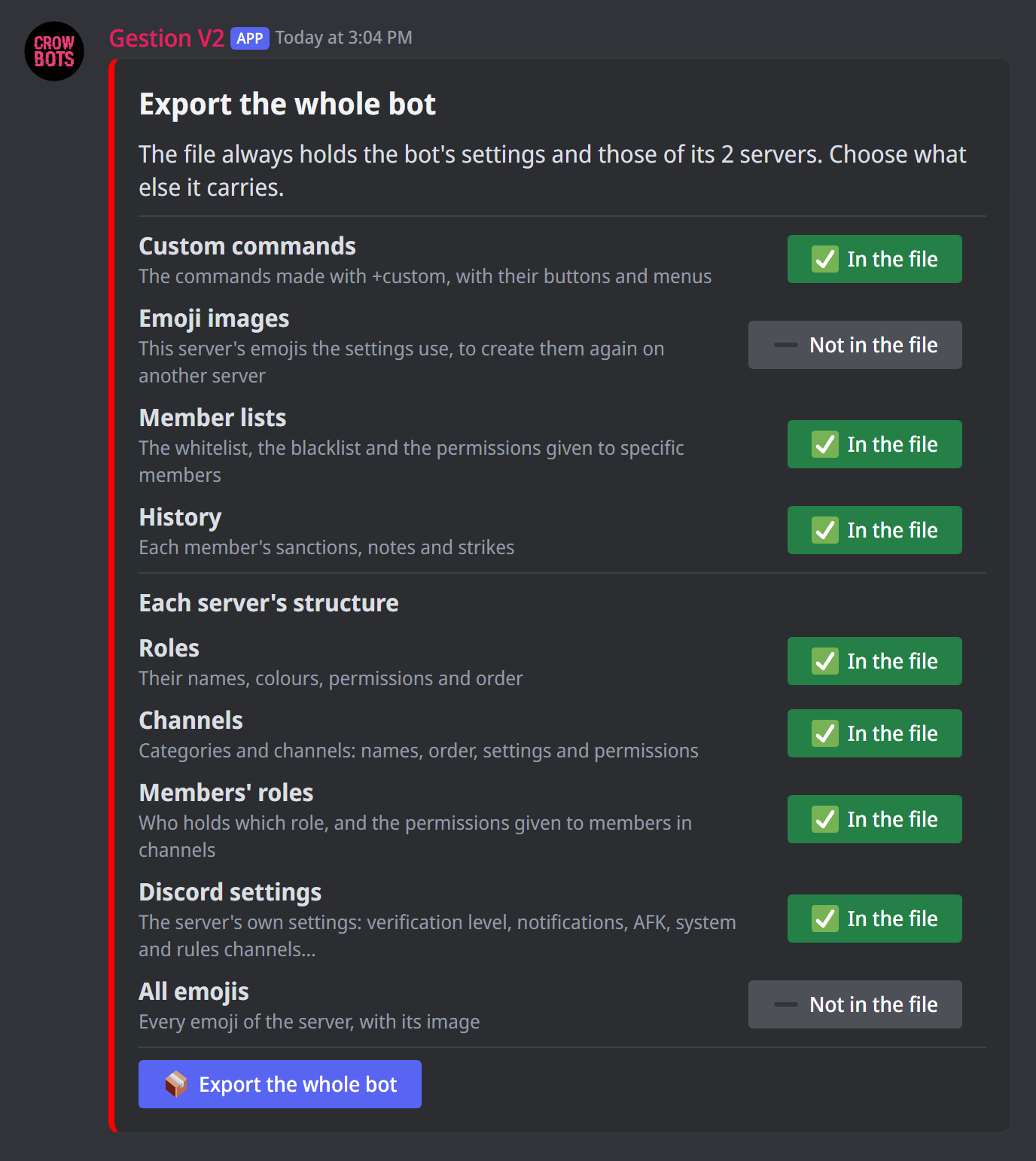
- Type
+export, on a server or in a direct message to the bot. On a server, click Whole bot: it shows if you can change one of the bot's own settings at least (level 10 by default). In direct messages, the panel opens straight on the next step. - The panel lists what the file carries besides the settings, one line for each thing with its In the file or Not in the file button:
- Custom commands: those of each server;
- Emoji images: the emojis of each server that its settings use, 20 at most per server. They are not in the file by default: the panel says under their line how much they add to the file, or that with them it will likely be past what Discord lets the bot send here and will come as a download link, or even be too big to be made;
- Member lists: the whitelist, the blacklist and the permissions given to specific members of each server, and the bot's blacklist;
- History: the sanctions, notes and strikes of each server, with thesanctionsandclear all sanctionspermissions there;
- with thebackuppermission, each server's structure: Roles, Channels, Members' roles, Discord settings, in the file by default, and All emojis, which aren't by default and whose size the panel shows. - Click Export the whole bot.
The bot sends you the file alone; on a server, Send it to my DMs also sends it to your direct messages. Its name is the bot's, followed by .crow. When it takes long to prepare, it comes to your direct messages. Save on the bot also keeps it on the bot, under the name you choose: +import without a file finds it (the saved files). Too big for Discord to let the bot send it to you, it comes as a download link. If the export fails on a server, the message names it: try again in a moment.
Keep this file to yourself: it holds all the settings of the bot and its servers, and depending on your choices their trusted members and their history.
What the file holds
- The bot's settings, shared by all its servers, in groups: status and look (the status, the activity, the embeds' colour, how the help is shown), language (the language and the custom language file), commands (the prefix, each command's level and names), invites (whether the bot leaves a server it is invited to without its buyer), FiveM, modmail (its category, log channel, roles and options) and the blacklist.
- The settings of each server, as in a server's file, with its structure if you chose it.
It holds only the settings you could change yourself: each one takes the permission of the command that sets it (activity for the status, theme for the colour, set lang for the language…), and on each server, what you could export from it. When some are left out, a line of the panel says so.
It never holds the bot's buyer, its owners, those who can change them, or its recovery code: they stay those of the bot you import onto.
Import a bot file
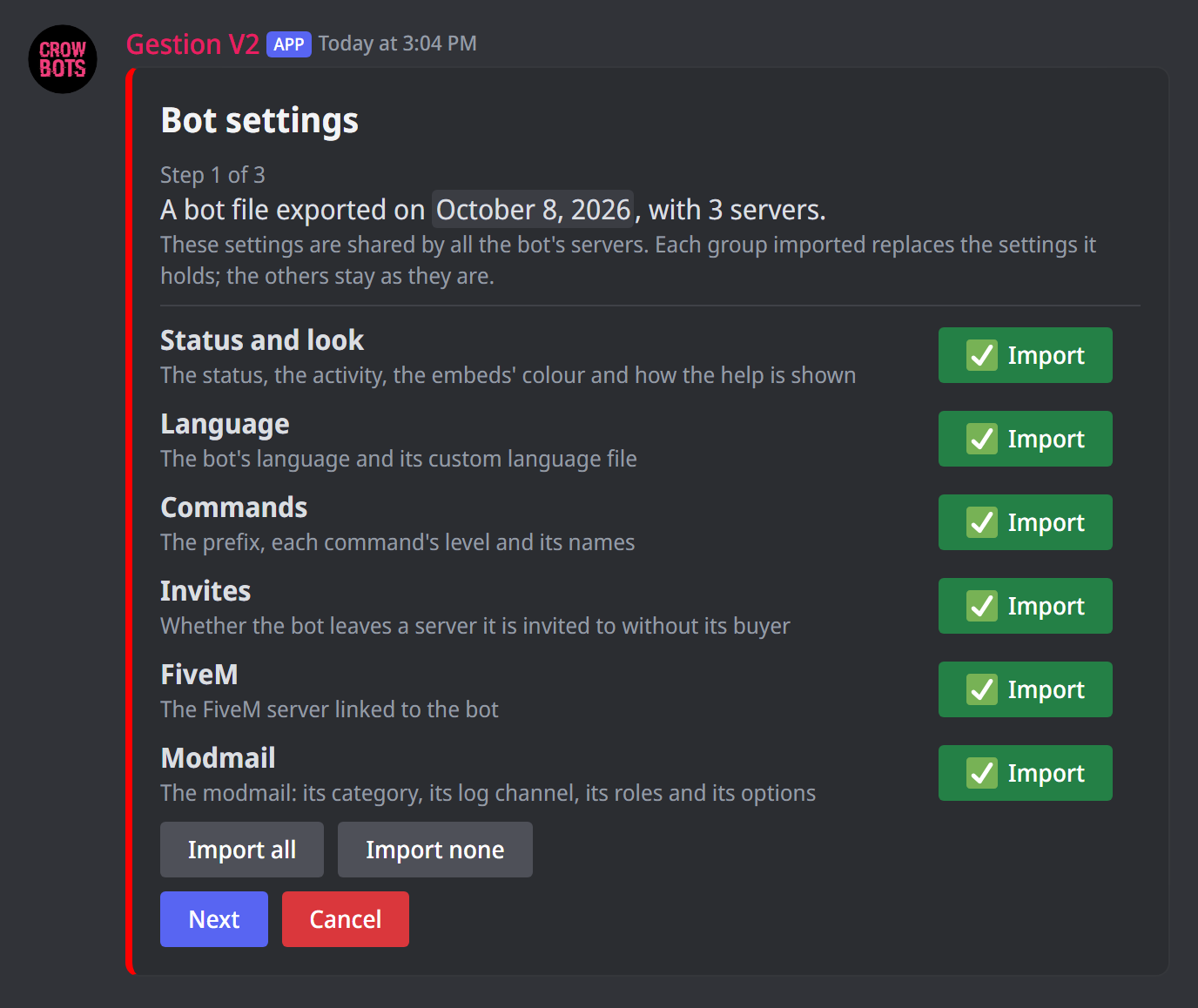
- Send
+importwith the file attached, or reply with+importto the message that holds it (level 3 by default, theimportpermission), on a server or in direct messages. In direct messages, only a bot file is imported. Without a file,+importlists the files saved on the bot: choose one, then Import. A file too big to attach is sent through a link, in direct messages too. - The panel goes step by step; Next goes to the next one, Back returns without losing your choices. The first shows the file's date, its number of servers, and the groups of the bot's settings: each has its line, which says what it holds, and its Import or Don't import button; Import all and Import none decide for all. Only the groups imported replace this bot's settings; with none, the bot's settings don't change. Only the settings you could change yourself are imported, each with the permission of the command that sets it: the others stay as they are, and the confirmation says so.
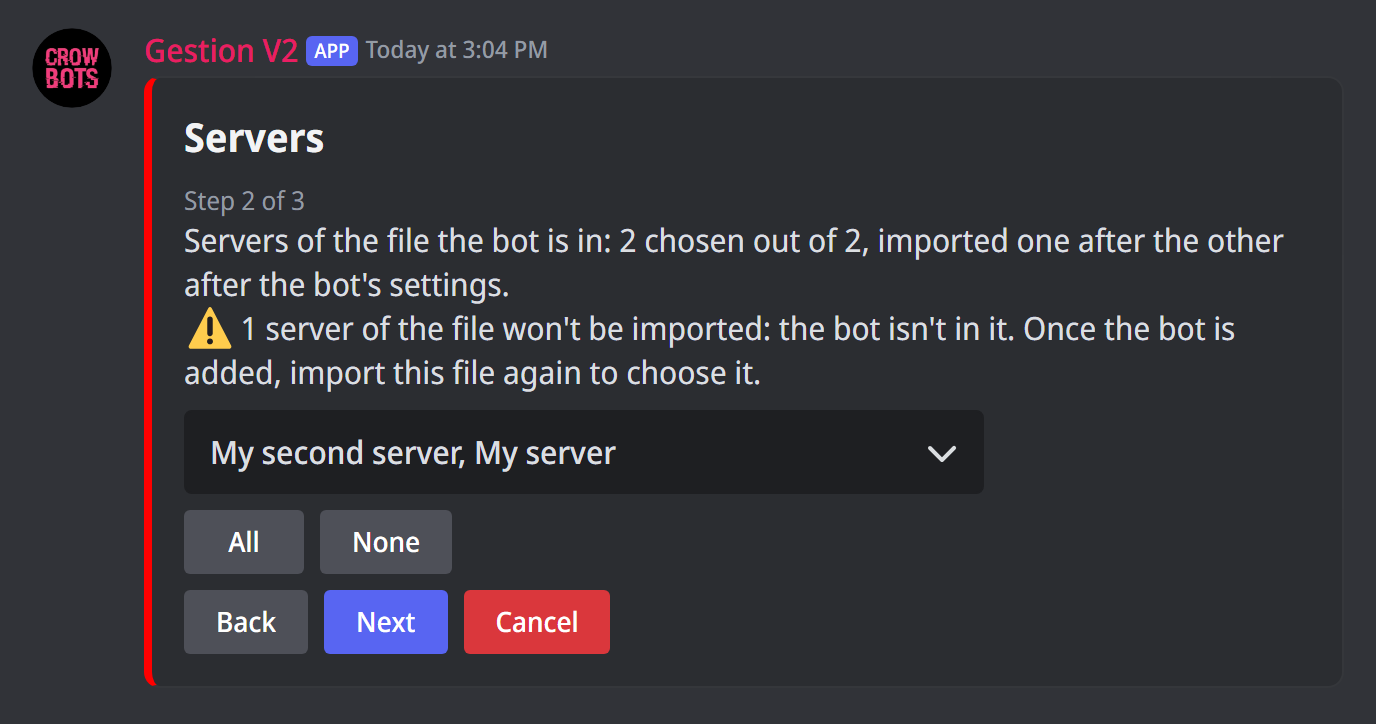
- The servers' step chooses in a menu those of the file to import next: those the bot and you are in, all by default. All and None decide for all, and the arrows change page when there are many. It also counts the servers of the file that won't be imported: those the bot is not in (once the bot is added, import the same file again to choose them), and those you are not a member of.
- When the modmail is imported and has channels or roles, the modmail's step shows them, then comes the confirmation.
- Import writes the bot's settings, then Import the servers opens the first server. With no group chosen, the confirmation's button opens the first server directly.
The blacklist only comes if the file holds it, you could set it yourself (+bl) and you import it; its line shows its members. An undo file brings it back anyway.
The modmail
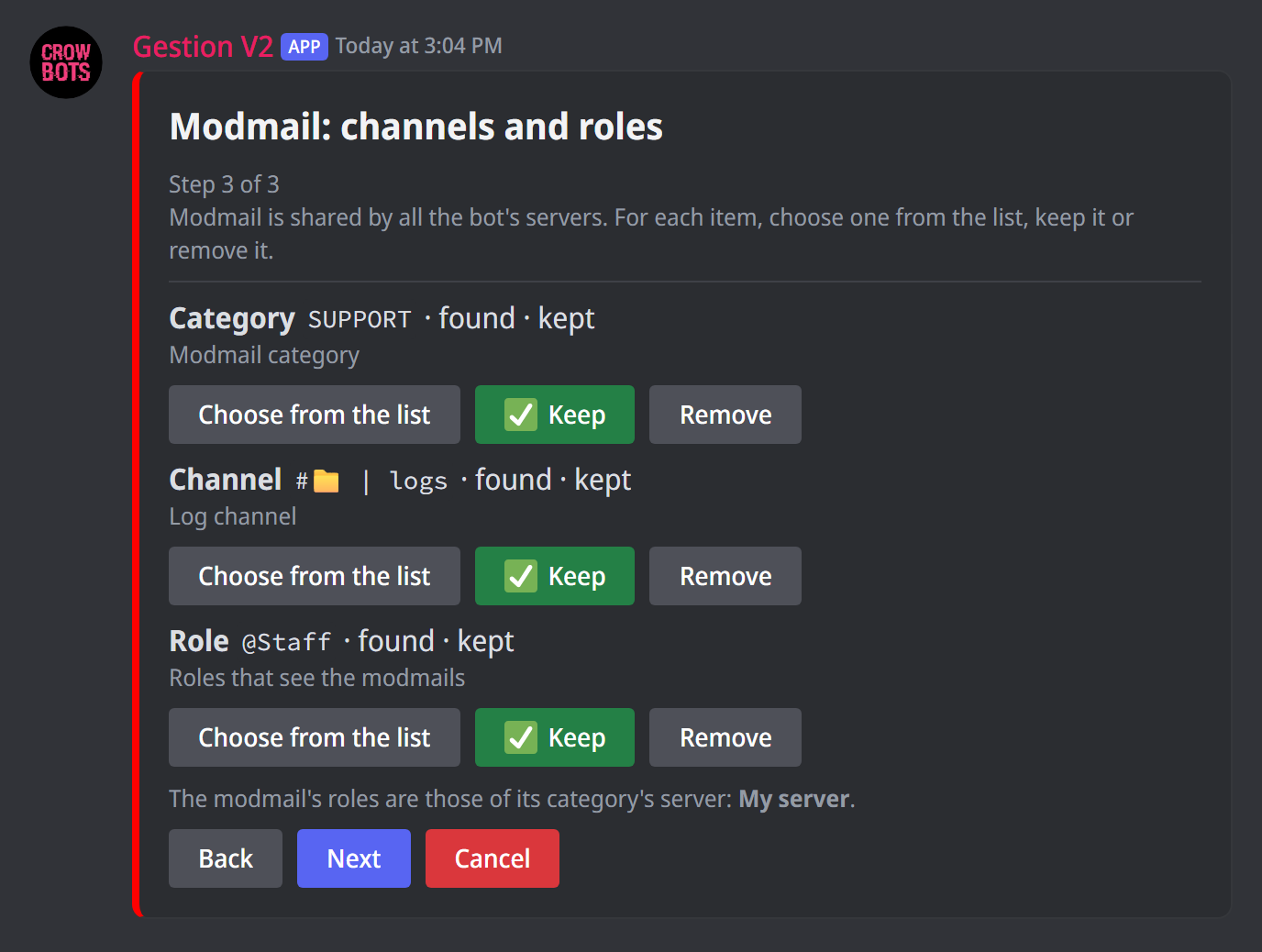
The modmail is shared by all the bot's servers. Its category and log channel are kept when the bot still sees them, on any of its servers; else the bot suggests those of the same name, this server's first; else they are removed. Its roles are those of its category's server (its log channel's when it has no category): found as they are, else by name, else removed.
Each item has its line, with its uses and its buttons: Choose from the list opens the list of categories, channels or roles, with Search; Keep and Remove decide without the list. The choice made is green (Remove red). When the category moves to another server, its roles are looked up again on the new server.
The confirmation
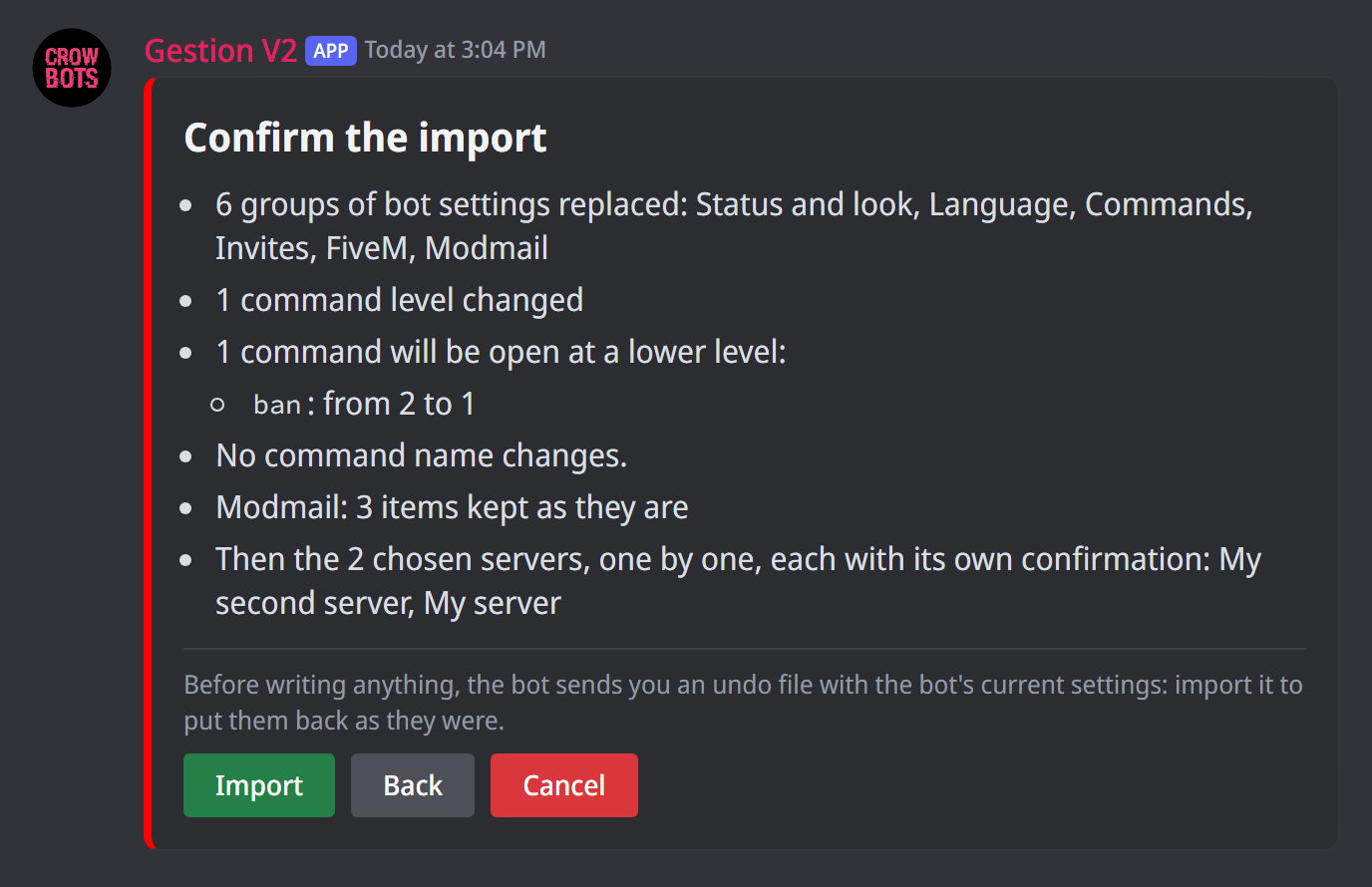
The confirmation says what changes: the groups replaced, how many command levels and names change, the language, the custom language file, the modmail, and the servers that follow.
- Command levels only change as you could change them yourself with
+change; the others stay as they are, and the confirmation names them. It also lists the commands that become available at a lower level, 15 at most, starting with those only the owners or the buyer could use. - Command names come as
+aliastakes them: each command keeps its first name, then takes the file's, 25 at most. A name another command already uses is not imported, and a command whose names you couldn't change stays as it is. - Only the commands both bots have come; those this bot lacks are named.
- The custom language file is installed without the texts the bot can't use. It stays off if it was off on the original bot.
Before writing, the bot sends you an undo file with the bot's current settings that you can change: imported, it puts them back as they were. Too big to be sent to you here, the undo file comes as a link; if it can't reach you at all, nothing is imported. Only one import of the bot's settings can run at a time.
The servers, one by one
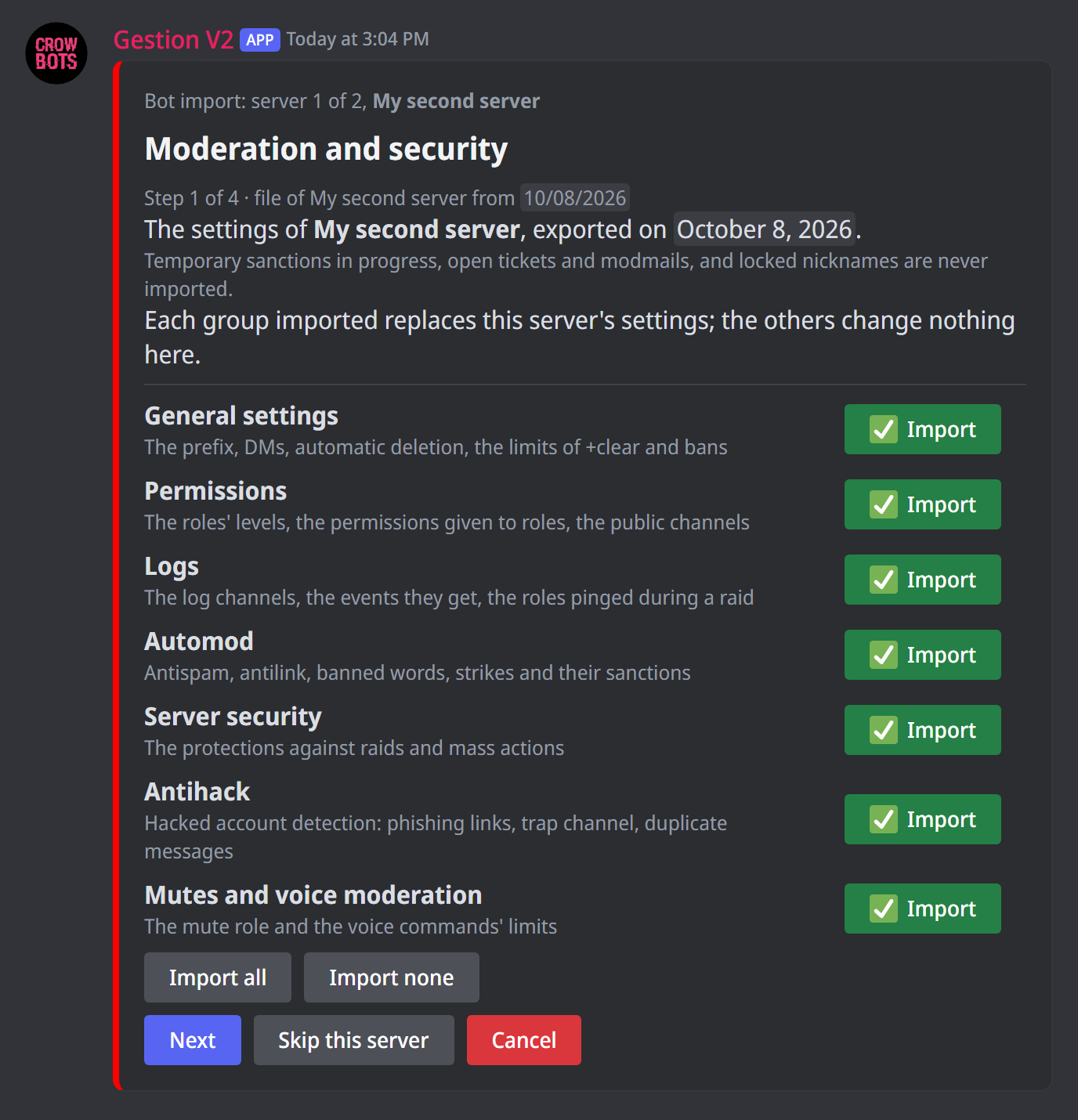
Each chosen server is then imported in the same panel, one after the other, exactly like a server's file: its groups, its structure if the file holds it, its roles, channels and panels, its confirmation, its undo file and its report. A line at the top says where you are: "server 1 of 2".
- Skip this server leaves it as it is and opens the next one.
- Cancel stops there: the servers already imported stay imported, the others don't change.
- After a server's report, Next server opens the next one.
- Each server is imported with your roles and level on that server: only what you could change yourself there is imported.
- When the panel is not on the server being imported, or in direct messages, its roles, channels and categories are chosen from a list, with Search.
A server the bot or you have left in the meantime, where there is nothing you can import, or whose import couldn't be prepared is skipped: a line says so at the top of the next server.
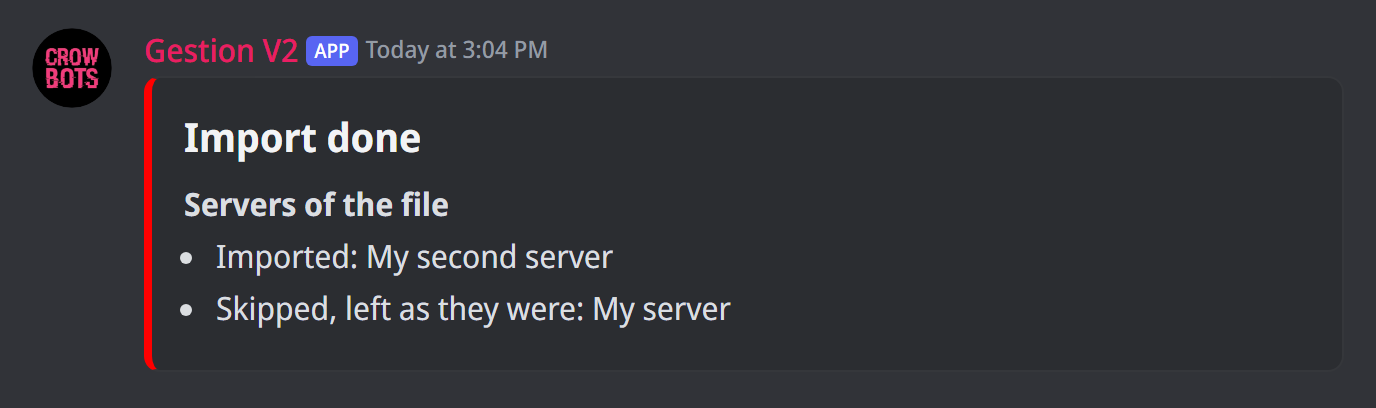
At the end, the panel says what became of each server. A report left 15 minutes without a click stays shown, without its buttons: the servers left are not imported.
After a change of application
Changing your bot's token keeps all its settings. But if you create a new application for your bot (create the token), its account changes: it has to be added to your servers again, and the panels the old account posted (tickets, rolemenus, forms, verification) can no longer be edited by the new one.
- Before changing application, export the whole bot (
+exportin direct messages). - Put the new token in place, then add the bot to your servers.
- Import the file (
+importin direct messages): keep the bot's settings, choose your servers. In each, the old account's panels are posted again by the new one by default; a reaction rolemenu works as it is and stays in place.
A server the bot is not back in yet is imported later, by importing the same file again.
All the commands
Every command of this guide, with its arguments, default level and examples: Export and import.