
Counters and the statistics embed
Channels whose name shows the member count, online or in-voice members, and a statistics embed that updates by itself.
On this page
Show your server's numbers at all times: counter channels, whose name gives the number of members, online members or members in voice, and a statistics embed that updates by itself. These commands are kept for administrators. Crow Tools answers in French: this guide quotes its menus and buttons as they appear.
In short
;compteuropens the counters panel.- Pick Compteur 1, the Compteur de membre type (member count), then click Créer un salon vocal (create a voice channel) and Valider (confirm).
- The channel is now called "Membres 1 234" and follows the member count.
Counter channels
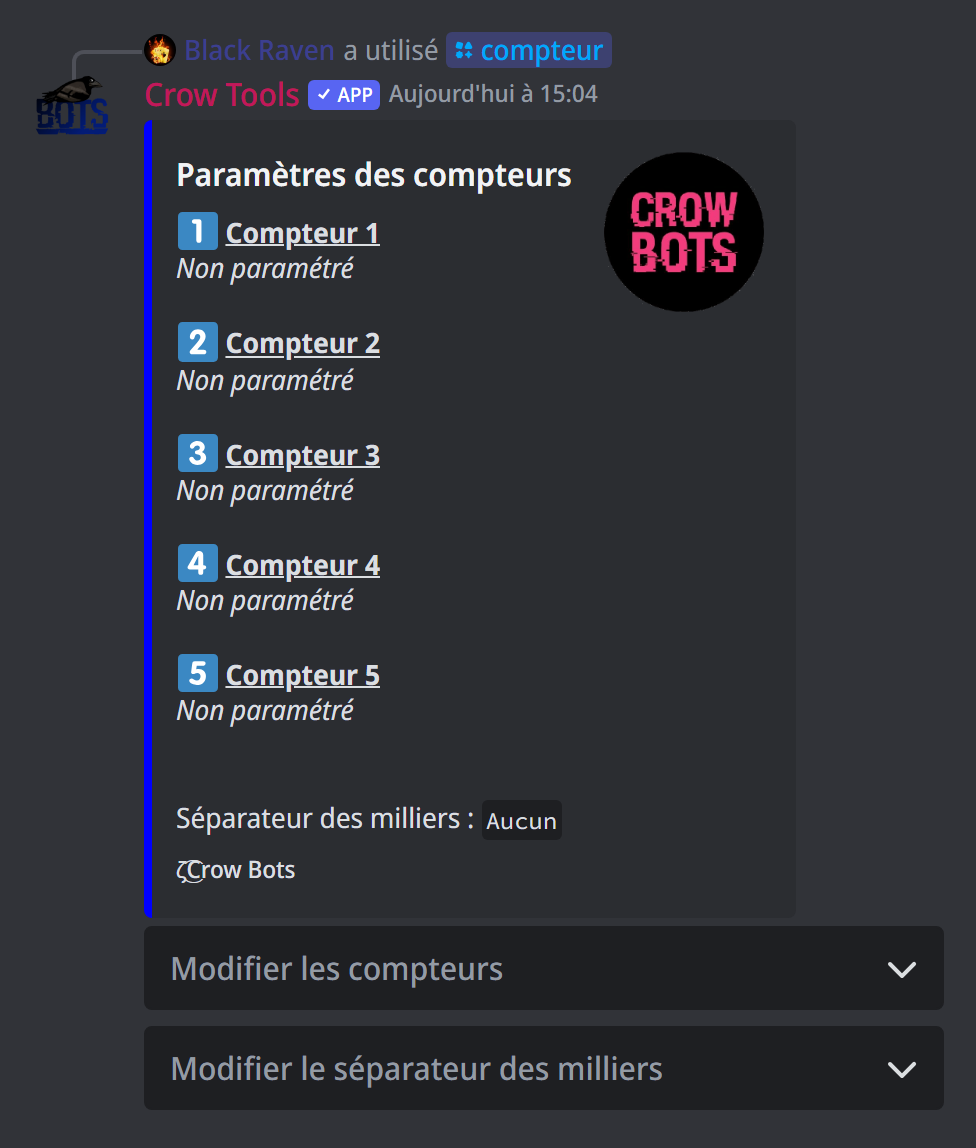
;compteur opens a panel that manages up to 5 counters per server:
- In the Modifier les compteurs menu (edit the counters), pick a number.
- In the first menu, pick what it counts (see the list below). The second menu is optional: it adds a second number to the same channel, for instance "En ligne 120/1 234" (online).
- Pick the channel: Créer un salon vocal (create a voice channel), Créer un salon textuel (create a text channel), Créer une catégorie (create a category), or Choisir le salon (pick the channel) for an existing one.
- Click Valider (confirm).
The counter updates every few minutes. Rename the channel however you like from its settings: the bot only changes the numbers in its name. To delete a counter, pick Supprimer le compteur (delete the counter) in the first menu.
The Modifier le séparateur des milliers menu (thousands separator) chooses how large numbers are written: 12536, 12,536, 12 536, 12.536…
What a counter can count
| In the menu | What it shows |
|---|---|
| Compteur de membre | the member count |
| Compteur de membre hors bots | the member count, without bots |
| Compteur de bots | the number of bots |
| Compteur de membres en vocal | members in voice (with or without bots) |
| Compteur de membres en ligne | online members (with or without bots) |
| Compteur de membres hors ligne | offline members |
| Compteur de membres ayant un certain rôle | the members of a role, which you choose |
| Compteur de salons | the number of channels |
| Compteur de rôles | the number of roles |
| Compteur de boost | the number of boosts |
| Compteur d'objectif de membres | the next member milestone to reach: the next hundred, then every 500 above 1,000 members |
| Compteur de membre actif à l'écrit | the members who wrote in the last 5 minutes |
The statistics embed
;statembed creates an embed that shows the server's numbers and updates by itself:
- The embed editor opens (the same as for arrival messages): write your texts with the variables below, then click Valider (confirm).
- Click Activer le statembed (turn the statembed on) and pick the channel: the bot sends the embed there and keeps it up to date.
Use ;statembed again to edit the embed; the Changer le message du statembed button sends it to another channel.
| Variable | What it shows |
|---|---|
{ServerMembersCount} |
the members |
{ServerHumansCount} |
the members, without bots |
{ServerBotsCount} |
the bots |
{OnlineMembersCount}, {OnlineHumansCount} |
online members, with or without bots |
{OfflineMembersCount} |
offline members |
{VocalMembersCount}, {VocalHumansCount} |
members in voice, with or without bots |
{TextualHumansCount} |
the members active in text |
{ServerChannelsCount} |
the channels |
{ServerRolesCount} |
the roles |
{ServerBoostsCount} |
the boosts |
{MembersGoal} |
the next member goal |
If it doesn't work
- The counter doesn't move: the server must be in the whitelist; wait a few minutes after creating it.
- The bot doesn't create the channel: it needs the permission to manage channels.
Every command
Each command of this guide, with its arguments and who can use it: Statistics (in French).