Creating your bot's token
Every step, one at a time, to create your bot's Discord account and get its token.
On this page
Your bot needs its own Discord account. That account is created on Discord's developer portal, and it comes with a token: a long string of characters that works as the bot's password.
This guide shows you how to create it, with every button named as the portal shows it.
The token is the bot's password
Anyone who has your token can take over your bot. Show it to nobody, never paste it in a Discord channel, and only give it to the CrowBots team so they can install your bot.
Step 1: create the application
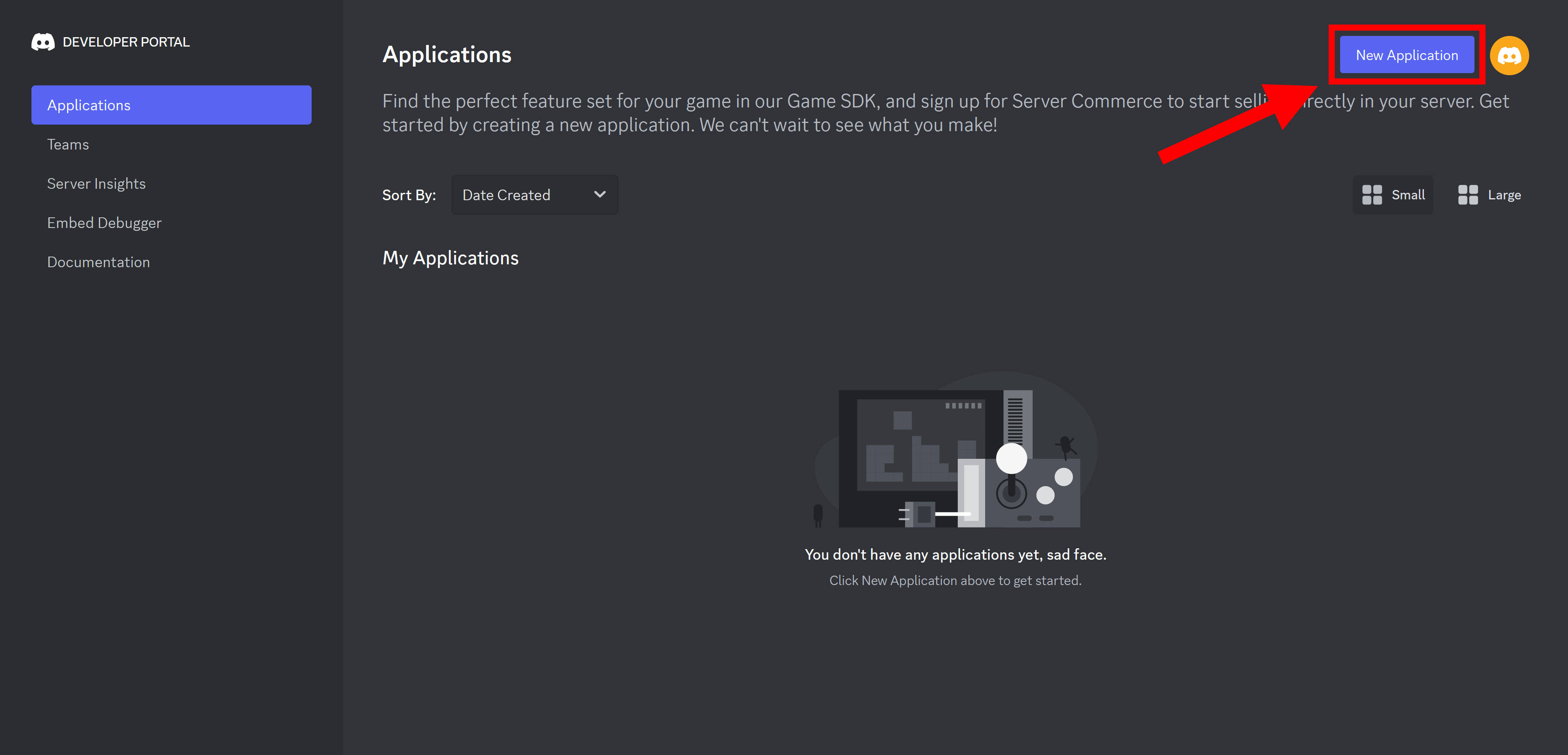
- Open the Discord developer portal in your browser. Log in with your Discord account if asked.
- Click New Application, at the top right.
- Give it your bot's name (you can change it later), accept the terms and confirm.
Step 2: the bot's name and picture
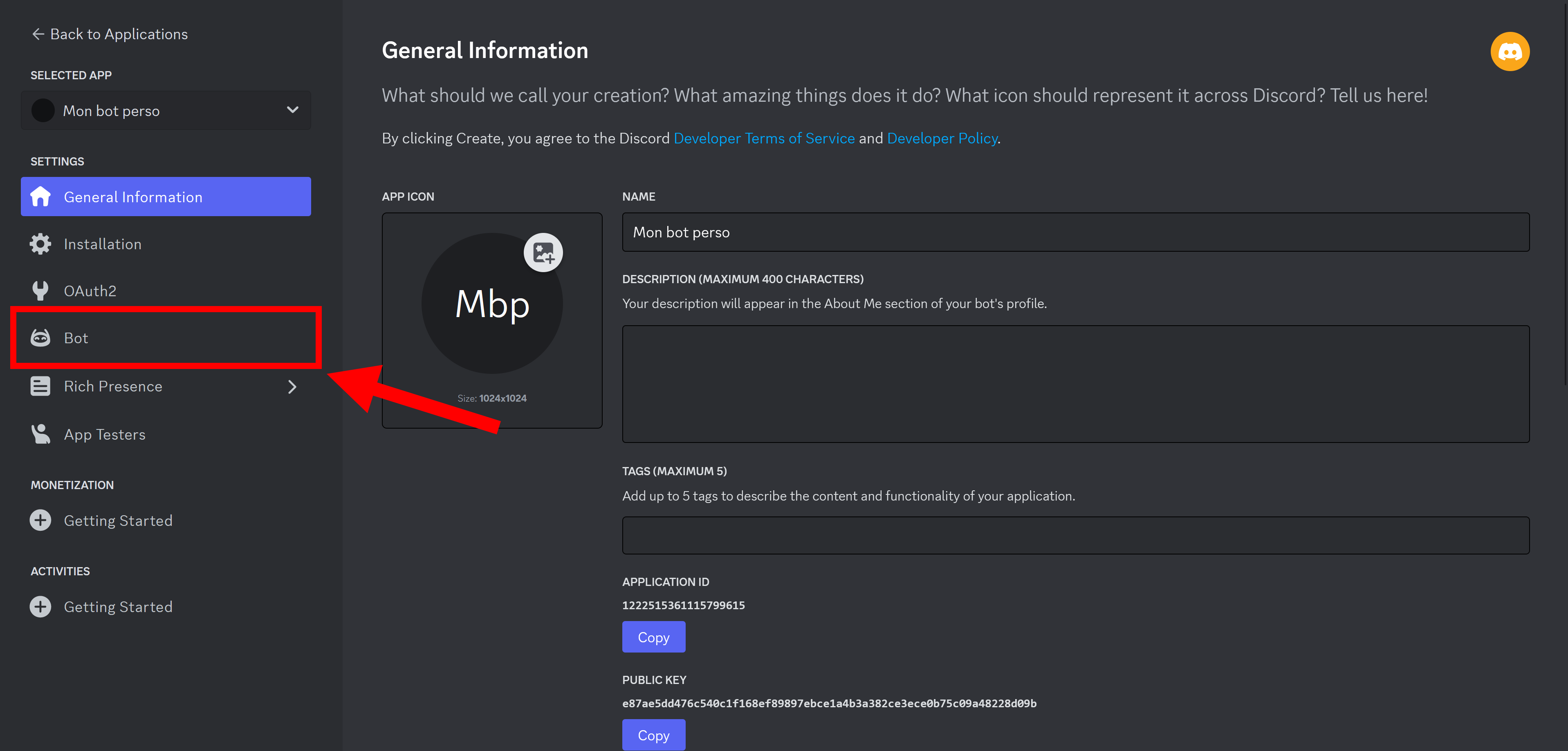
You land on your application's page. In the menu on the left, open the Bot tab (on a phone, that menu opens with the ☰ button at the top left).
The Bot tab is where you choose the name and picture your members will see. Those on the first page, General Information, only appear on the bot's invite page.
Step 3: let the bot see your server
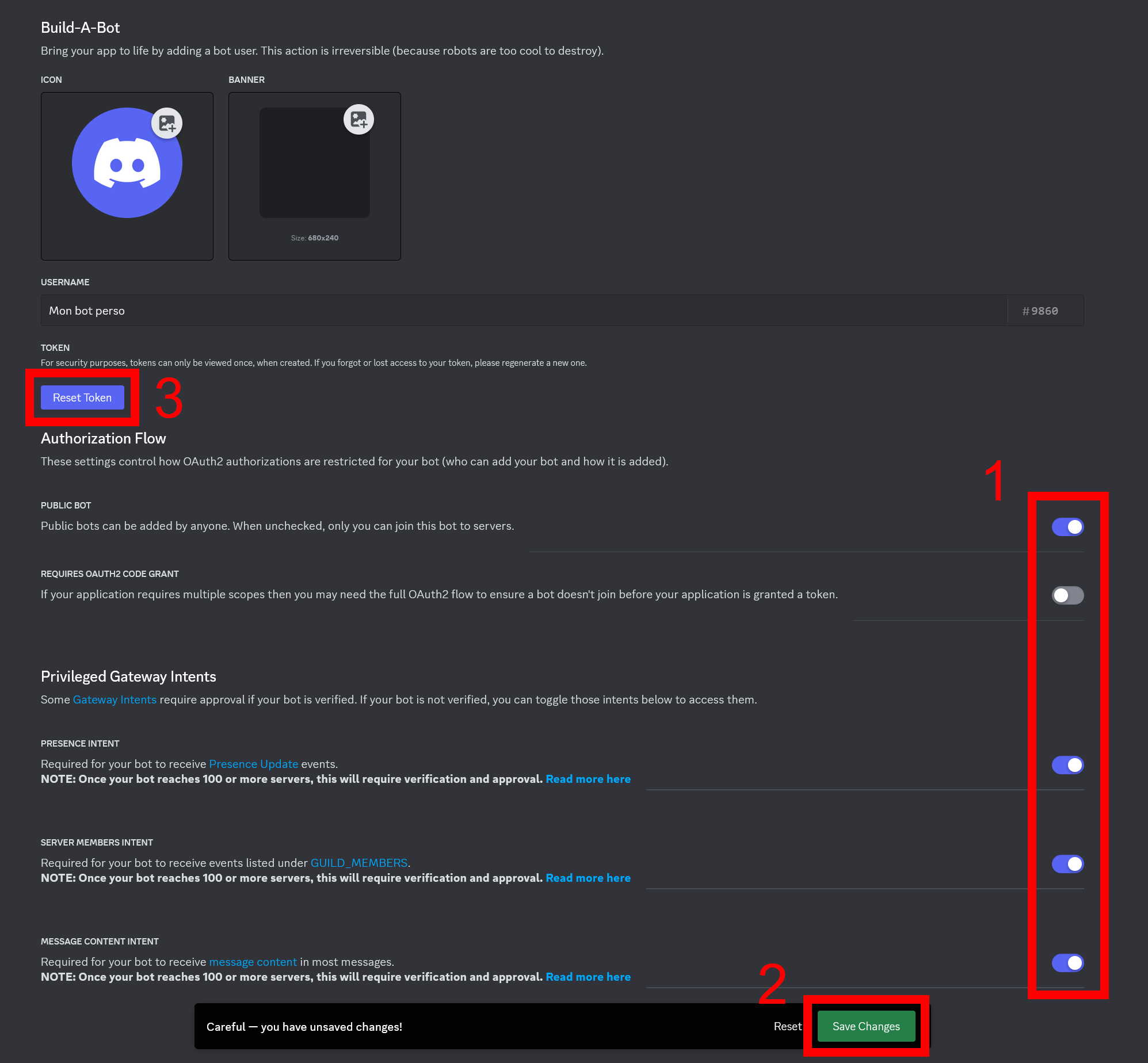
Still in the Bot tab, scroll down to the switches (mark 1 in the picture):
- leave Public Bot on;
- leave Requires OAuth2 Code Grant off: otherwise nobody can invite the bot;
- turn on the next three: Presence Intent, Server Members Intent and Message Content Intent. Without them the bot sees neither members nor messages, and most of its features don't work.
Then click Save Changes (mark 2) to save.
Step 4: get the token
- At the top of the Bot tab, click Reset Token (mark 3), then confirm.
- The token is shown only once: copy it right away.
- Pass it on to the CrowBots team so they can install your bot, as explained when you ordered.
That's it: once the bot is installed, move on to your recovery code.
If in doubt
- You showed the token to someone, or pasted it somewhere by mistake: click Reset Token again. The old token stops working at once, which disconnects your bot: give the new one to CrowBots. If you have already recovered your bot, the
/changetokencommand on the CrowBots server puts the new token in place. - The bot is online but reacts to nothing: check that the three intents from step 3 are on and saved.
- Nobody can invite the bot: check that Requires OAuth2 Code Grant is off.