
Announcing Twitch lives
Tell the server when one of your members starts a live on Twitch.
On this page
Twitch alerts announce in a channel when a member of your server starts a live on Twitch: their message, their game and the link to join.
In short
+twitchopens the panel.- Pick the alerts channel.
- Turn on/off alerts: alerts go out.
Set up the alerts
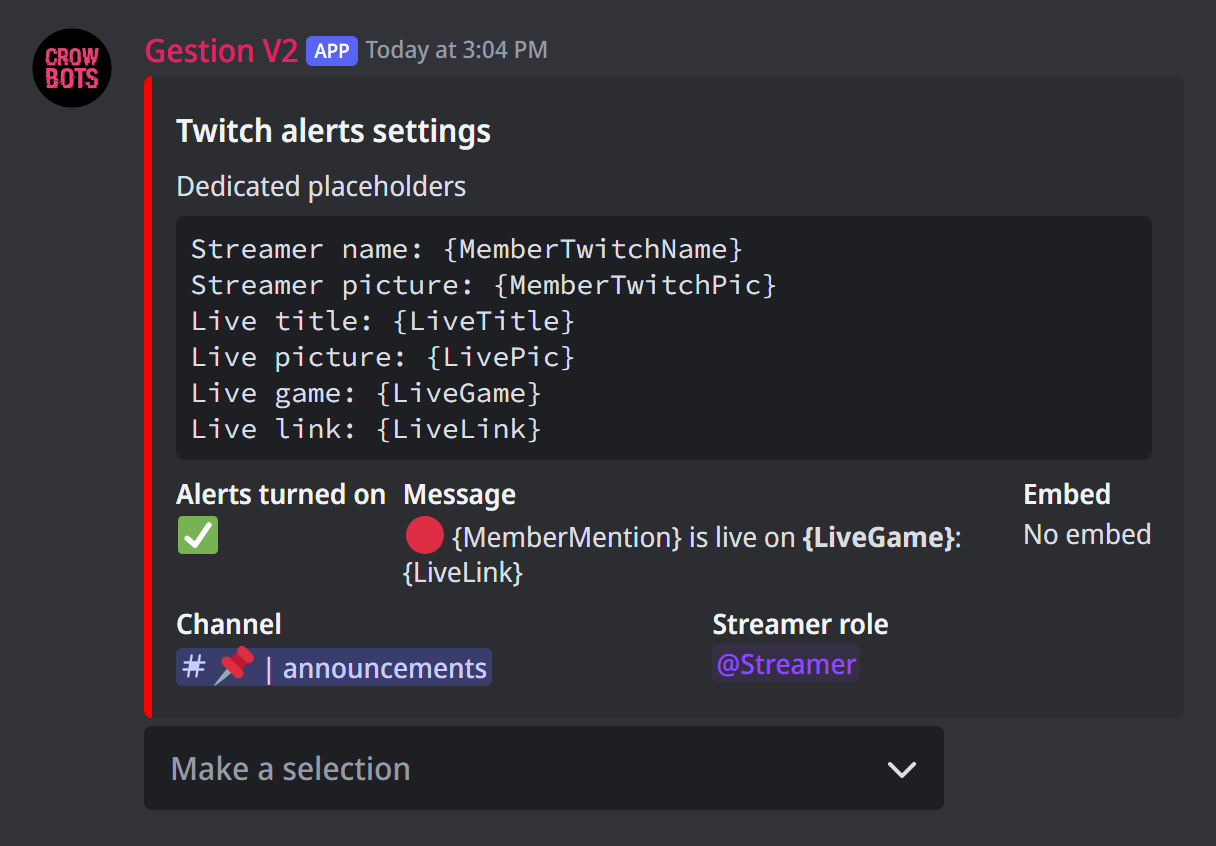
Type +twitch. The Make a selection menu sets:
- Turn on/off alerts: off by default;
- Channel: where alerts are posted;
- Change the streamer roles: only members with one of these roles are announced. With no role, every member is;
- Edit the message: the alert's text. The default one is in French (
{MemberMention} est en live: {LiveLink}): write your own; - Change the embed: a framed message, set up with the same editor as
+embed, instead of the text or with it.
The placeholders
The message and the embed accept the live's placeholders, which the panel lists:
{MemberTwitchName}: the streamer's Twitch name;{MemberTwitchPic}: their Twitch profile picture;{LiveTitle}: the live's title;{LiveGame}: the game;{LivePic}: the live's picture;{LiveLink}: the live's link.
Member placeholders work too ({MemberMention}, {MemberName}…), see +help msg. An @everyone or a role mention in the message really pings those members.
How the bot spots a live
The bot sees the live through Discord's "Live" status. To be announced, the member must:
- have linked their Twitch account to Discord (User Settings › Connections);
- let Discord show their activity: they then appear in purple, "Live on Twitch".
Each live is announced once, when it starts.
If it doesn't work
- No alert: check that alerts are on, that the channel is set, and that the member has one of the streamer roles.
- A member is never announced: their Twitch account must be linked to Discord, and their activity visible.
- The alert doesn't reach the channel: the bot must be able to write and send embeds there.
Every command
Each command of this guide, with its arguments, its default level and examples: Twitch.