
Temporary voice channels
Each member creates their own voice channel by joining a channel, and the bot deletes it once it is empty.
On this page
With temporary voice channels, you no longer need dozens of empty voice channels: a member joins the creation channel, the bot opens their own channel and moves them into it. Once everyone has left, the channel disappears.
In short
+tempvocopens the panel.- Click Create category: the bot prepares the category and the "Create your voice channel" channel.
- Join that channel: your voice channel is created.
Step 1: the creation channel
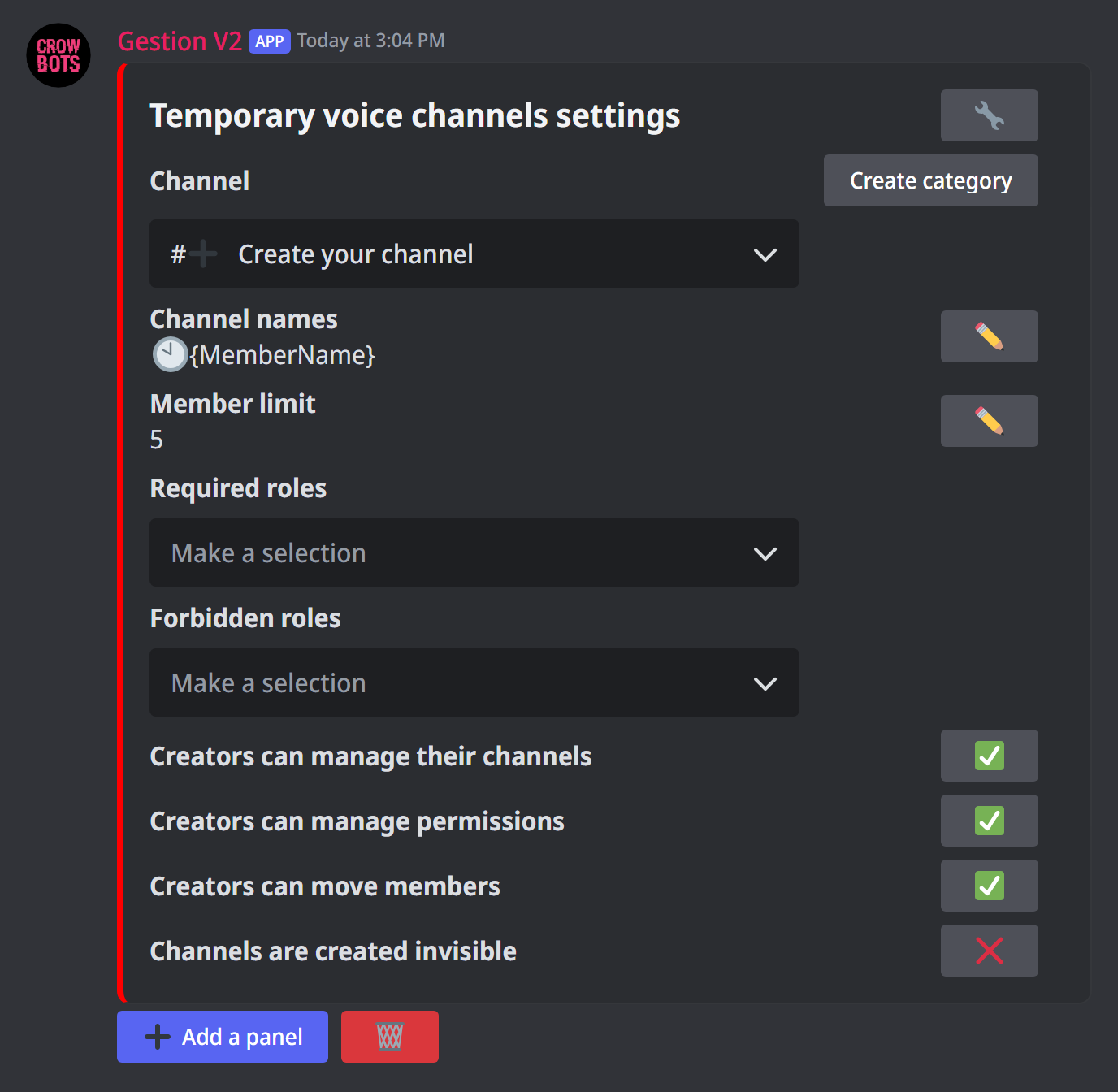
Type +tempvoc. For the channel, two options:
- Create category: the bot creates a "Temporary voice channels" category with a "Create your voice channel" channel;
- or pick a voice channel that already exists in the menu.
Members' channels are created in the creation channel's category.
Step 2: the created channels
The panel also sets the channels the bot opens:
- Channel names:
🕙{MemberName}by default, the member's name after a clock. The pencil changes it; the variables of+help msgwork. - Member limit: the number of places of each channel, unlimited by default.
- Required roles and forbidden roles: who can create a channel. Anyone can still join other members' channels.
- What the creator can do in their channel, straight from Discord: manage the channel (rename it, set the limit…), manage permissions, move members. All three are on by default.
- Channels are created invisible: only those invited can see them.
Several creation channels
Add a panel creates a second creation channel, with its own settings: for example one for 5-place gaming channels and one for unlimited chat channels (25 at most). When there are several, +tempvoc reopens the last panel edited, and ↩ shows the list to pick another one. The bin deletes the panel shown.
Advanced settings
The 🔧 spanner opens the advanced settings, and 🏠 returns to the main panel:
- Overflow category: Discord limits a category to 50 channels. Once the category is full, new channels are created in this one (Create category prepares one).
- Buffer category and Buffer size: only useful for a server with a lot of voice activity. The bot keeps a few empty channels aside and reuses them, instead of deleting and recreating channels all the time.
- Forbidden words in tempvoc names: Add a word adds one, the menu removes them. These words are removed from automatic names; a channel renamed with one of them gets its old name back, and its creator is told. Also block words from the badwords list forbids the antibadword's words too.
Step 3: the creator's commands
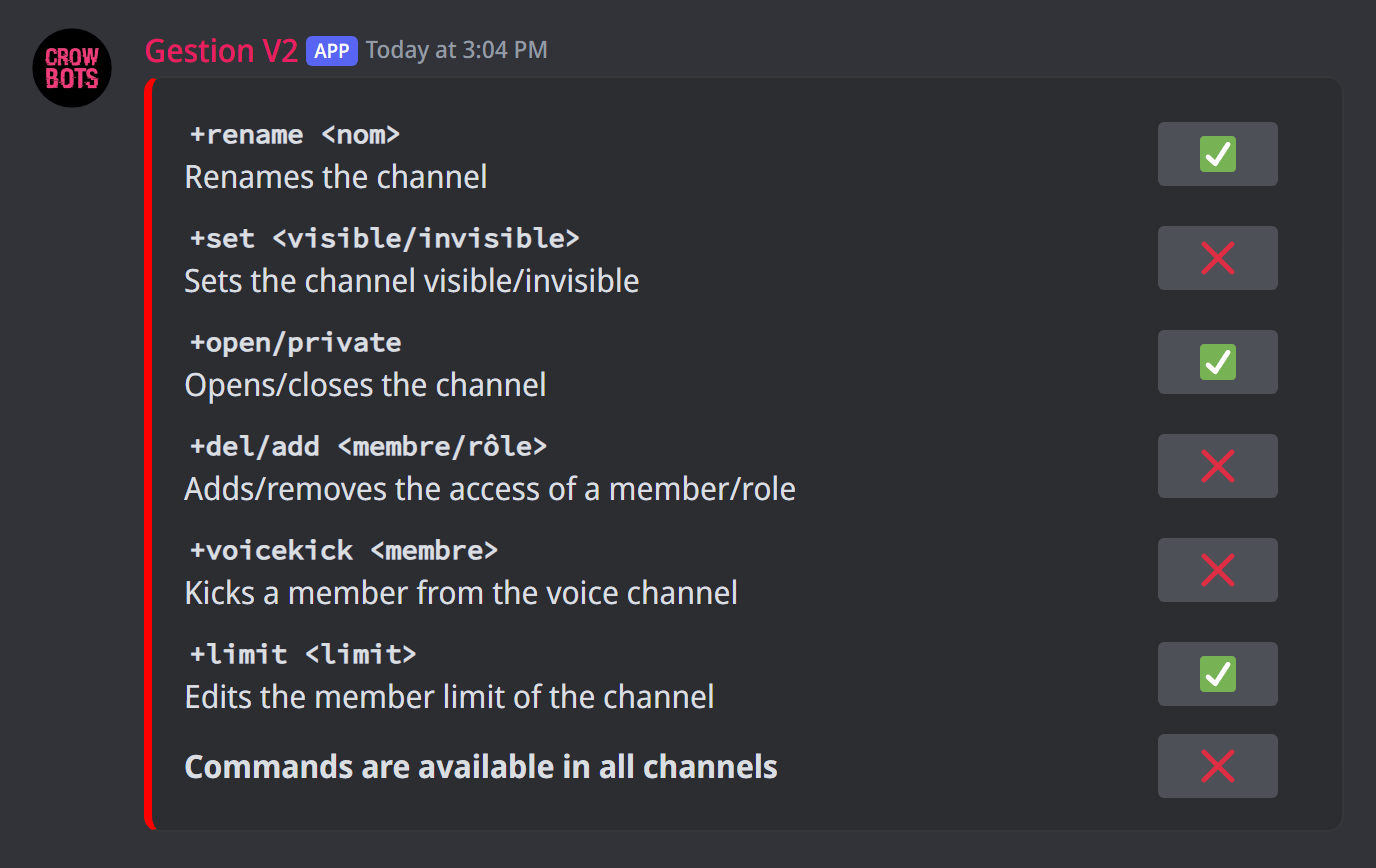
+tempvoc cmd picks the commands a channel's creator can use, even without any bot permission:
+rename Game night: renames the channel;+set invisible/+set visible: hides the channel or makes it visible;+private/+open: closes the channel or opens it to everyone;+add @member/+del @member: gives or removes access for a member or a role;+voicekick @member: kicks someone out of the channel;+limit 4: changes the number of places.
By default, these commands are typed in the voice channel's text chat (the chat built into the voice channel). With Commands are available in all channels, they work anywhere as long as the member is in their channel.
A member sees the commands open to them with +help tempvoc, even without permission on the help.
Discord's limits
Discord limits the edits to a channel (2 renames every 10 minutes, for example). Past that, the bot tells you how long to wait.
If it doesn't work
- No channel is created: check that the member doesn't have a forbidden role, and that the bot can create channels and move members in the category.
- "This channel is already used in a different panel": a creation channel can only serve one panel.
- The creator can't use a command: turn it on in
+tempvoc cmd, and type it in the voice channel's text chat.
Every command
Each command of this guide, with its arguments, its default level and examples: Temporary voice channels.