
Message reports
Let your members report a message to the staff with a right-click, with a reason.
On this page
Reports let your members report an unpleasant message to the staff in two clicks: right-click the message, then Apps › Report. The staff gets the message in a channel, with the reason and a link to go and see it.
In short
+report settingsopens the panel.- Pick the channel where reports arrive.
- Turn on/off reports: the "Report" command appears in the right-click menu.
Step 1: set up reports
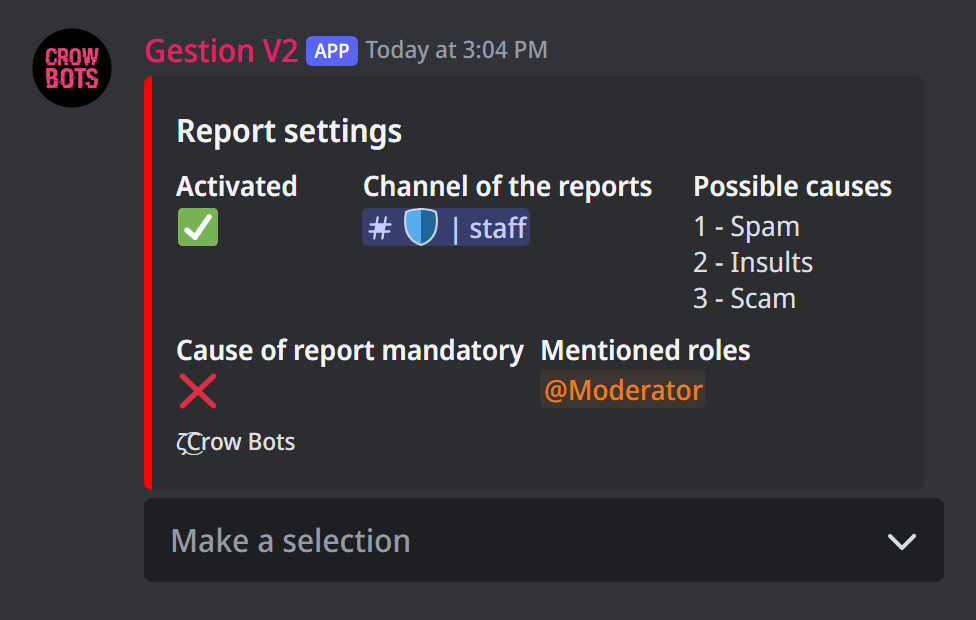
Type +report settings. The Make a selection menu sets:
- Channel: where the staff gets reports. Pick it first.
- Change mentioned roles: the roles pinged for each report (your moderation team, for example).
- Add a report cause and Delete a report cause: the list of causes offered to the member ("Spam", "Insults"…), 25 at most.
- Cause mandatory: with ✅, the report is only sent once a cause is picked. The list needs at least one cause.
- Turn on/off reports: adds the "Report" command to your server's right-click menu, or removes it.
The permission to create commands
To add the "Report" command, the bot must have been invited with the permission to create commands. If the bot answers that it lacks the permission, invite it again with the link it gives you (or the one from +mybots): your settings are kept.
Step 2: report a message
A member right-clicks the message (a long press on a phone), then Apps › Report.
- If there is a list of causes, the bot asks them to pick one, in a message only they can see.
- If the cause is mandatory and they pick nothing, the report isn't sent.
- Otherwise, the report is sent straight away, and its cause is added once they pick it.
Step 3: handle a report
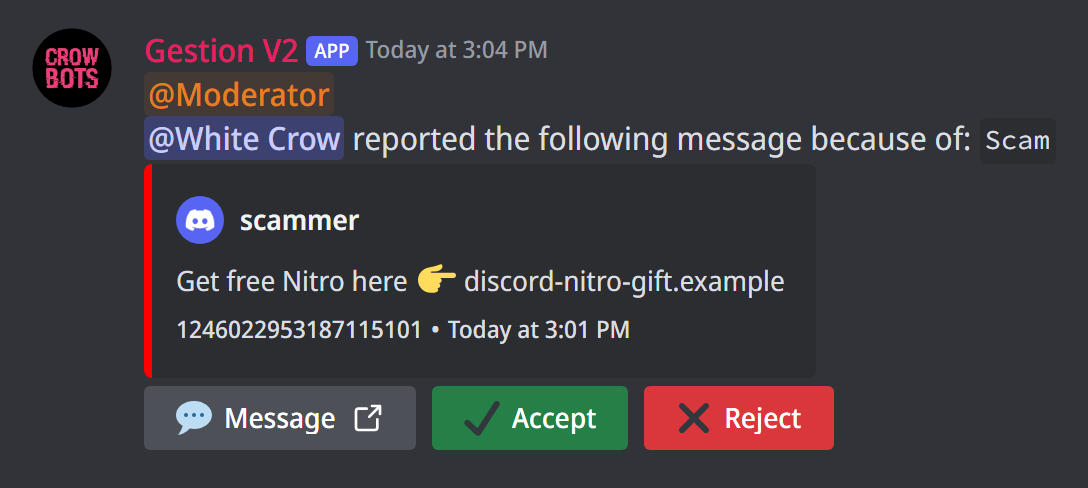
The report arrives in the chosen channel, with the roles' mention, who sent it, the cause, and the reported message (its text, its author, its date, its first picture). Three buttons:
- Message leads to the reported message, to see it in context;
- Accept and Reject mark the report as handled, with the name of whoever did it: your team sees at a glance what is left to do.
Accepting a report doesn't sanction anyone: it is up to you to act, for example with +warn or +mute.
If it doesn't work
- The "Report" command doesn't show: turn reports on in the panel; Discord can take a few minutes to show it. If the bot mentions permissions, invite it again with the link it gives.
- "You must set a report channel before turning on the integration": pick the channel first.
- Nothing reaches the channel: the bot must be able to write and send embeds there.
Every command
Each command of this guide, with its arguments, its default level and examples: Reports.