
Scheduling automatic messages
Have the bot send a message at a set date, once or at regular intervals.
On this page
A reminder has the bot send a message at the date you choose, once or at regular intervals: an announcement every Monday, a reminder of the rules every day, the start of an event…
The message sent is a custom command: you prepare it first, then the reminder sends it at the right time.
In short
- Create the message with
+custom weekly-news(Messages or Embeds module). - Type
+reminder, then set in the menu: the custom command, the date, the repetition and the channel.
Step 1: prepare the message
Create a custom command holding the message to send: +custom weekly-news, then add a message or an embed in its modules. If you are new to it, follow the custom commands guide.
Tips
- Give it a clear name, so you can find it again easily.
- In its panel, set Can be triggered by messages to ❌: nobody can send it in the reminder's place.
- Its Delete answer setting can erase the message automatically after a while.
Step 2: create the reminder
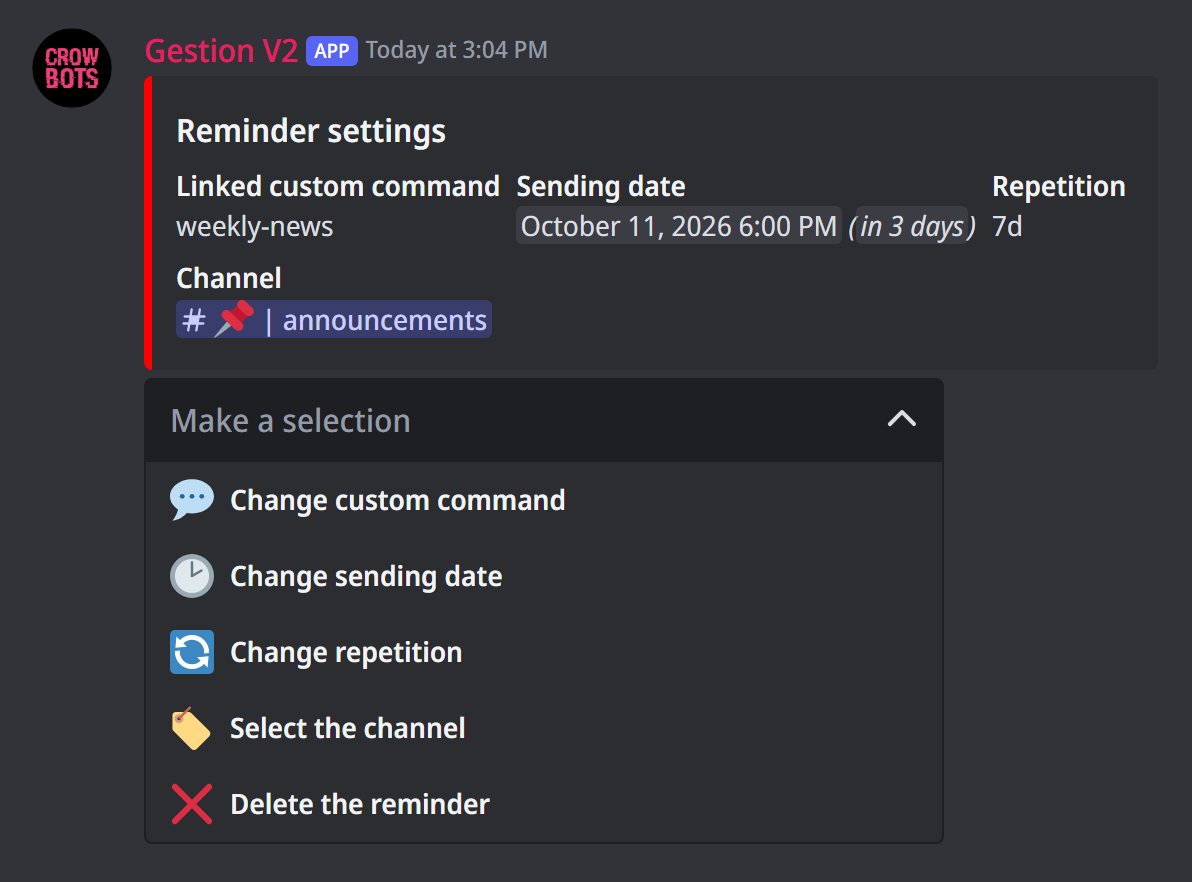
Type +reminder. The bot creates a new reminder, due in one hour, and shows its settings with a menu. Pick each line of the menu in turn; the bot asks you the question in the channel:
- Change custom command: send the keyword of the prepared command, for example
weekly-news. - Change sending date: send a date and/or a time, for example
20/03/2027 17h00,17:00(today) or25/12(at the current time). Dates are written day/month/year. - Change repetition: send the interval, for example
1d(every day),7d(every week) or12h. Sendnonefor a single send. The interval is 10 seconds at least. - Select the channel: mention the channel to send the message in.
You're done: the panel shows the next sending date.
Good to know
- The message always goes to the reminder's channel: the custom command's Channel setting is ignored, as are its role modules.
- A reminder without repetition disappears from the list once sent.
Managing your reminders
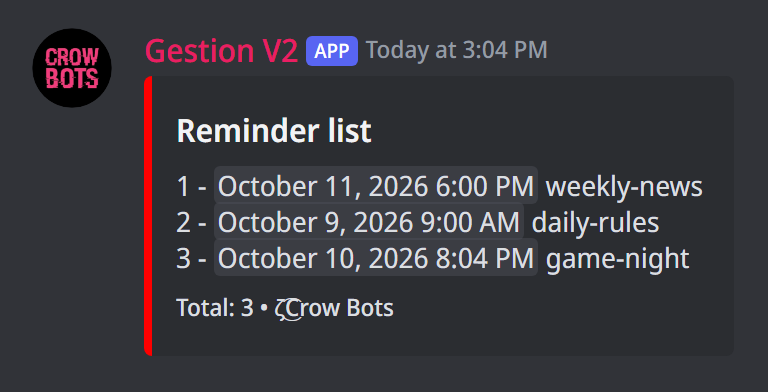
+reminder listshows your reminders, numbered, with their next sending date.+reminder 2reopens reminder number 2 to edit it.- Delete the reminder, in its menu, deletes it.
If it doesn't work
- The message isn't sent: check that a custom command and a channel are both chosen, and that the bot can write in that channel.
- "None" next to the linked custom command: the keyword you sent matches no command. Check its spelling with
+customlist. - The message goes out at an unexpected time: the date is set in the bot's time; check the date the panel shows after changing it.
Every command
Each command of this guide, with its arguments, its default level and examples: Reminders.