
Customising the bot
Change the bot's name, picture, banner and bio, everywhere or on one server, its activity, its status and the colour of its messages.
On this page
Your bot is yours: give it your community's name, picture and colour. These commands are kept for the bot's owners.
In short
+set profil: a panel for the name, the picture, the banner and the bio;+playto Minecraft: the bot is "Playing Minecraft";+theme red: its embeds turn red.
The profile
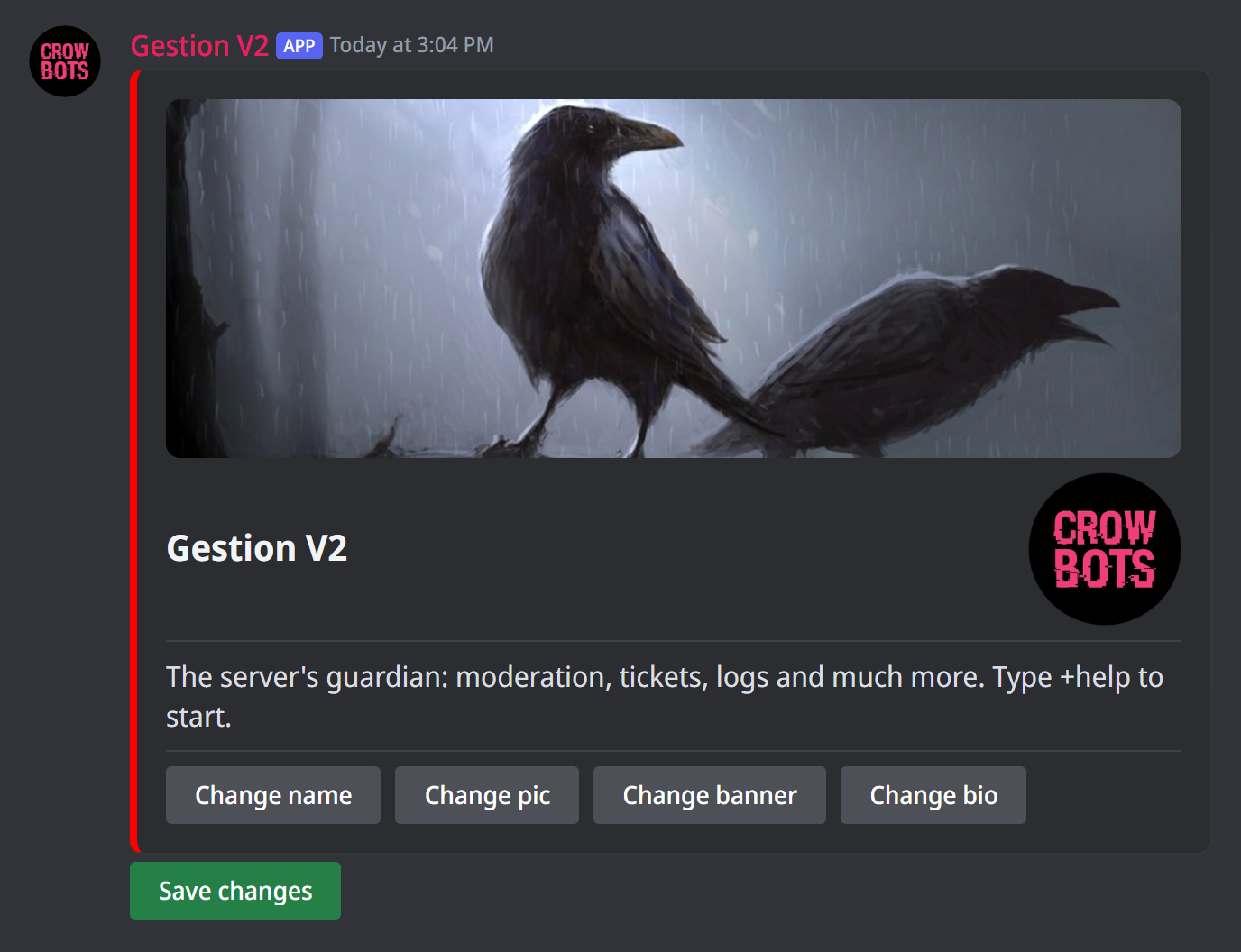
+set profil opens a panel with the bot's current profile (its banner, name, picture and bio, the "About me" text) and a button for each element. Each button asks you for the new value and the panel shows the result. Nothing changes on Discord until you click Save changes.
You can also change them one by one: +set name Guardian, +set pic (with an attached picture or a link), +set banner, +set bio The community's bot. Without a value, the bot asks you for it.
2 changes per hour
Discord only allows 2 name or picture changes per hour, and each opening of the panel counts as one. Have your name and picture ready before you start.
A profile for one server
+set server profil opens the same panel, but the changes only apply on this server: the others keep the bot's usual profile. One by one: +set server name, +set server pic, +set server banner, +set server bio.
The activity
The activity shows under the bot's name:
+playto Minecraft: "Playing Minecraft";+watch the server: "Watching the server";+listen: "Listening to…",+compet: "Competing in…";+stream: "Live", with the Twitch link set by+streamurl https://twitch.tv/channel;+activity: a custom status, with no verb.
Separate several texts with ,, so they alternate: +watch the server,,the new members. Placeholders work too, like the member count (+help msg lists them). +remove activity removes the activity.
The status
+online, +idle, +dnd (do not disturb) or +invisible change the dot on the bot's picture. It keeps working normally, even invisible.
The embeds' colour
+theme red changes the colour of the bot's embeds (its panels, its framed messages) on every server. Give a colour name (red, blue, green, purple…) or a hexadecimal code like #5865f2.
If it doesn't work
- The bot refuses to change its name or picture: Discord's limit (2 changes per hour) is reached; the bot says how long to wait.
- The picture isn't accepted: give a direct link to the picture, or attach it to the message.
Every command
Each command of this guide, with its arguments, its default level and examples: Bot profile customisation.