
The bot's permissions
Who can use which commands. Hand the bot over to your team, role by role, in a few commands.
On this page
When your bot joins a server, only its owners can use it. For your team to use it, you give their roles permission levels: each level unlocks a group of commands.
In short
+set perm 1 @Helper: your helpers can delete messages, warn and mute.+set perm 2 @Moderator: your moderators can also kick and ban.+set perm 3 @Admin: your admins can set up everything on the server.+permsto check,+helpallto see which commands each level gives.
Who runs the bot?
Two ranks come before every level, on all of the bot's servers:
- The buyer owns the bot: the person who bought it. They have every permission, and only they appoint owners.
- Owners have every permission except managing owners. The buyer adds one with
+owner @memberand removes one with+unowner @member.+owneralone shows the list,+clear ownerremoves them all. For safety, give a mention or an ID: a name isn't accepted.
The bot stays only with you
The bot leaves on its own any server where none of its owners is present. With +secur invite on, it also leaves those its buyer isn't on: nobody can add it to a server without you.
Few owners, all trusted
An owner can do anything on all your servers. For your team, use the permission levels below. To give the bot to someone else, see the recovery code.
Step 1: give levels to your roles
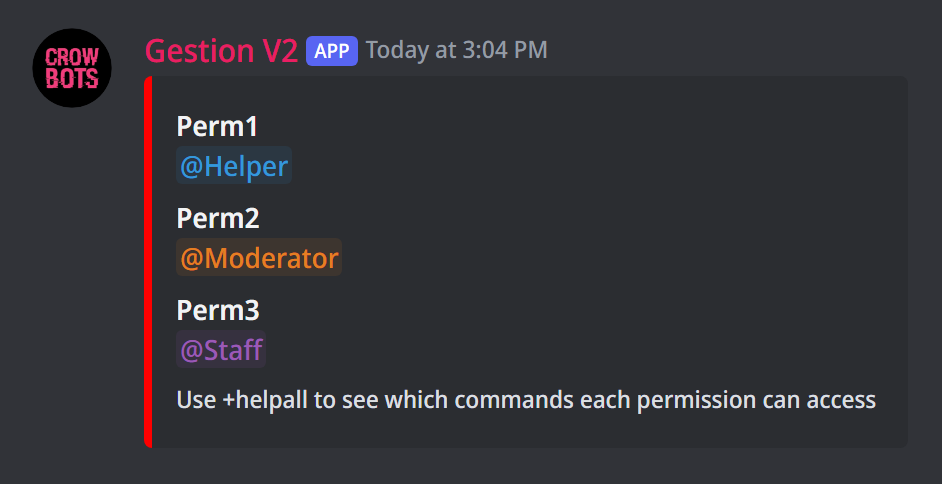
Type +set perm followed by the level, then the role:
+set perm 1 @Helper+set perm 2 @Moderator+set perm 3 @Admin
By default there are three levels:
- Perm 1: delete messages, warn and mute;
- Perm 2: also kick, ban and lock channels;
- Perm 3: full server management.
Each level includes those below it: a Perm 2 can also do everything a Perm 1 can.
Type +perms to see which roles have which level, and +helpall for the list of commands in each level.
Step 2: a single command, or a single channel
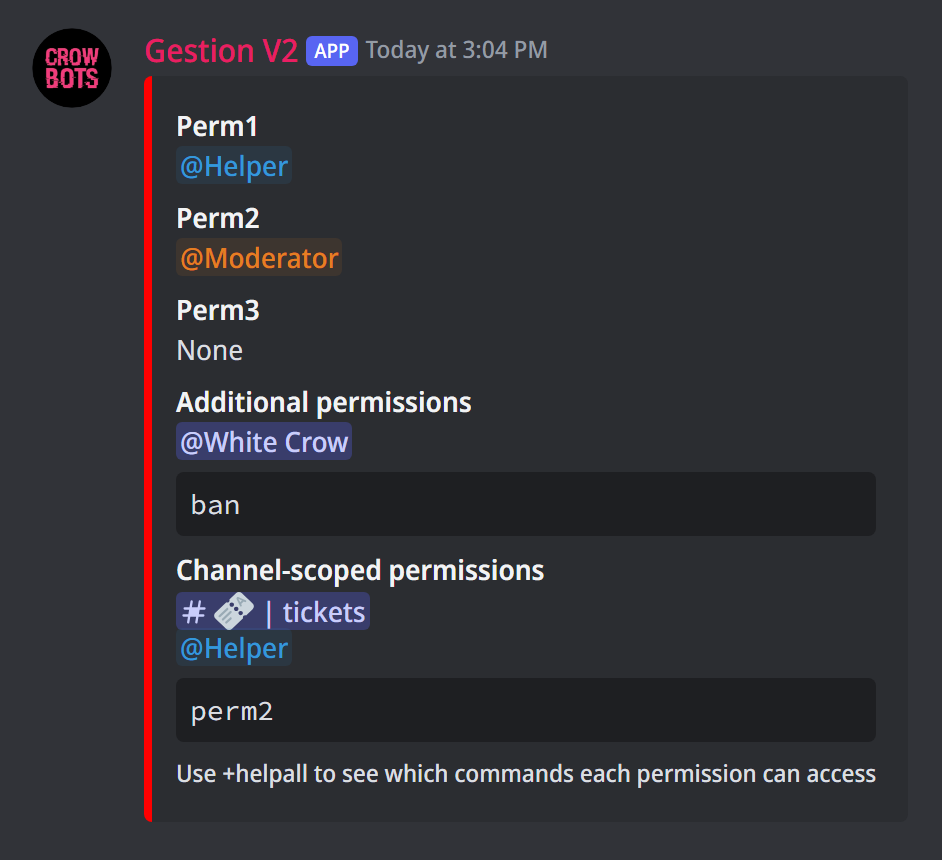
Sometimes a whole level is too much. Two finer settings:
- A single command for a member or a role, by giving its name instead of a level:
+set perm ban @membergives them banning, and nothing else. - In some channels only, by mentioning the channels at the end:
+set perm 2 @Helper #supportgives Perm 2 to your helpers, but only in #support.
Good to know
You must mention the channel in the command. Typing the command in a channel does not limit the permission to that channel.
To take a permission away, use +del perm the same way: +del perm 2 @Moderator, or +del perm 2 @Helper #support. +clear perms removes every permission from every role on the server (owners keep control).
Step 3: change a command's level
A command isn't in the right level for you? Move it:
+change ban 3: banning now needs Perm 3;+change ban 7: creates a level 7 (up to 9), above Perm 3, that holds banning. Then give it to a role with+set perm 7 @Head-mod.
Instead of a number, you can also give a word:
public: everyone, in the channels where public commands are open (see below);everyone: everyone, everywhere;ownerorbuyer: only the owners, or only the buyer;off: the command is turned off.
+changeall 3 4 moves every Perm 3 command to Perm 4 at once, and +change reset puts everything back as it was.
Buyer only
These changes apply to all of the bot's servers, which is why only the buyer can make them.
Members without permissions
A member without any permission only has a few commands, such as +snipe. To open the public commands to them (+help, +pic, +calc…):
+public onopens them on the whole server;+public deny #generalcloses them in one channel,+public allow #botopens them in one channel even when it isoff, and+public reset #botmakes the channel follow the server's setting again.
And to forbid every command of the bot to a member, whatever their permissions: +blbot add @member (+blbot del @member to undo).
Sanctioning a member of your team
A staff member can only sanction (ban, kick, mute, warn…) a member whose level is lower than theirs. Two moderators of the same level therefore cannot ban each other. The one exception: when the second one doesn't have access to that sanction themselves.
If it doesn't work
- The bot doesn't answer a member of your team: check with
+permsthat their role has a level, then with+helpallthat the command is in that level or below. - The permission only works in one channel: it was given with a channel at the end. Remove it with
+del permand the same channel, then give it again without a channel. - "You do not have the permission to ban…" even though you can ban: the member you target has a level equal to or higher than yours (see above).
Every command
Each command of this guide, with its arguments, its default level and examples: Permission management and Owners and buyer.