
Server logs
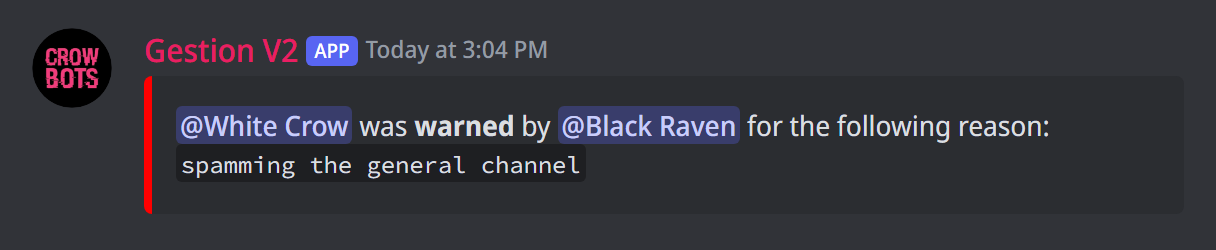
Keep track of what happens on your server (sanctions, deleted messages, voice, roles…), each topic in its own channel.
On this page
Logs are channels where the bot writes down what happens on your server: who was sanctioned, which message was deleted, who joined a voice channel… Handy to know what happened while you were away, or to settle a disagreement.
In short
Type +autoconfiglog and confirm: the bot creates a "Logs" category with a channel for each type, hidden from members. That's all.
The six kinds of logs
- Moderation, with
+modlog on #channel: sanctions (warn, mute, kick, ban…), what automoderation catches, unbans; - Messages, with
+messagelog on #channel: deleted and edited messages, with their content; - Voice, with
+voicelog on #channel: who joins, leaves or switches voice channel, who is moved or disconnected; - Boosts, with
+boostlog on #channel: every new boost, and every member who removes theirs; - Roles, with
+rolelog on #channel: every role given or removed, by whom and why; - Antiraid, with
+raidlog on #channel: every action of the antiraid: who, what, the punishment.
Other features (tickets, modmail…) have their own log channel, set in their panel.
The quick way
Type +autoconfiglog, then confirm. The bot creates a Logs category with a channel for each kind of log that doesn't have one yet, hidden from members. The log channels you already had are moved into that category.
Setting each log by hand
To pick the channels yourself, use the commands in the table, for example +modlog on #mod-logs.
- Without a channel,
+modlog onuses the channel you type the command in. +modlog offstops the log (the same goes for the others).- Give each kind its own channel: mixed together, they quickly become unreadable.
Choosing what the moderation log shows
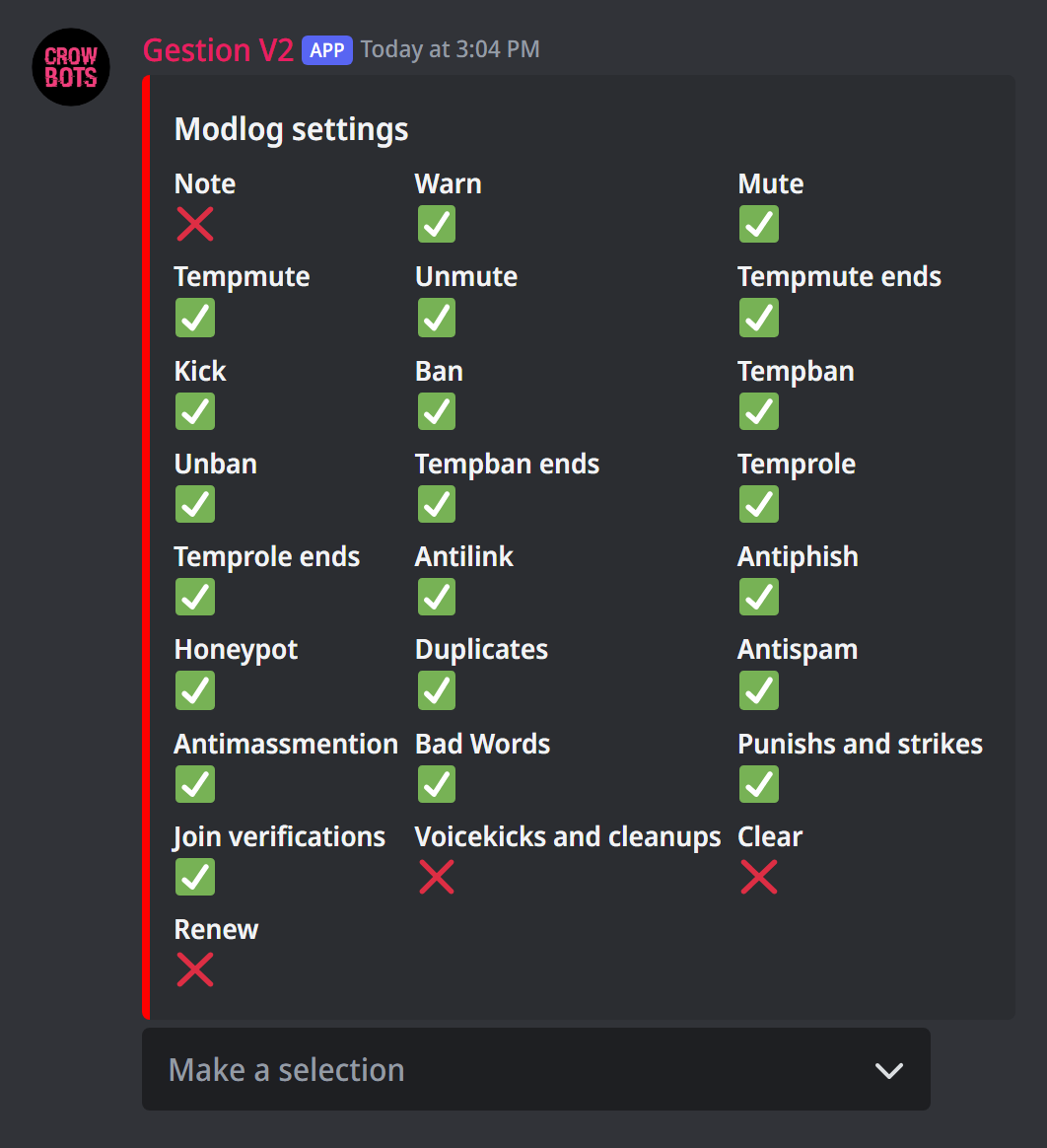
Type +set modlog. A panel shows one switch per kind of event: ✅ it appears in the logs, ❌ it doesn't. Pick an event in the menu to turn it on or off.
By default almost everything is on: sanctions and their ends, temporary roles, automoderation, antihack, strikes and verifications. Notes, +clear, +renew and voice disconnections are off.
Leaving a channel out of the logs
+nolog add #staff takes a channel out of the message logs (or a voice channel out of the voice logs). Handy for a private staff channel whose messages don't belong in the logs. +nolog del #staff puts it back.
Getting warned about a raid
+raidping @Staff mentions the @Staff role in the antiraid log each time it acts, so your team can react quickly. +raidping alone removes the mention.
Bonus: thank your boosters
The boost log keeps track, but you can also thank boosters publicly: +boostembed sets up a thank-you message, and +boostembed test shows you what it looks like.
If it doesn't work
- A log stays empty: check that the bot can see the channel and send messages and embeds in it.
- "Log channels must be text channels": pick a text channel, not a voice channel or a forum.
- Some deleted messages don't show up: the channel may be in
+nolog.
Every command
Each command of this guide, with its arguments, its default level and examples: Logs and Boost message.