
Creating a form
Ask your members questions with a button and an answer window, for applications or requests to the staff.
On this page
A form asks your members questions: they click a button, answer in a window, and their answers arrive in a channel kept for the staff. Ideal for applications, partnership requests or detailed reports.
In short
+formulaireopens the panel.- Add the questions, pick the button's channel and the answers' log channel.
- Validate the form: the button is posted.
Step 1: the questions
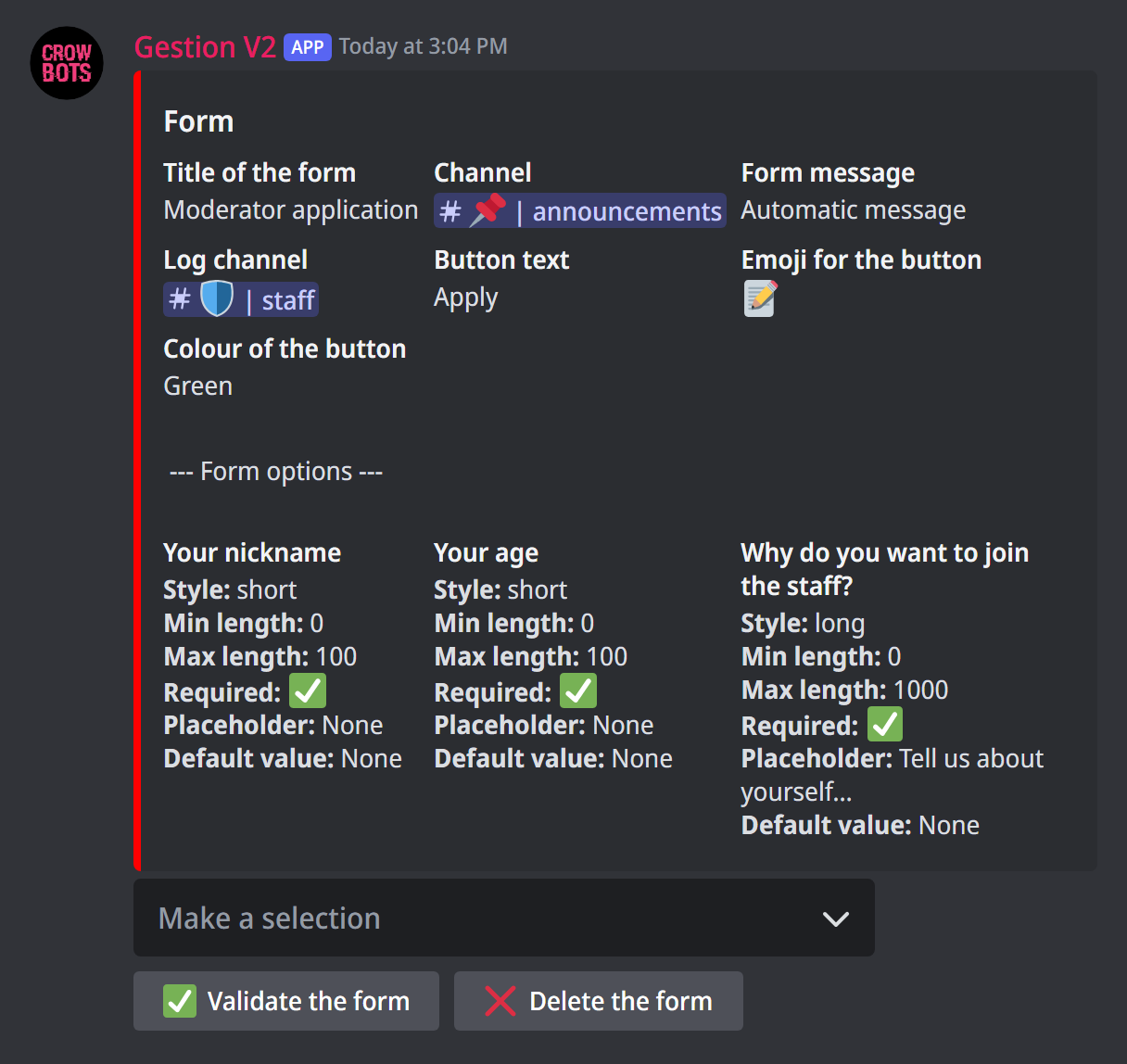
Type +formulaire. The Make a selection menu lets you Add an option (a question, 5 at most) or Edit the option of an existing question. For each question, you set:
- its title, the question itself (45 characters at most);
- its style: short (one line) or long (a paragraph);
- the minimum and maximum length of the answer (from 0 to 4000 characters);
- Required option: with ✅, the member has to answer it;
- a placeholder: the grey text shown in the empty field;
- a default value: an answer already filled in, which the member can change.
Delete this option removes the question, Validate the option goes back to the panel.
Step 2: the form
The same menu sets:
- the title of the form: at the top of the answer window;
- the channel where the button is posted;
- the form message: an automatic message ("Click the button below to complete the form"), the last message of the channel, or a message picked by its ID. The message must have been sent by the bot: prepare it with
+embed; - the button: its text, its emoji and its colour (blue, grey, green or red);
- the log channel: where answers arrive. Without it, you won't see the answers.
Step 3: post and receive answers
Click Validate the form: the button is posted. When a member clicks it, a window opens with your questions; once sent, their answers arrive in the log channel, with their name.
To edit a form, type +formulaire followed by its button's message ID. Delete the form turns it off.
What about custom commands?
Custom commands have a Form module too, more complete: choices from a list, answers reused in the bot's message… +formulaire's form stays the simplest way to collect applications.
If it doesn't work
- "You must configure at least one option to create the form": add a question.
- "You must choose the channel of the form first": pick where to post the button.
- You don't see the answers: set a log channel, and check that the bot can write there.
Every command
Each command of this guide, with its arguments, its default level and examples: Forms.