
Creating an embed and adding buttons
Compose a framed message, with a title, a colour, pictures and fields, and add buttons under the bot's messages.
On this page
An embed is a framed message, with a title, a colour, pictures and fields: ideal for rules, an announcement or a presentation. The generator has you build it step by step, with a preview, then sends it wherever you want.
The same generator is used everywhere in the bot: welcome messages, custom commands, Twitch alerts…
In short
+embed Server rulesopens the generator with that title.- Fill in the description, the colour… with the menu.
- Validate, then Select the channel to send the embed to.
Composing the embed
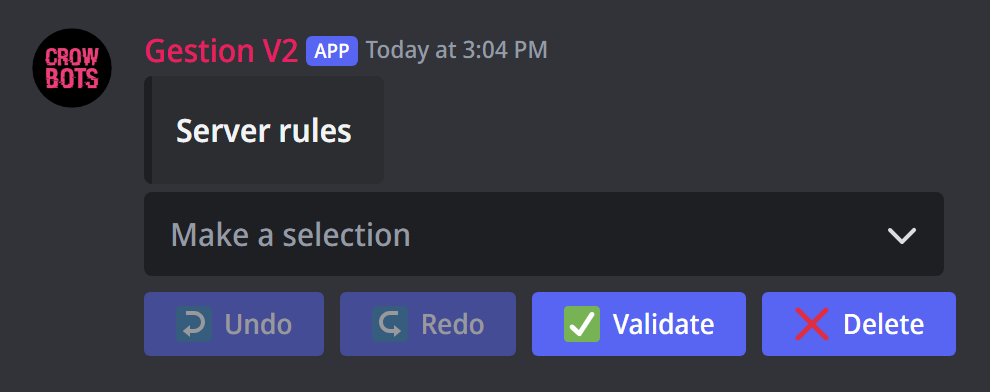
Type +embed (or +embed followed by the title). The current embed shows above the menu; pick what you want to change, and the bot asks you the question in the channel:
- title, description (up to 4096 characters) and url (the title becomes a link);
- colour: a name (
red,blue…) or a hexadecimal code; - author (name, link and picture, at the top of the embed) and footer (text and icon, at the bottom);
- thumbnail (the small picture at the top right) and image (the large one, at the bottom): send a link or attach the picture;
- timestamp: a date shown at the bottom, shifted by the duration you give;
- Add a field and Remove a field: title + text blocks, side by side ("inline") or one under the other.
Copy an existing embed takes an embed already posted, by the bot or another bot: give its channel, then the message ID. Undo and Redo cancel or restore your last changes.
Discord's limits
An embed can't go over 6000 characters in all; the title is limited to 256 characters, a field to 1024.
Sending the embed
Click Validate, then pick:
- Select the channel to send the embed to;
- Edit one of the bot's message with this embed: it replaces the embed of a message the bot already posted (give the channel, then the message ID). Handy to update rules without posting them again;
- Send this embed to someone's direct messages.
Delete drops the embed.
Adding buttons to a bot message
+button add followed by the link to one of the bot's messages (right-click the message › Copy Message Link) opens a button editor:
- its text and its emoji;
- a link: the button then opens a website, your rules… (link buttons are always grey);
- without a link, it is a decoration button, in the colour of your choice (blue, grey, green or red);
- Button disabled: it stays visible but greyed out.
+button del followed by the message link removes a button, or lets you pick which one if there are several.
Buttons can only be added to messages sent by the bot. For buttons that do something (give a role, answer…), use custom commands or role menus instead.
If it doesn't work
- "I am not the author": only the bot's messages can be edited or get buttons. Send the embed with the bot first.
- "Modification is impossible": the embed would go over 6000 characters; shorten it.
- The picture doesn't show: give a direct link to the picture (ending in
.png,.jpg…), or attach it.
Every command
Each command of this guide, with its arguments, its default level and examples: Embed generator and Buttons.