
Custom commands: every setting and module
The complete reference of a custom command, setting by setting and module by module, in the panel's order.
On this page
This page details everything a custom command can do, in the order the panel shows it. For a first command, start with the step-by-step guide instead.
A command's panel opens with +custom followed by its keyword.
The main panel
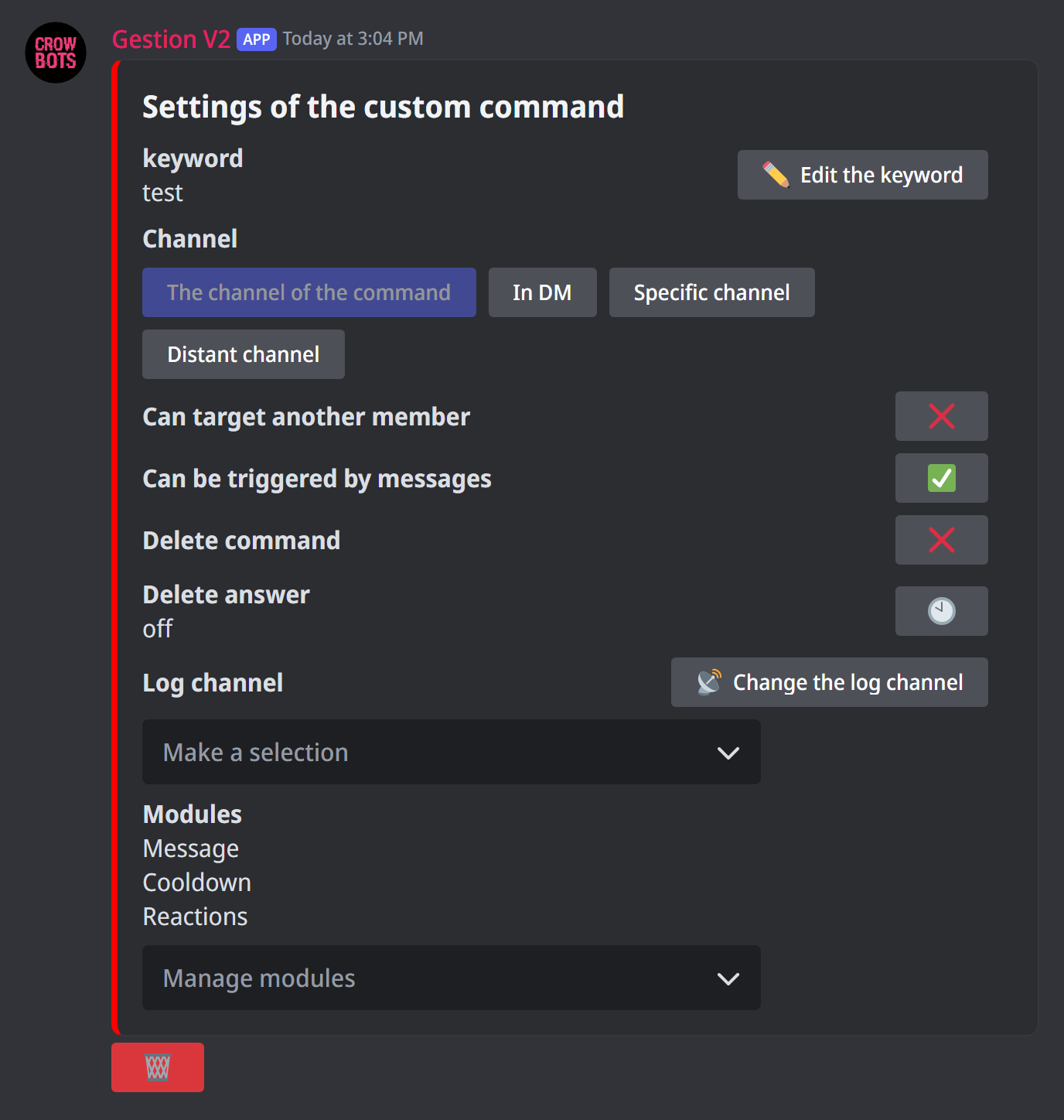
- Keyword: the pencil changes it.
- Channel: where the answer goes. The channel of the command, in DM to whoever uses it, or a specific channel picked from a menu. Distant channel asks you to type the channel (its mention, name or ID): that is how you target a channel on another server the bot is in.
- Can target another member: with ✅, people can write
rules @member(or their ID); the command then targets that member (see Targeting a member). - Can be triggered by messages: with ❌, sending the keyword does nothing any more. Useful for a command run only by a button, a reminder or a ticket, or to pause it. With a form, this setting is always ❌.
- Delete command: deletes the message of whoever sent it.
- Delete answer: deletes the bot's answer after the delay you choose.
- Log channel: the bot records there every use of the command. Pick it in the menu, or with Change the log channel for a channel on another server.
- Modules: the modules in use, and the Manage modules menu to open them.
The 🗑 bin at the very bottom deletes the command.
How the bot recognises the keyword
The message must be exactly the keyword, nothing else; capitals don't matter (Rules works too). The one exception: a command that can target another member fires when the message starts with the keyword, followed by the member's mention or ID.
Targeting a member
With Can target another member, the command targets the member given after the keyword: they are the one who gets or loses the roles, the one the {Member…} variables refer to. Without a member given, it targets whoever typed it.
Each {Member…} variable then has an {Author…} twin: {Member…} is the member targeted, {Author…} the one who typed the command. For example, {AuthorMention} hugs {MemberMention}!.
The modules
The Manage modules menu opens each module; the Back button returns to the main panel. A command can combine several modules: a message and a role and a reaction, for example.
Messages
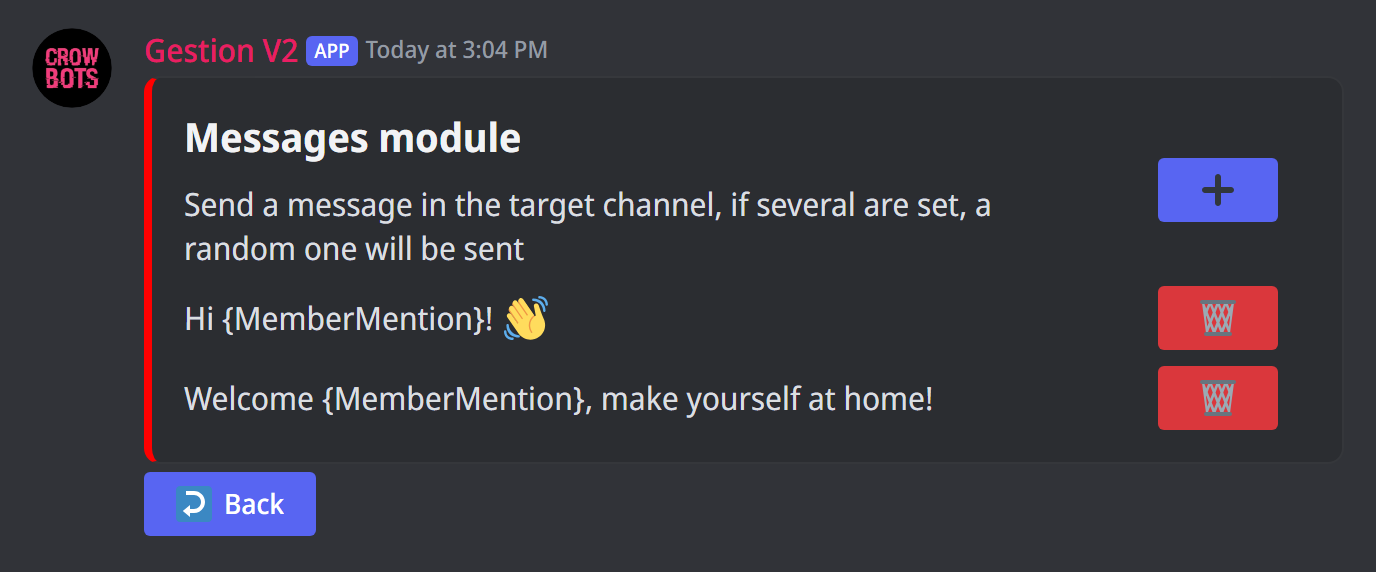
The text the bot answers. Click ➕ to add one, the bin to remove one.
With several messages, the bot picks one at random each time: handy to vary the answers.
Variables personalise the answer: {MemberMention} mentions the member, {MemberName} gives their name… +help msg lists them all.
Embeds
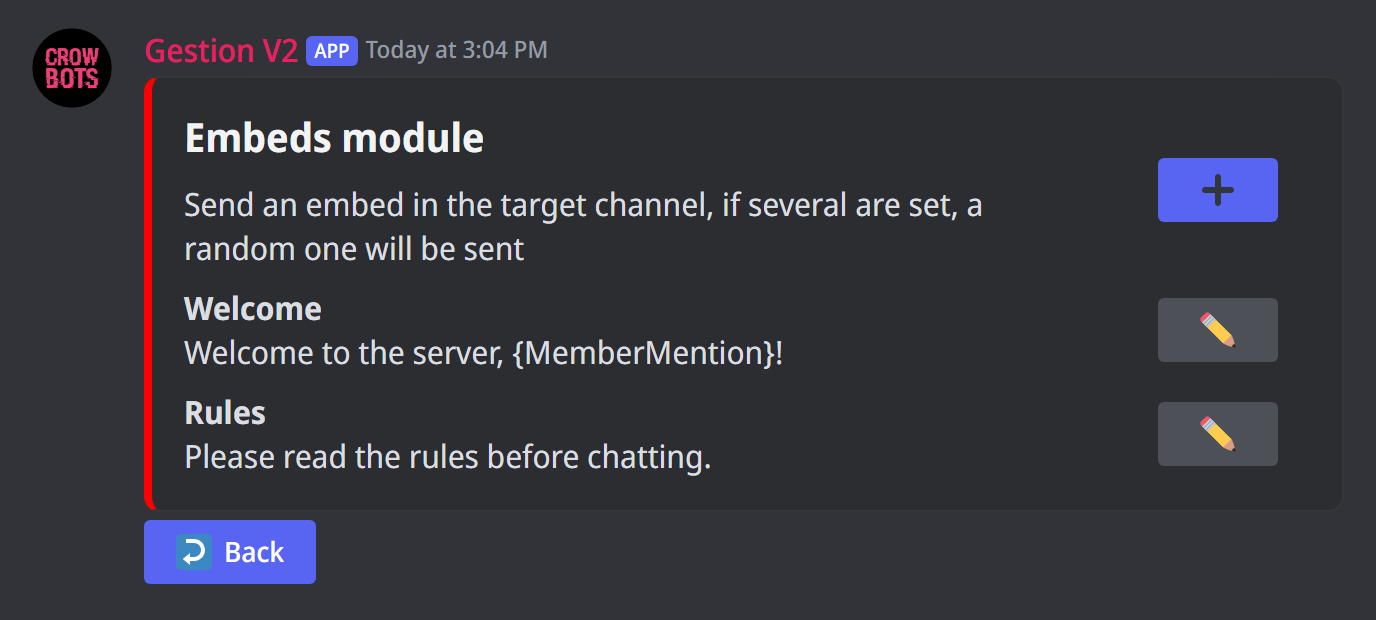
An embed is a framed message, with a title, a colour and a picture. ➕ opens the same editor as the +embed command, and the pencil edits an existing embed. As with messages, with several embeds the bot picks one at random.
Stickers
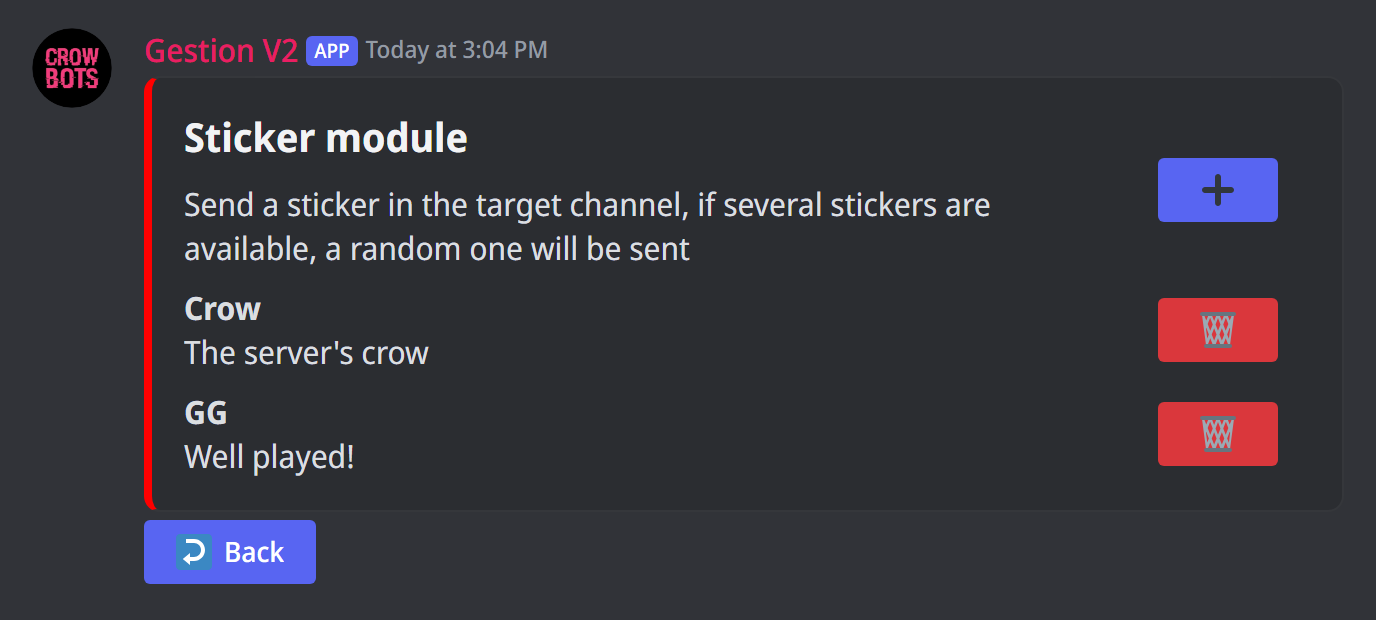
The bot answers with a sticker. Click ➕ then send the sticker in the channel. It must be one of your server's stickers. With several stickers, the bot picks one at random.
Role modifications
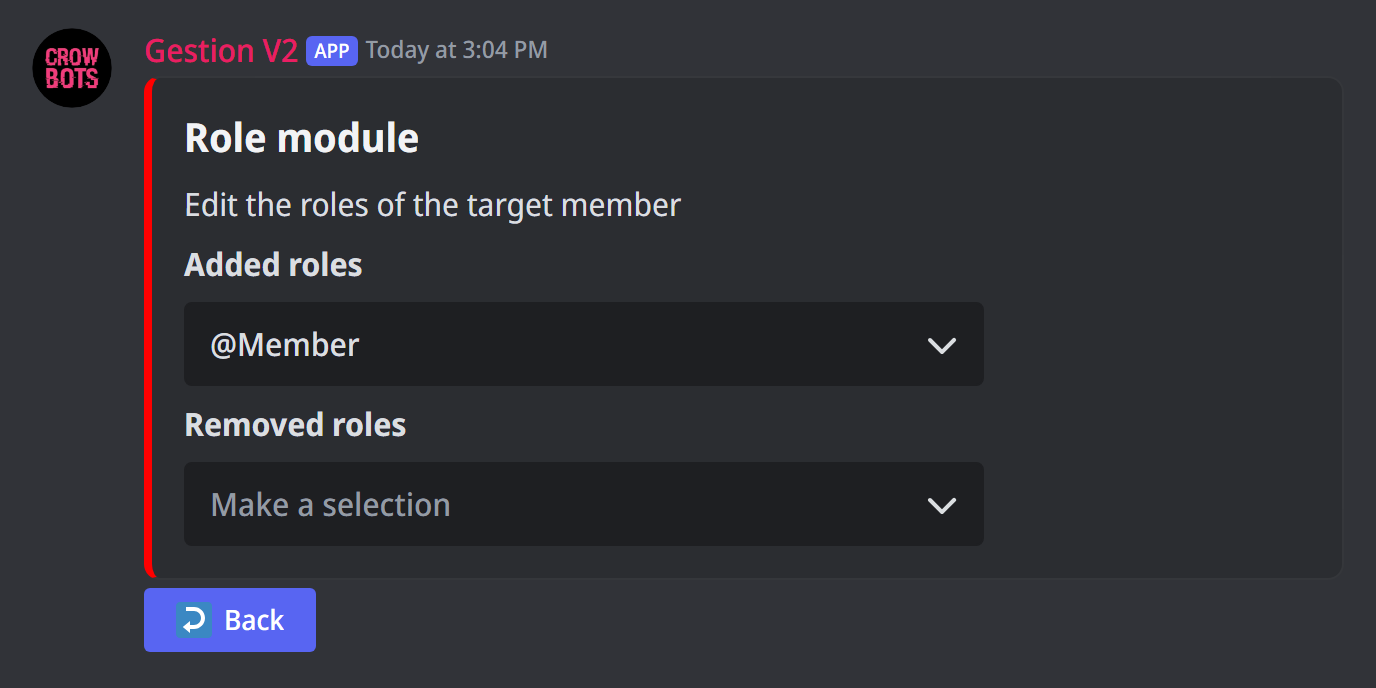
Gives or removes roles to the targeted member: pick them under Added roles and Removed roles. Ideal for a "Notifications" role anyone can take with a command.
The bot can only manage roles placed below its own in the server's role list.
User/role filtering
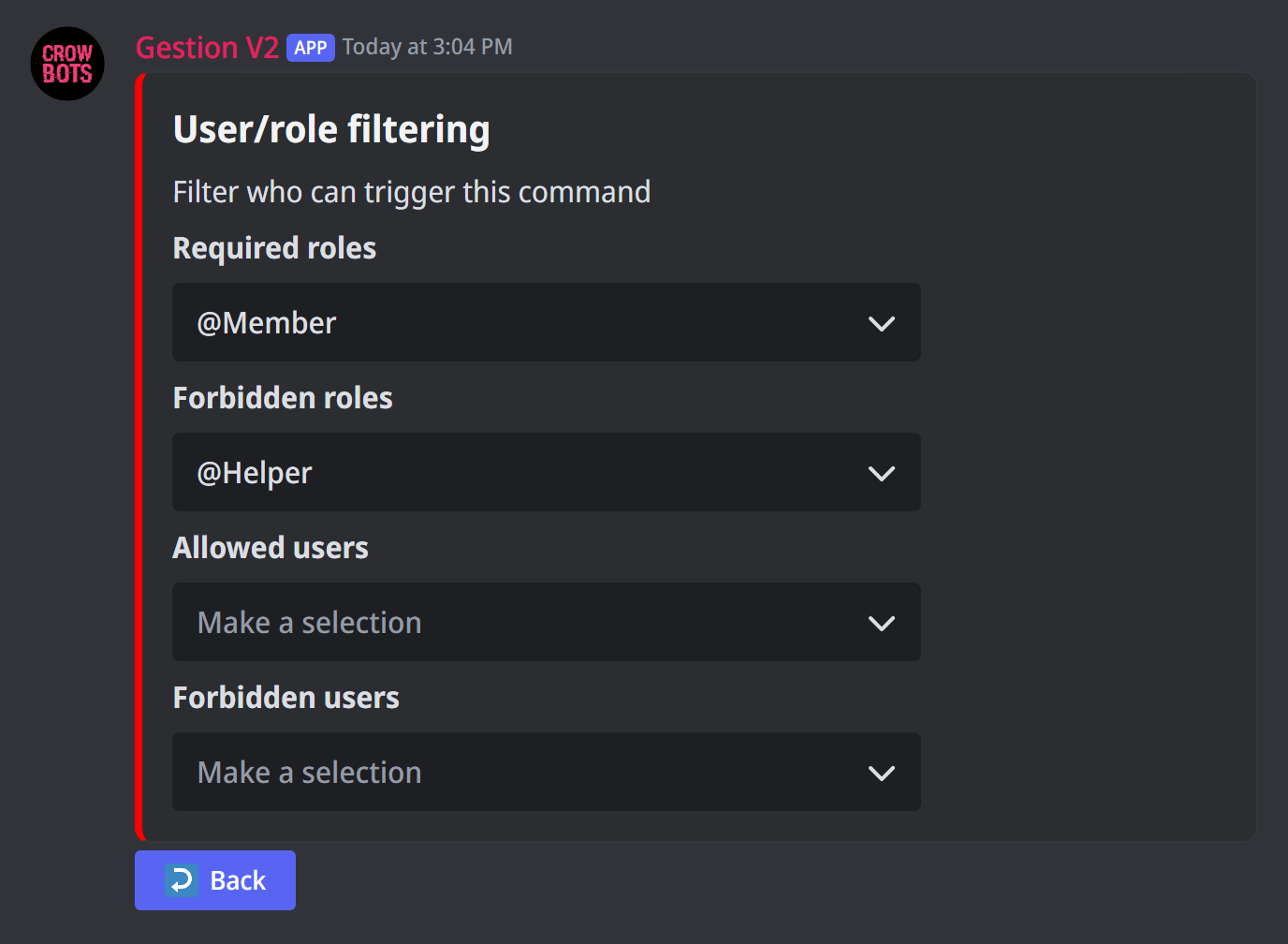
Who is allowed to use the command:
- Required roles: you need one of these roles;
- Forbidden roles: with one of these roles, the command doesn't work;
- Allowed users and Forbidden users: the same, member by member.
Reactions
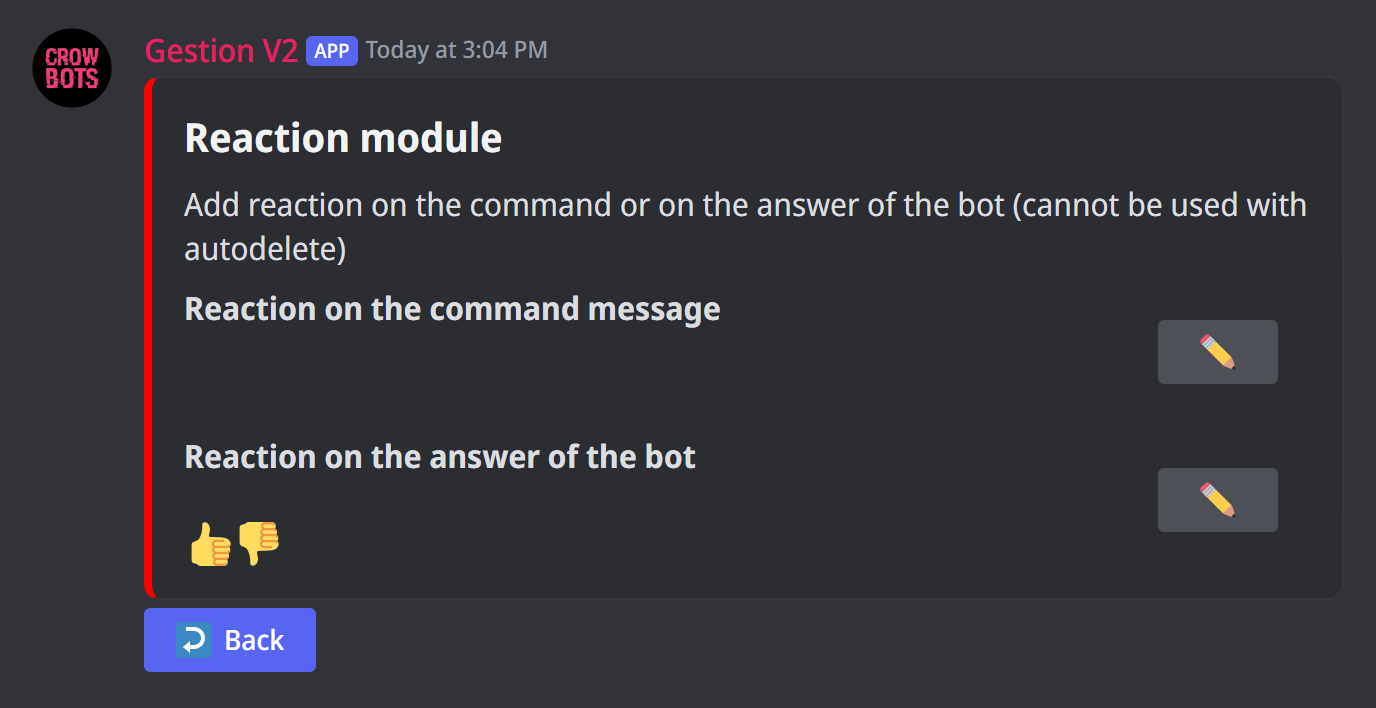
The bot adds reactions under the command's message, under its answer, or both. The pencil lets you send the emojis. A custom emoji must come from a server your bot is in.
A reaction can't go on a deleted message: with Delete command, reactions on the command's message are turned off, and with Delete answer, those on the answer.
Cooldown
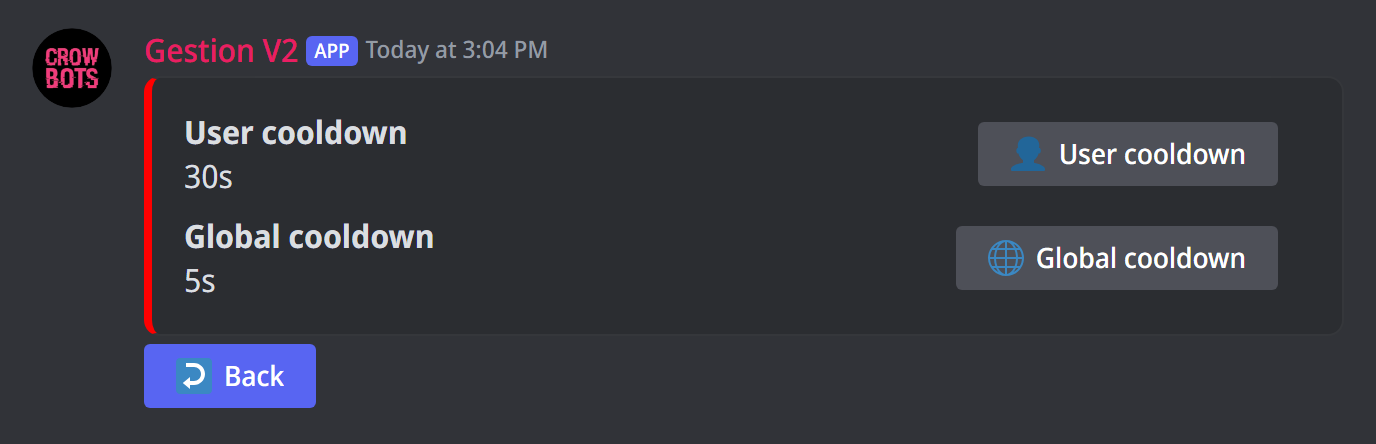
Stops the command being used too often:
- User cooldown: how long the same member must wait before using it again (2 seconds at least);
- Global cooldown: how long nobody can use it again after one use.
Buttons/selects
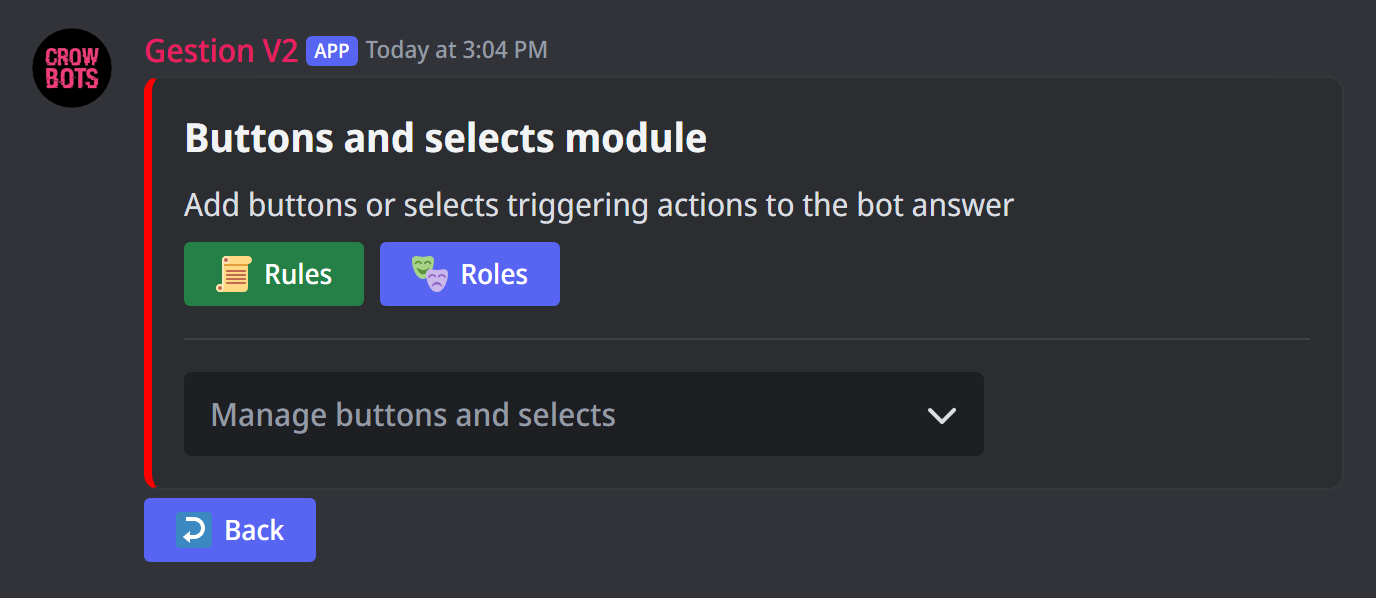
Adds buttons and drop-down menus (selects) under the bot's answer. Each button, or each choice in a menu, can run another custom command.
In the Manage buttons and selects menu, choose Add a button or Add a select, or an existing one to edit it. The answer has 5 rows at most: each row holds up to 5 buttons, or a single select.
A button
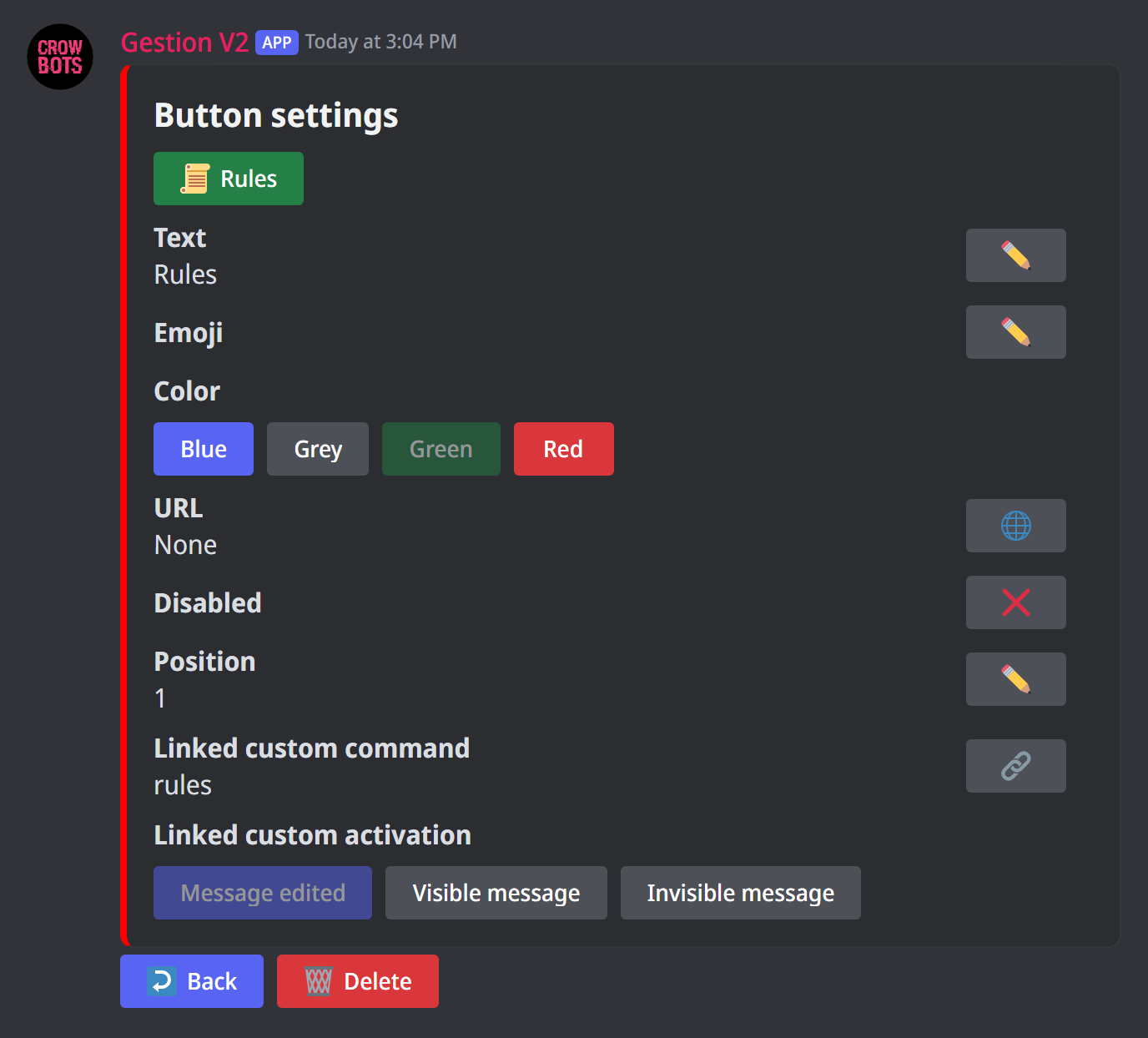
The button at the top of its page is a preview. You set:
- its text, its emoji and its colour;
- a URL: the button then opens a website instead of running a command;
- Disabled: the button stays visible but greyed out;
- its position in the row;
- the linked custom command: the one it runs when clicked.
Linked custom activation chooses how the linked command answers:
- Message edited: its answer replaces the button's message (ideal for a chain of questions);
- Visible message: it answers in a new message, visible to everyone;
- Invisible message: only the person who clicked sees the answer (ideal for a role menu).
Delete removes the button.
A select
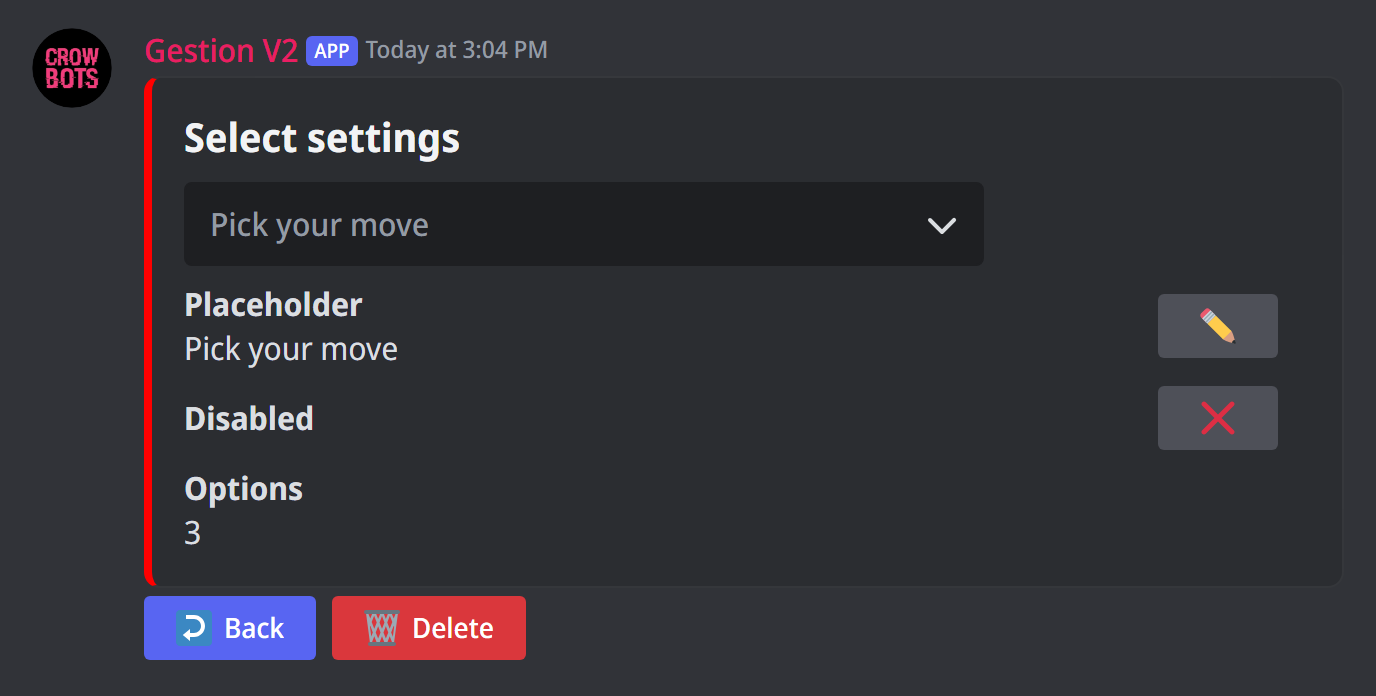
- Placeholder: the text shown while nothing is chosen (instead of "Make a selection");
- Disabled: the menu is greyed out;
- Options: the menu at the top of the page is a preview; pick an option in it to set it up, or Add an option (25 at most).
Each option has its text, its description (the small line under the text), its emoji, its position in the list, its linked custom command and its activation, exactly like a button.
A command only a button can run
In the linked command, set Can be triggered by messages to ❌: nobody can run it by sending its keyword, only by clicking.
Advanced components
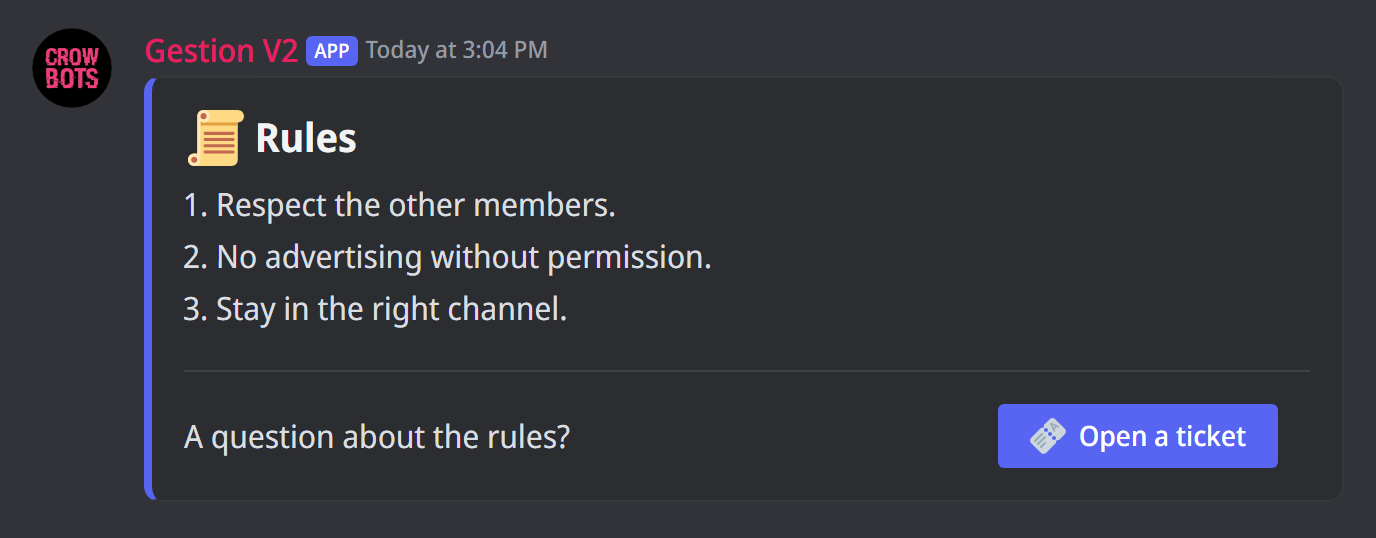
Builds a laid-out answer, like the bot's own panels: a coloured frame, text beside a button or a picture, photo galleries…
It replaces four modules
As soon as it holds one element, the Messages, Embeds, Stickers and Buttons/selects modules are turned off: Discord doesn't accept both forms in the same message. The other modules (roles, reactions, cooldown…) keep working.
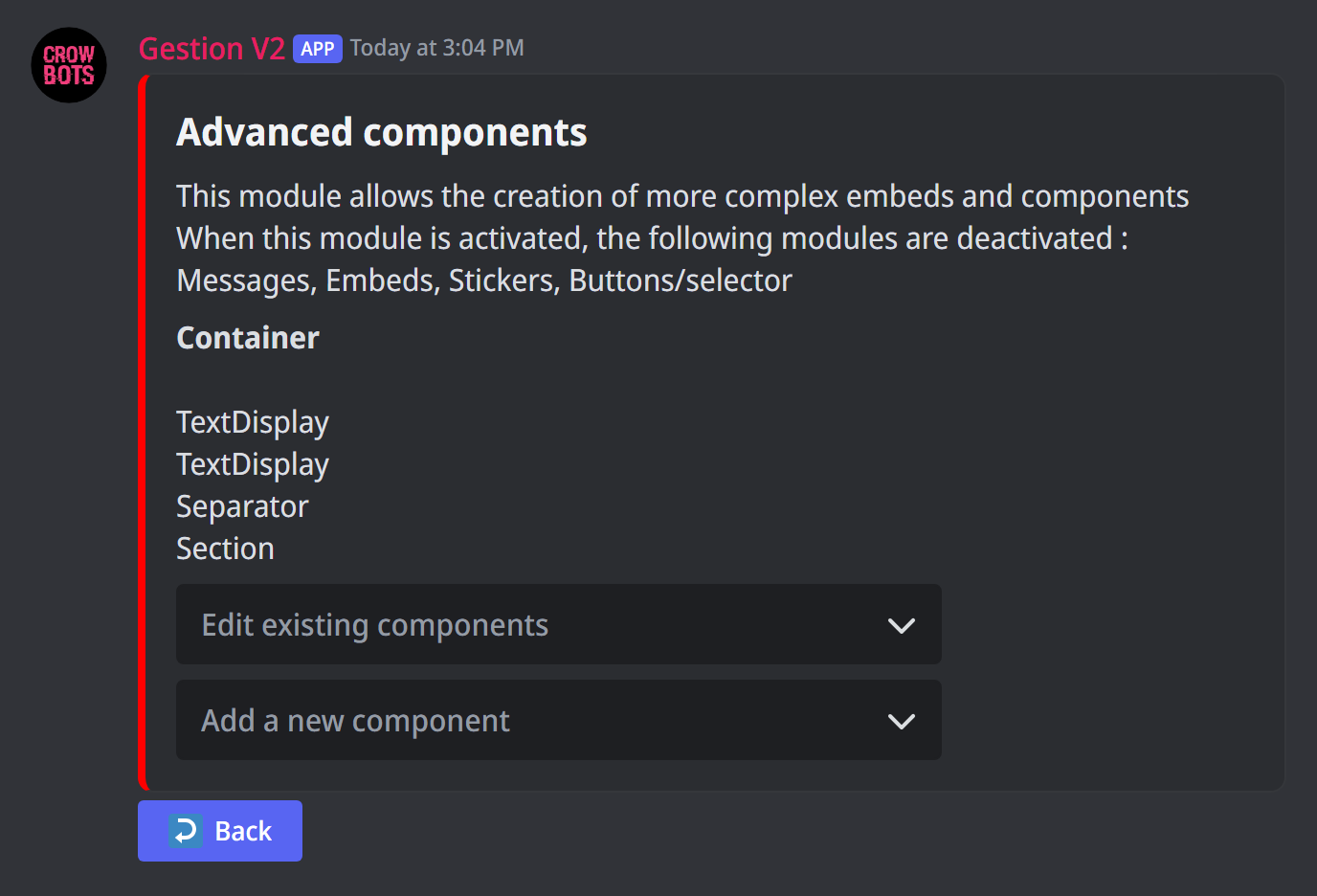
The module's page lists the answer's elements, in order. Add a new component adds one, Edit existing components reopens one of them. Six elements are possible:
- TextDisplay: a block of text. Discord formatting works (
## Title, bold, lists…), and so do variables. - Section: a text with, on its right, a button (set up like in the Buttons module, with its linked command) or a small picture (thumbnail), sent as an attachment or as a link.
- Container: a frame, like an embed, with a colour (the Set color button). Other elements go inside it: text, sections, separators, galleries, rows of buttons.
- MediaGallery: a gallery of 1 to 10 pictures, sent as attachments or links. A link can hold a variable, for example
{MemberPic}for the member's picture. - Separator: a dividing line, Large or thin, Visible or just a space.
- ActionRow: a row of up to 5 buttons, or one select, set up like in the Buttons/selects module.
An answer is limited to 40 elements in all (elements inside a frame count too). Beyond that, the bot warns you and sends nothing.
Chaining commands
A button set to Message edited replaces the answer with the linked command's one. That only works between two answers of the same kind: an advanced-components answer can't turn into a classic message, nor the other way round.
Form
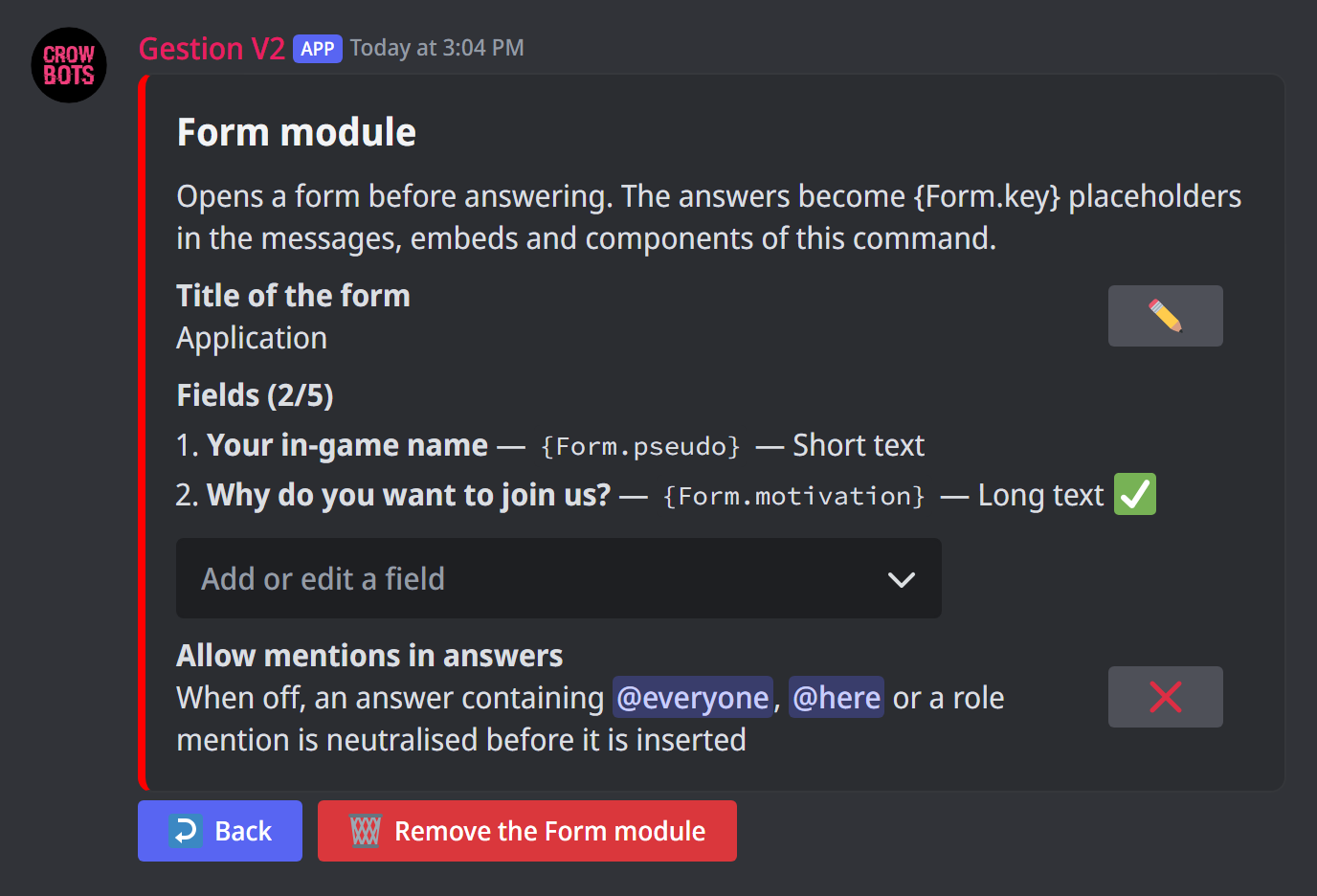
Asks questions before answering: a window opens, the member fills it in, then the command answers with their replies. Perfect for an application or a report.
A form only opens from a button or a menu choice (of another custom command), or when a ticket opens. Never by sending the keyword: Can be triggered by messages is therefore locked on ❌.
On the module's page:
- Title of the form: at the top of the window;
- Fields: the questions, 5 at most. The Add or edit a field menu adds one or opens one;
- Allow mentions in answers: with ❌, a reply containing
@everyone,@hereor a role mention is neutralised, so a member can't ping the whole server through the form; - Remove the Form module deletes it.
Each field is set up like this:
- its question;
- its variable:
{Form.pseudo}for example. Copy it into the command's message, where the reply should appear. If you rename it, remember to change your messages too; - its type: Short text (one line), Long text (a paragraph) or Choice list (a menu whose options you set: text, emoji, description, position);
- a placeholder: the grey text shown in the empty field;
- Required or not;
- If empty: what is written in place of a reply left empty;
- for a text: the reply's minimum and maximum length, and a default value already filled in.
The bot warns you when something is missing: no field, a choice list without options, or a command with no answer to show the form's replies in.
Managing your commands
+customlistshows every custom command on the server;+custom transfer 2copies a command from another of your servers (its number in+server list, or its ID). If a command already has that keyword here, the bot asks whether to replace it;+clear customdeletes them all (cannot be undone). To delete only one, open it and click the bin.