
Changing the bot's messages
Rewrite any of the bot's texts (sanction messages, errors, help…), or change its language.
On this page
All of the bot's texts live in a language file. You can download it, change the sentences you want, and send it back to the bot: it will then speak with your words.
A typical example: adding your unban server's link to the message a member gets when they are banned.
Owners only
These commands are for the bot's owners, and the file applies to all of the bot's servers.
Changing the bot's language
+set lang english switches the bot to English, +set lang français puts it back in French.
Changing a message, step by step
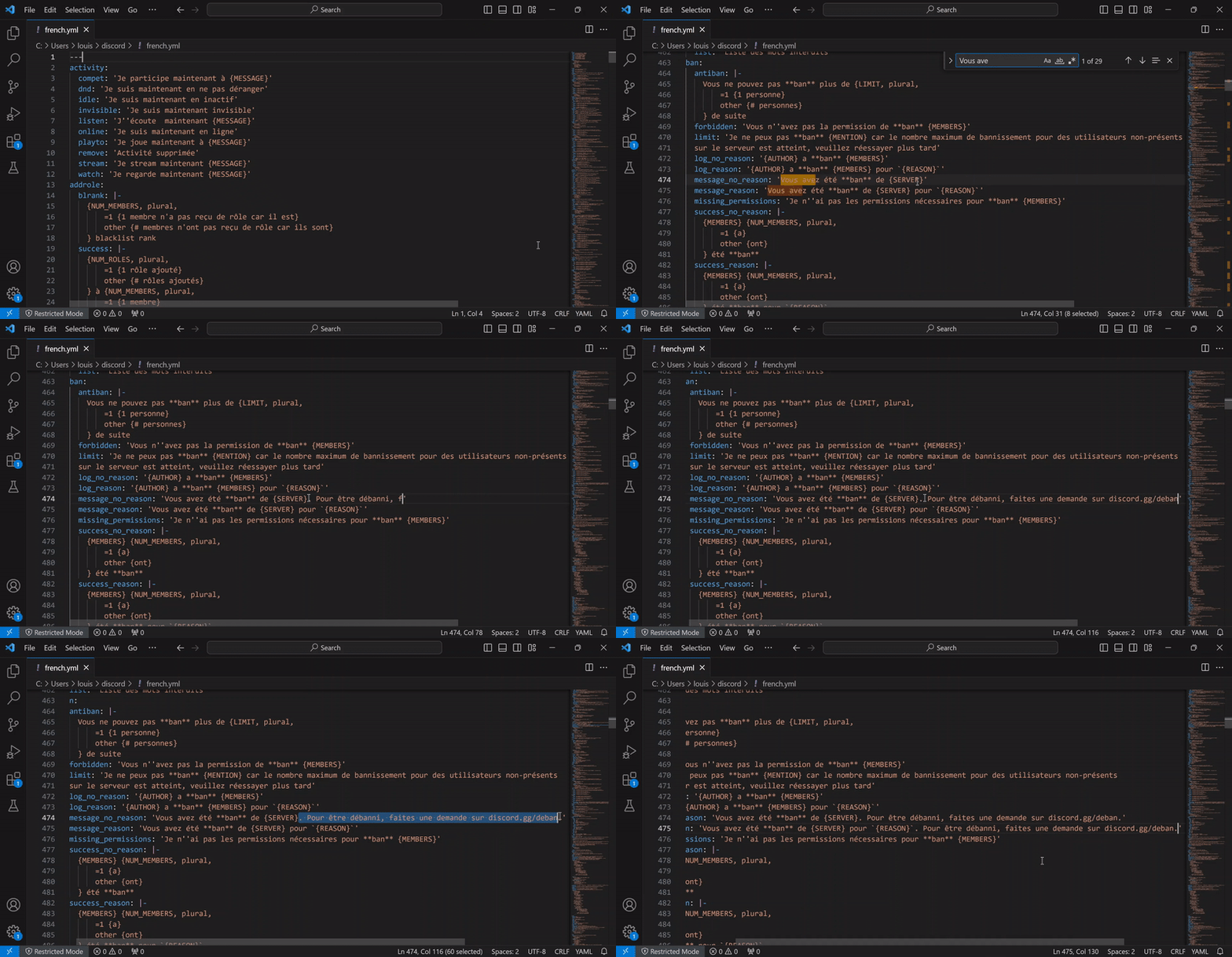
1. Download the file
Type +get lang. The bot sends you the file of its current language. If you already have a custom file, it sends that one too: that is the one to edit.
2. Find the sentence
Open the file in a text editor: Windows Notepad is enough, a code editor such as Visual Studio Code is more comfortable.
Search for the sentence with Ctrl + F, typing part of the current message. For the ban message (in English), search for You are now **banned**. You find:
ban:
  message_no_reason: 'You are now **banned** from {SERVER}'
3. Change the sentence
Change the text between the quotes, for example:
message_no_reason: 'You are now **banned** from {SERVER}. To appeal: discord.gg/unban'
The rules to follow:
- Words in CAPITALS between braces are variables:
{SERVER}becomes the server's name. Keep them as they are; you can move them around in the sentence. - An apostrophe in the text is written twice:
don''t. - For a message over several lines, use
|-then one line per line of text, indented by two spaces:
  message_no_reason: |-
    You are now **banned** from {SERVER}.
    To appeal: discord.gg/unban
4. Send the file back
Save the file, then send it to the bot as an attachment to the message +lang custom (or reply to the message holding the file with +lang custom).
The bot checks the file before installing it: unknown key, a variable that doesn't exist, an empty or malformed text… If it finds a mistake, it tells you where, and nothing is changed.
+lang custom offgoes back to the original texts;+lang custom onbrings your texts back.
Finding the right message
Can't find the sentence? It probably contains a variable or some formatting. Switch the bot to developer mode with +set lang dev: instead of its texts, it shows the name of each message.
Then do the action whose message you want to change. For example, after a ban the member receives ban.message_no_reason: that is the message_no_reason key, in the ban part of the file.
Don't forget
Switch the bot back with +set lang english when you are done: in developer mode, all your servers see the messages' names.
Special sentences
Some sentences change with a number or a word. They have a particular shape to respect.
Plurals
There {NUM, plural,
    =1 {is one role}
    other {are # roles}
} on the server
NUM is the variable holding the number, and plural must not be changed. Each line gives the text for a number: =1 for 1, =2 for 2… other is required: it is used for every other number. In the text, # is replaced by the number.
Choices by word
{TEXT, select,
    option1 {first option}
    option2 {second option}
    other {something else}
}
The same idea, with words instead of numbers: the text shown depends on the value of TEXT. other is required here too.
Several versions at random
Give a list instead of a sentence, and the bot picks one at random each time:
  message_no_reason:
    - You are now **banned** from {SERVER}
    - '{SERVER} doesn''t want you any more: you have been **banned**'
A line that starts with a brace must be wrapped in quotes, like the second one above.
If it doesn't work
- The bot refuses the file: read its message, it gives the line and the key at fault. Most often: an apostrophe not doubled, or a renamed variable.
- The bot didn't react to the file: it must be attached to the same message as
+lang custom. - My change doesn't show: check that the custom texts are active with
+lang custom on.
Every command
Each command of this guide, with its arguments, its default level and examples: Language.