Protecting your server with the antiraid
Stop raids, mass joins and a staff member abusing their permissions, in one command and then setting by setting.
On this page
The antiraid protects your server from two dangers:
- a raid, when accounts pour in to spam or wreck everything;
- a staff member going rogue, or whose account has been hacked: they start banning everyone, deleting channels, handing out admin roles…
When a protection is triggered, the bot undoes the action when it can and punishes whoever did it.
In short
+secur onturns every protection on at once.+raidlog on #raid-logsand+raidping @Staff: you are warned at every alert.+wl @Admin: your trusted admins can work without being blocked.
Owners only
By default, only the bot's owners can change the antiraid. That is on purpose: a moderator whose account gets hacked must not be able to turn it off.
Turn everything on at once
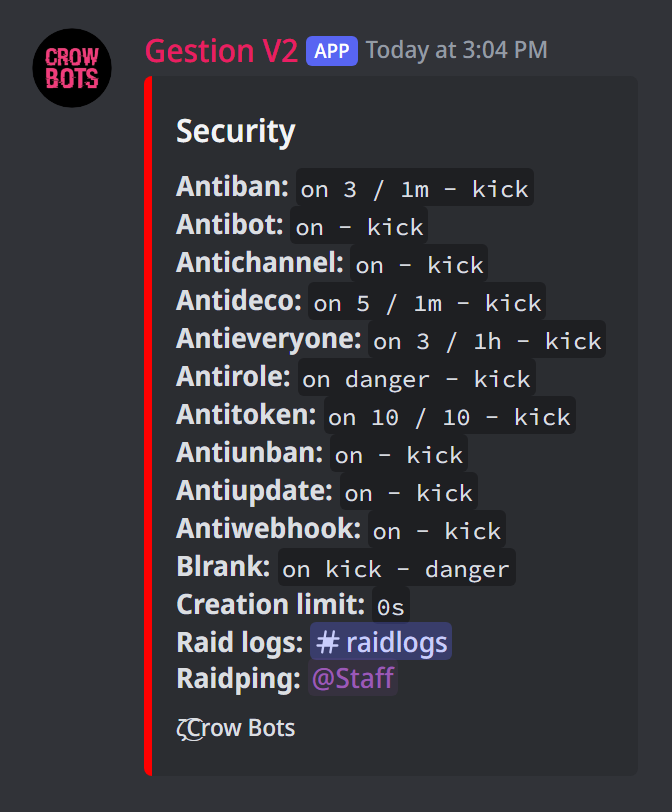
+securalone shows the status of every protection;+secur onturns them all on;+secur maxturns them all on in the strictest mode (see below);+secur offturns them all off.
Then adjust, one by one, those that don't suit you.
on or max: the whitelist
Each protection is set to off, on or max:
onblocks everyone except whitelisted members (and the bot's owners);maxblocks everyone except the bot's owners, even the whitelist.
The whitelist lists trusted members and roles: +wl @member or +wl @Admin adds one, +unwl @member removes one, +wl alone shows the list and +clear wl empties it. For safety, give a mention or an ID: a name isn't accepted.
The whitelist is not a permission
Being whitelisted only lets someone past the antiraid: it gives access to no bot command. For commands, see permissions.
The protections one by one
- Antibot (
+antibot on): bots added to the server; - Antiwebhook (
+antiwebhook on): creating webhooks (which can spam); - Antiupdate (
+antiupdate on): changes to the server: name, icon, banner…; - Antichannel (
+antichannel on): creating, deleting or editing channels; - Antirole (
+antirole on): role changes, and dangerous roles given to members; - Antiunban (
+antiunban on): unbans; - Antiban (
+antiban on): too many bans or kicks in a short time; - Antieveryone (
+antieveryone on): too many@everyoneor@herementions; - Antideco (
+antideco on): too many members disconnected from voice.
A few details:
- Antirole only watches dangerous roles by default: those giving Perm 2 or more on the bot, or a Discord moderation or administration permission.
+antirole allwatches every role. - Antibot set to
onlets through a bot added by a whitelisted member; set tomax, every bot added is kicked.
Setting the sensitivity
Antiban, antieveryone and antideco count one member's actions over a period. Write the number, a slash /, then the duration:
+antiban 3/1h: beyond 3 bans or kicks in an hour, the protection triggers (default: 3 per minute);+antieveryone 2/1d: beyond 2 everyone mentions a day (default: 3 per hour);+antideco 5/10m: beyond 5 disconnections in 10 minutes (default: 3 per minute).
Durations use s (seconds), m (minutes), h (hours) and d (days).
Choosing the punishment
By default, the culprit is kicked. +punition changes that:
+punition antiban ban: ban whoever triggers the antiban;+punition all derank: for every protection, remove their roles instead of kicking them.
The possible punishments are derank (remove their roles), kick and ban.
Against mass joins
- Antitoken: when too many accounts arrive at once, the bot kicks the newcomers.
+antitoken onturns it on (default: 10 accounts in 10 seconds),+antitoken 9/10schanges the threshold. In the middle of an attack,+antitoken lockcloses the server: every newcomer is kicked, until+antitoken onoroff. - Creation limit:
+creation limit 7dkicks accounts created less than 7 days ago, often throwaway accounts.+creation limit offstops it.
To go further against robots, add a verification on arrival.
Getting warned
+raidlog on #raid-logs: every antiraid action is reported in that channel (who, what, the punishment).+raidping @Staff: the @Staff role is mentioned at every alert.
Other protections
- Blacklist rank: the list of members who must not receive a dangerous role.
+blrank add @memberadds one,+blrank del @memberremoves them,+blrankshows the list and+clear blrankempties it. Turn it on with+blrank on(ormax, like the other protections);+blrank allextends it to every role,+blrank dangergoes back to dangerous roles. Whoever gives a forbidden role is punished. - Blacklist:
+bl @member reasonbans someone from all of the bot's servers, and bans them again if they come back. For someone on none of your servers, give their ID.+blalone shows the list,+blinfo @memberwho added them, when and why,+unbl @memberremoves them (they stay banned where they are),+clear blempties the list. - Hacked accounts:
+antihackopens a panel that catches scam images, a trap channel nobody should write in, and messages copied across several channels: see the antihack guide. - Webhooks:
+clear webhooksdeletes every webhook on the server, useful after a raid.
If it doesn't work
- The antiraid doesn't react: the bot needs the View Audit Log permission to know who did what.
- The bot doesn't punish the culprit: in the server's role list, the bot's role must be above your staff roles. Discord doesn't let a bot touch anyone placed higher than itself.
- A trusted admin gets blocked: whitelist them with
+wl, and check the protection is set toon, notmax.
Every command
Each command of this guide, with its arguments, its default level and examples: Server security and Blacklist.