
The bot's settings and permissions
Who can use which commands, game channels, the servers where the bot is active, the prefix, the help menu and the owners.
On this page
Before you start the economy and the games, a few settings decide who can use the bot, and where. This guide goes through them. Ecrownomy answers in French: this guide quotes its messages as they appear.
Ecrownomy's commands start with * (its default prefix); you can also mention the bot instead: @Ecrownomy bal.
In short
*awlturns the bot on for the server.*game allow #casino: your members play and use their commands in #casino.*helpshows the commands you can use.
Who can use what
- Members use their commands (
*bal,*free, the games, the shop,*give…) in the game channels; - the server's administrators (Discord's Administrator permission) set up their server's economy, games, shop and teams, and use the members' commands in every channel;
- the bot's owners have access to everything, on all of the bot's servers and in direct messages;
- the buyer, who bought the bot, is the only one who can choose the owners and reset everything.
One economy
Your members' money is shared by all of the bot's servers: a member has the same balance everywhere, and the leaderboard gathers them all. The settings (earnings, games, shop, teams) are specific to each server.
Game channels
Your members only use their commands in game channels:
*game allow #casinomakes it a game channel (without a channel, the one where you type the command);*game deny #casinoremoves it.
Each game can also require or forbid roles, and be played in direct messages with the bot: see who can play.
Turning the bot on for a server
The bot only works on the servers in its whitelist. The owners manage it:
*awladds the server where you type the command. For another server, give its ID or its number in*server list:*awl 2;*wlshows the servers in the whitelist;*uwl 2removes a server (its ID or its number).
The bot can be active on 5 servers at once.
The prefix
*prefix !changes the prefix on this server (administrators, 10 characters at most);*mainprefix !changes the default prefix (owners): the one for direct messages and for servers added afterwards.
Forgot the prefix? An administrator who mentions the bot, with nothing else in the message, gets the server's prefix in reply.
The help menu
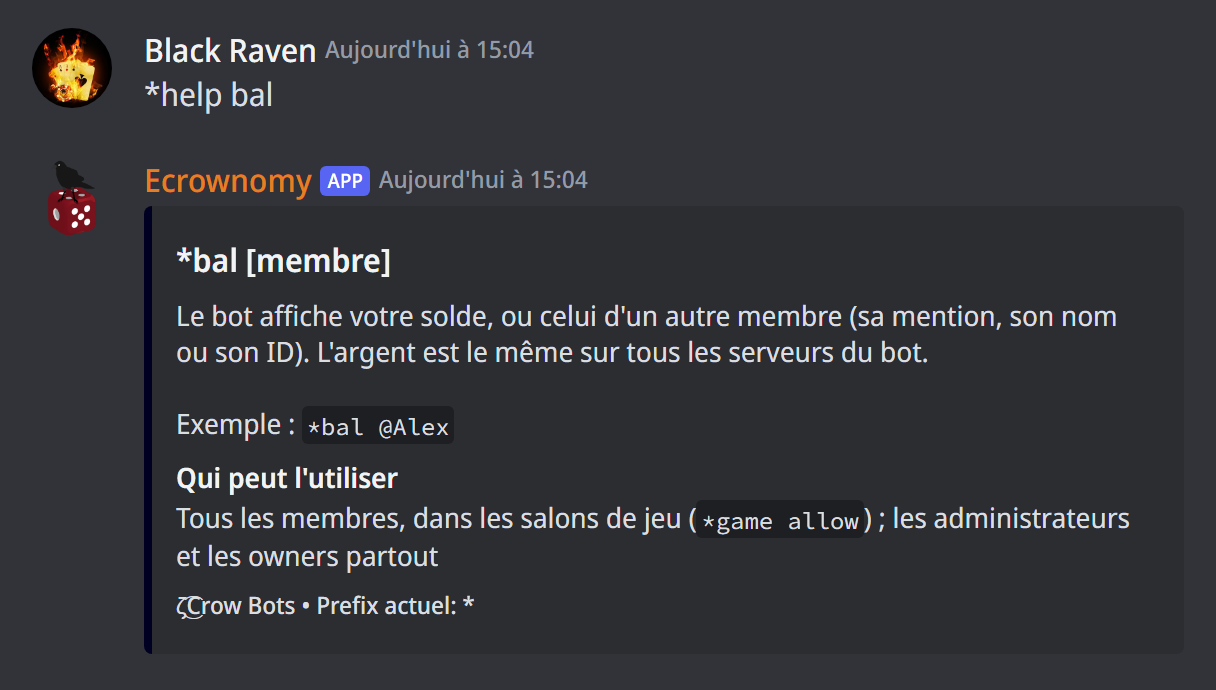
*help shows the commands you can use: a member sees the public commands, an administrator or an owner every page. Administrators and owners can open a given page: *help economy, *help jeux (games), *help teams, *help public or *help bot control. *help setup (owners) opens a first-steps guide in Discord.
*help followed by a command explains what it does, its arguments and who can use it, with an example: *help bal, *help team join. A member gets it for the commands they can use. These pages are on the site too: every command.
*helptype (owners) changes how the menu is browsed: button (arrows, page by page), select (a menu to go to any page) or hybrid (both).
The owners
Owners have every permission on the bot, except managing the other owners. Only the buyer chooses them:
*owner @member(or their ID) adds an owner;*ownersshows the list of owners;*unowner @memberremoves an owner,*clear ownersremoves them all.
The buyer keeps the bot with their recovery code (*recup, in a private message to the bot), which also transfers it to someone else (*buyer @member): see the recovery code.
The bot's servers
For owners:
*server listlists the servers the bot is on, numbered: ✅ those in the whitelist, ❌ the others, with their member count;*inviteto 2sends an invite to a server (its ID or its number in the list);*leave 2makes the bot leave a server;*leavealone, the one you're on.
Who can invite the bot? It leaves, after a minute, any server where no owner is present. With *secur invite on, it also leaves a server where the buyer isn't, even if other owners are there; *secur invite off goes back to the owners rule.
Resetting
For the buyer, after a confirmation:
*reset serverputs all of the bot's settings on this server back to default;*resetallresets the settings of every server.
Members' money doesn't change; to reset it, see *reset money.
No going back
A reset is final.
Other commands
*pingand*speed(administrators) check that the bot answers, and how fast;*crowbots(administrators) gives an invite to the Crow Bots support server;*mybots(administrators) shows the invite links of your Crow Bots bots and the time left on each subscription;*changelog(owners) shows what's new in the latest updates.
If it doesn't work
- The bot doesn't answer at all: is the server in the whitelist (
*awl)? Is the prefix right (mention the bot to find out)? - The bot doesn't answer your members: use
*game allowin the channel. - "Vous ne pouvez pas ajouter plus de 5 serveurs dans la whitelist" (you can't add more than 5 servers): remove a server first with
*uwl. - The bot left a server right after joining it: no owner was there (or not the buyer, with
*secur invite on).
Every command
Each command of this guide, with its arguments and who can use it: Every command (in French).