
The bot's settings and permissions
Who can use which commands, public channels, the servers where the bot is active, the prefix, the command mode and the help menu.
On this page
Before you set up levels or invites, a few settings decide who can use the bot, where, and how. This guide goes through them. Crow Tools answers in French: this guide quotes its messages and buttons as they appear.
In short
;wl add(on your personal bot) turns the bot on for the server.;public allow #commands: your members can use the public commands in #commands.;helpshows the commands you can use.
Who can use what
Each command has a level, shown in ;help and in the command list (in French):
- Members use the public commands (
;level,;invite,;profil…) in the public channels; - the server's administrators (Discord's Administrator permission) use the setup commands, and the public commands in every channel;
- the bot's owners have access to everything, on all of the bot's servers;
- the buyer, who bought the bot, is the only one who can choose the owners.
With slash commands
Most commands also exist as slash commands (/level, /invite…). Public slash commands work in every channel. Admin commands are only offered to administrators; you can change who sees them in the Server Settings, Integrations tab.
Public channels
With the ; prefix, your members can only use the public commands in public channels:
;public allow #commandsallows the public commands in #commands (without a channel, the one where you type the command);;public deny #commandsforbids them again.
;settings global shows the list of public channels.
Turning the bot on for a server
The bot only works on the servers in its whitelist: anywhere else, its commands answer "Ce serveur n'est pas dans la whitelist" (this server isn't in the whitelist), and it counts no messages, voice time or invites.
On your personal bot, the owners manage the whitelist:
;wl addadds the server where you type the command. For another server, give its ID or its number in;server list:;wl add 2;;wl(or;wl show) shows the servers in the whitelist;;wl delremoves a server (without anything else, the one you're on),;wl clearremoves them all.
A personal bot can be active on 5 servers at once. If the server you add already used the classic Crow Tools, the bot offers to take over its members' statistics (not the settings).
On the classic Crow Tools, a server administrator adds it with /wl add, if they have a Crow Tools licence for this server: you get one with /buybot on the Crow Bots server. If all your licences are in use, the bot asks which server to remove to make room.
The prefix
The default prefix is ;. You can also mention the bot instead: @Crow Tools help.
;prefix !changes the prefix on this server (administrators, 10 characters at most);;mainprefix !changes the default prefix (owners): the one for direct messages and for servers added afterwards.
Forgot the prefix? An administrator who mentions the bot, with nothing else in the message, gets the server's prefix in reply.
Slash commands or the prefix
;mode (owners) chooses how the bot is used:
;mode hybrid: with the prefix and as slash commands (the default);;mode slash: slash commands only;;mode text: the prefix only; the slash commands disappear from Discord.
After text mode, you can only bring the slash commands back once a day.
Replies only you can see
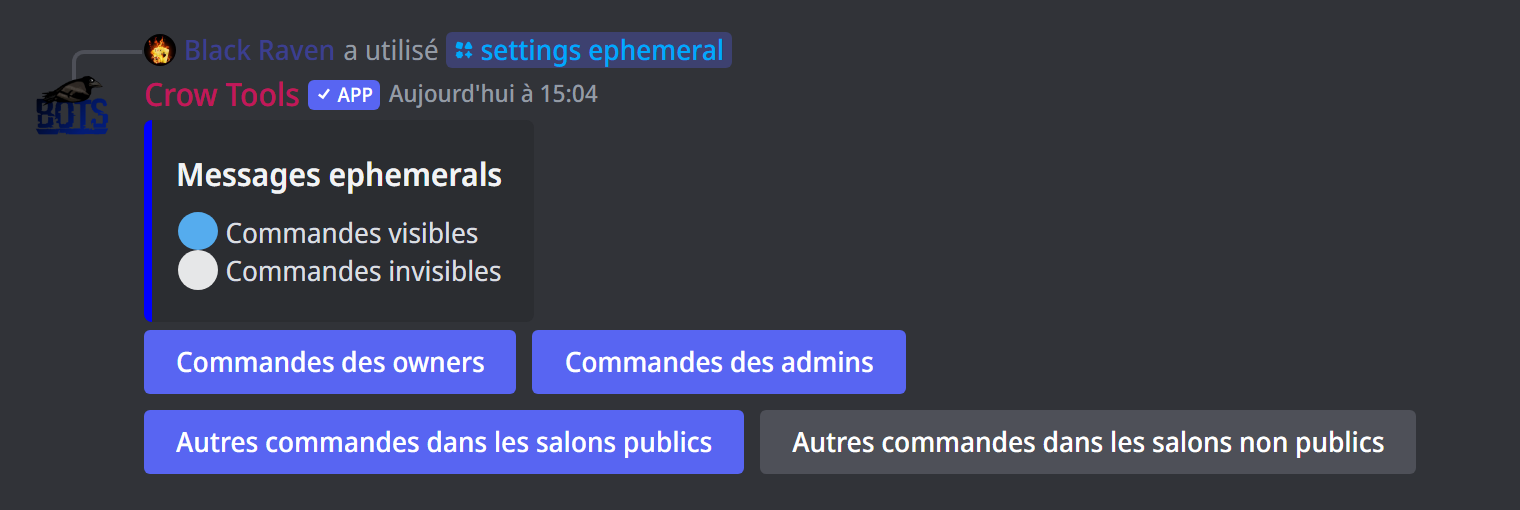
;settings ephemeral opens a panel with four buttons, one per kind of command: the owners' commands (Commandes des owners), the admins' commands (Commandes des admins), other commands in public channels, and in other channels. Click to switch from 🔵 visible to everyone to ⚪ visible only to whoever used the command.
By default, only commands used outside public channels answer invisibly: a member who types /level in a chat channel sees their card without cluttering the channel.
This setting only applies to slash commands: a command typed with the prefix always answers in public.
The help menu
;help shows the commands you can use, page by page: a member only sees the public commands, an administrator also the setup ones.
;help repexplains a command or a module;;help msglists the variables for messages (arrival, departure, level);;help setup(owners) opens a first-steps guide in Discord.
;helptype (owners) changes how the menu is browsed: button (arrows, page by page), select (a menu to go to any page) or hybrid (both).
The owners
Owners have every permission on the bot, except managing the other owners. Only the buyer chooses them:
;owner @member(or their ID) adds an owner;;owner(or;owners) shows the list of owners;;unowner @memberremoves an owner,;clearownersremoves them all.
The buyer keeps the bot with their recovery code (;recup, in a private message to the bot), which also transfers it to someone else (;buyer @member): see the recovery code.
These commands only work with the prefix, and only exist on your personal bot.
The bot's servers
For owners:
;server listlists the servers the bot is on, numbered: ✅ those in the whitelist, ❌ the others, with their member count;;server invite 2sends an invite to a server (its ID or its number in the list);;server leave 2makes the bot leave a server; without anything else, the one you're on.
Who can invite the bot? Your personal bot leaves, after a minute, any server where no owner is present. With ;securinvite on, it also leaves a server where the buyer isn't, even if other owners are there; ;securinvite off goes back to the owners rule.
Resetting the server
;reset server (owners) puts all of the bot's settings on this server back to default, after a confirmation. Members' statistics and XP don't change; to clear them, see ;reset all stats and ;xp resetall.
No going back
A reset is final.
Other commands
;settings globalsums up the server's settings: the command mode, the prefix, the bot's colour, the birthday role and the public channels;;crowbotsgives an invite to the Crow Bots support server;;mybotsshows the invite links of your Crow Bots bots and the time left on each subscription;;changelogshows what's new in the latest updates;;picart(owners) puts every member's profile picture together in a single image; on a big server it takes a few minutes, and the command can only be used once an hour;;ping(owners) checks that the bot answers.
If it doesn't work
- "Ce serveur n'est pas dans la whitelist" (this server isn't in the whitelist): add the server with
;wl add. - The bot doesn't answer your members: use
;public allowin the channel, or have them use the slash commands. - "Vous ne pouvez pas ajouter plus de 5 serveurs" (you can't add more than 5 servers): remove a server first with
;wl del. - The bot left a server right after joining it: no owner was there (or not the buyer, with
;securinvite on).
Every command
Each command of this guide, with its arguments and who can use it: Bot control and Server management (in French).