
Automating channels
Reactions added to every message, a thread per message, announcements published, a message always at the bottom of the channel, channels kept for pictures.
On this page
A few settings make a channel automatic: the bot reacts to every message, opens a thread for each one, publishes announcements, keeps a message at the bottom of the channel, or only accepts pictures. They can be combined: a picture channel with a thread per picture and a ❤️ reaction, for example.
In short
+autoreact add #suggestions 👍 👎: two reactions under every message;+autothread add #introductions: a thread for every message;+autopublish on: announcements are published by themselves;+sticky: a message that always stays at the bottom of the channel;+piconly add #selfies: pictures only.
Reactions under every message
+autoreact add #suggestions 👍 👎: the bot adds these reactions to every new message of the channel, for votes or suggestions. A channel can have 5 emojis at most.
+autoreact del #suggestions 👎removes a reaction from the list;+autoreact listshows each channel with its automatic reactions.
A custom emoji must come from a server the bot is in.
A thread per message
In an auto-thread channel, every message opens its own thread, named after its author: replies go there and the channel stays easy to read. Perfect for an introductions or creations channel.
+autothread add(the channel you're in) or+autothread add #introductions;+autothread del #introductionsstops it;+autothreadshows the channels concerned.
The bot must be able to create public threads in the channel, otherwise it removes it from the list.
Publishing announcements
In an announcement channel, a message has to be published to reach the servers that follow that channel. +autopublish on has the bot publish every message of all your announcement channels; +autopublish off stops it. The bot must be able to manage messages in those channels.
A message always at the bottom
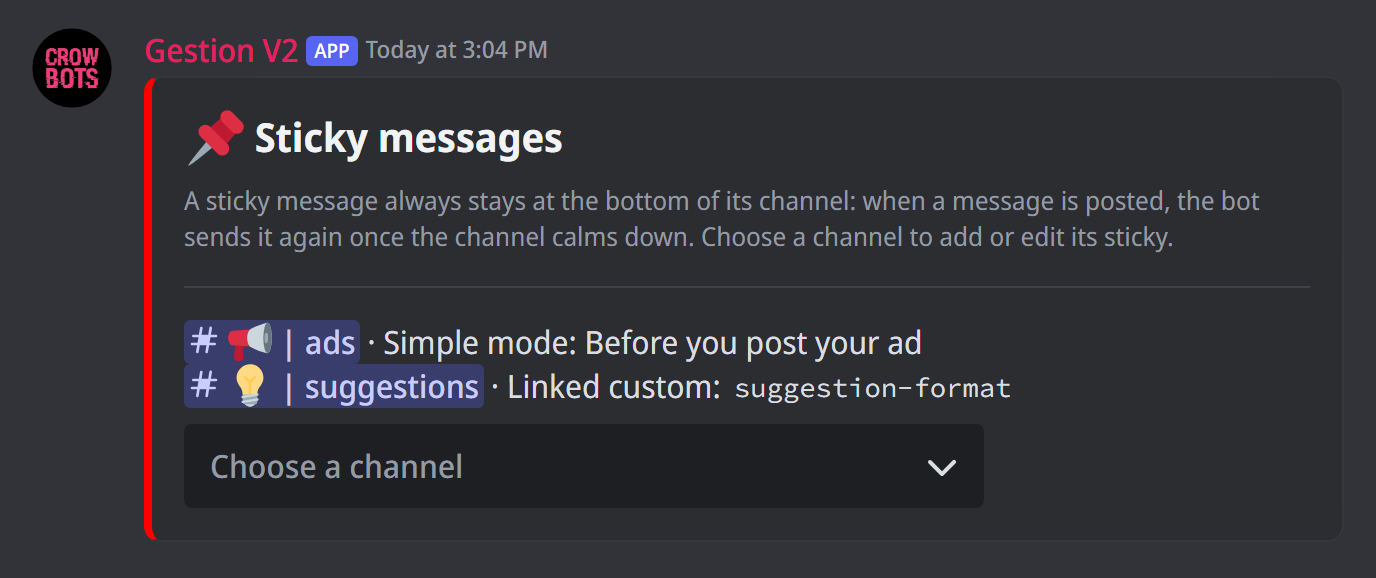
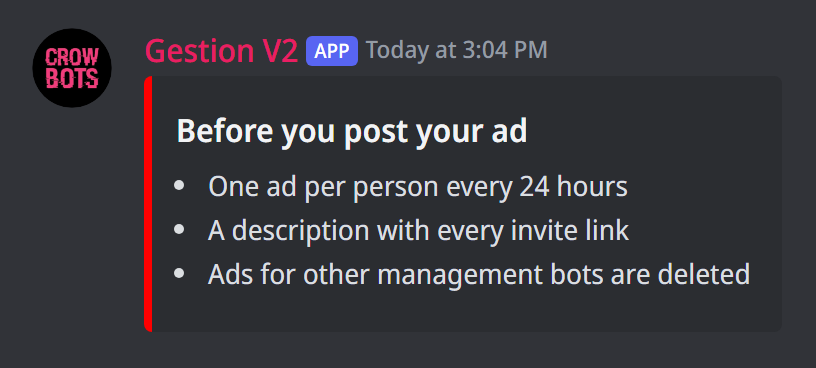
A sticky message always stays at the bottom of its channel: the rules of an ads channel, the format of a suggestion, a reminder to read before writing. When a message is posted, by a member, a bot or Discord itself, the bot waits for the channel to calm down, sends the sticky again and deletes the old one; in a very busy channel, it still comes back after a while, unless you turn the maximum wait off. While nothing is posted, the bot does nothing.
+sticky opens the panel: the list of the channels that have a sticky, with their message, and a menu to choose a channel, whether it already has a sticky or not. A channel has one sticky; a server can have them in as many channels as it wants.
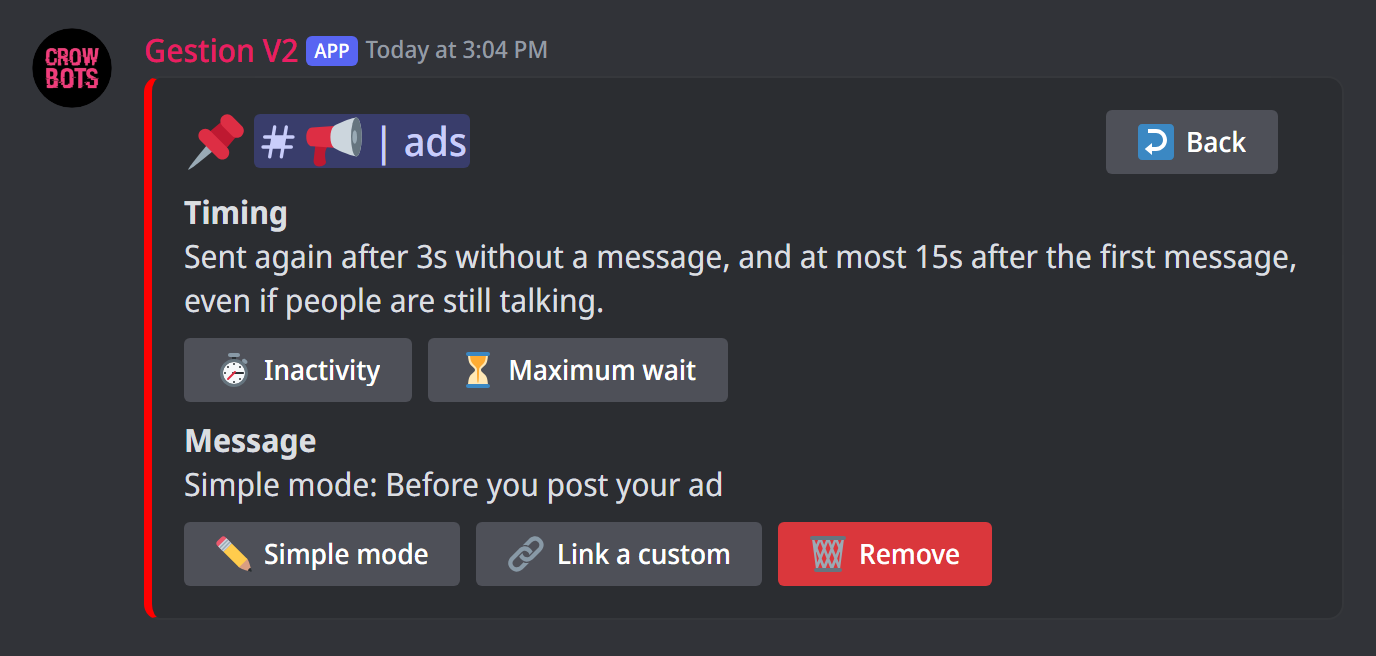
The channel's panel sets its timings and its message:
- Inactivity: how long the channel must stay without a message before the sticky comes back. 3 seconds by default, from 3 seconds to a year;
- Maximum wait: the longest the sticky waits after the first message, even if people keep talking. 15 seconds by default, a year at most, never shorter than the inactivity: setting a longer inactivity raises it too; leave the field empty to turn it off: the sticky then always waits for a quiet moment;
- Simple mode: a title (optional) and a text, sent as an embed in the bot's colours;
- Link a custom: send the keyword of a custom command, for a sticky with embeds, buttons, menus or components. A custom that opens a form cannot be linked;
- Remove deletes the sticky and its last message;
- Back returns to the list.
Durations are typed like 30s, 2m or 1h30m, with no upper limit; the timings can be set once the channel has a sticky. The message is sent as soon as you save it. Each mode keeps its setting when you switch to the other. Only the person who typed the command can use the panel, and it closes after five minutes without action.
Good to know:
- a sticky works in text, announcement and voice channels, threads and forum posts;
- it never mentions anyone, even if the linked custom contains
@everyoneor a role: it would be sent again too often; - of the linked custom, only the message counts: its roles to give, its filters, its cooldown, its reactions, its automatic deletion and its logs do not apply to the sticky;
- it is sent as the bot: the linked custom's
{Member…}variables refer to the bot (Targeting a member); its buttons and select menus act for the member who clicks; - bots' and webhooks' messages make it come back too; when only bots keep the channel busy, as two sticky bots answering each other would, it waits for a member to write;
- after the bot restarts, the stickies covered while it was away are sent again;
- if the channel is recreated by the antiraid or by
+renew, its sticky follows it.
A channel kept for pictures
A selfie channel only accepts pictures: the bot deletes messages without one.
+piconly add(the channel you're in) or+piconly add #selfies;+piconly del #selfiesstops it;+piconlyshows the channels concerned.
A message with an attached file goes through (a picture with a caption too), and so does a picture link (jpg, png, gif). Only the bot's owners and whitelisted members can write text there. With +autothread as well, each picture gets its thread for comments.
If it doesn't work
- A channel disappears from the list: the bot lost a permission it needs (creating threads, managing messages); give it back, then add the channel again.
- A reaction isn't added: the emoji comes from a server the bot isn't in.
- Announcements aren't published: the channel must be a real announcement channel (Channel settings › Announcement channel).
- The sticky doesn't come back: the bot must be able to write in the channel and send embeds there, which the channel's panel points out. With a linked custom, check that it still exists. If only bots have been writing in the channel for a while, it waits for a member to write. Without a maximum wait, it waits for the channel to calm down: check the inactivity in the channel's panel.
Every command
Each command of this guide, with its arguments, its default level and examples: Auto-react, Auto-thread, Auto-publish, Sticky messages and Picture-only channels.