
Backing up and restoring the server
Make a copy of the server or its emojis, automatically or on demand, and put it back after a raid or a mistake.
On this page
A backup is a copy of your server, saved on the bot, that you can put back later: after a raid, a wrong move, or to rebuild a lost server on a new one. It carries the server's structure, in five parts:
- Roles: their names, colours, permissions and order;
- Channels: the categories and the channels, their names, order, settings and permissions;
- Members' roles: who holds which role, and the permissions given to members in channels;
- Discord settings: the verification level, notifications, AFK, the system and rules channels…;
- All emojis, with their image.
A backup is a settings file that also holds the structure: +export makes it, +import puts it back, and +backup is the shortcut for both. It takes the backup permission (level 10 by default).
In short
+backupmakes a copy of the server and saves it on the bot.+autobackup server 7saves one automatically every 7 days.- If something goes wrong:
+backup load, choose the backup, then Import.
Making a backup
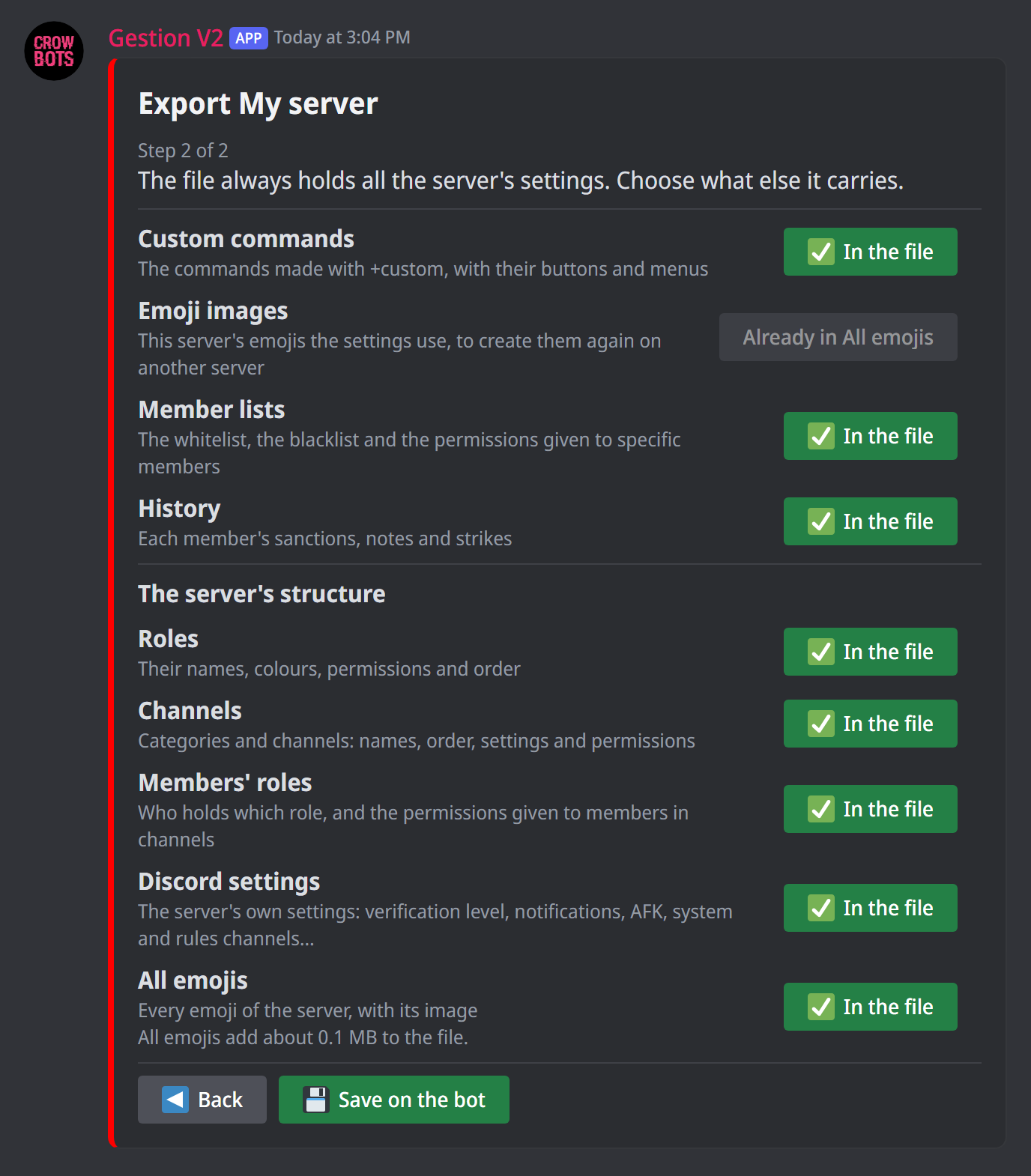
- Type
+backup: the export panel opens straight on what the file carries, with the whole structure in it.+backup emojiputs in only All emojis. - The file also carries the server's settings; each line's button adds or removes what you want, as with
+export. - Click Save on the bot and give the backup a name: by default the server's and the date (followed by a number when a saved file already has that name), or the one you typed after the command (
+backup server before-redesign).
The bot saves the file and also sends it to you alone, under the panel; Send it to my DMs sends it to your private messages. Keep it to yourself: it holds all the server's settings.
With +export, click A server: it is the same step, the structure in the file except All emojis (the panel shows what they add to the file). Members' roles only comes with Roles. Click Export the settings, then Save on the bot under the file. A file too big for Discord to send here comes to you as a download link.
Automatic backups
+autobackup server 7 saves a backup of the server every 7 days, from 1 to 365 (+autobackup emoji 30 for the emojis only). An automatic backup holds the server's structure, without its settings. It shows in the list of saved files, named [auto date] server name, or [auto emoji date] server name for the emojis.
The bot keeps the last two of each kind for this server. +autobackup server off stops them, without erasing those already made.
25 saved files
The bot keeps 25 saved files in all, for all its servers: backups, automatic ones included, and other exports. When it already has them, Save on the bot asks you which one to delete to make room: choose it in the menu, then Delete it and save this one. If you can delete none of them, keep the file sent under the panel, or download it from its link if it was too big to be sent to you.
An automatic backup then replaces this server's oldest one; if it has none, the backup isn't made.
Seeing and deleting backups
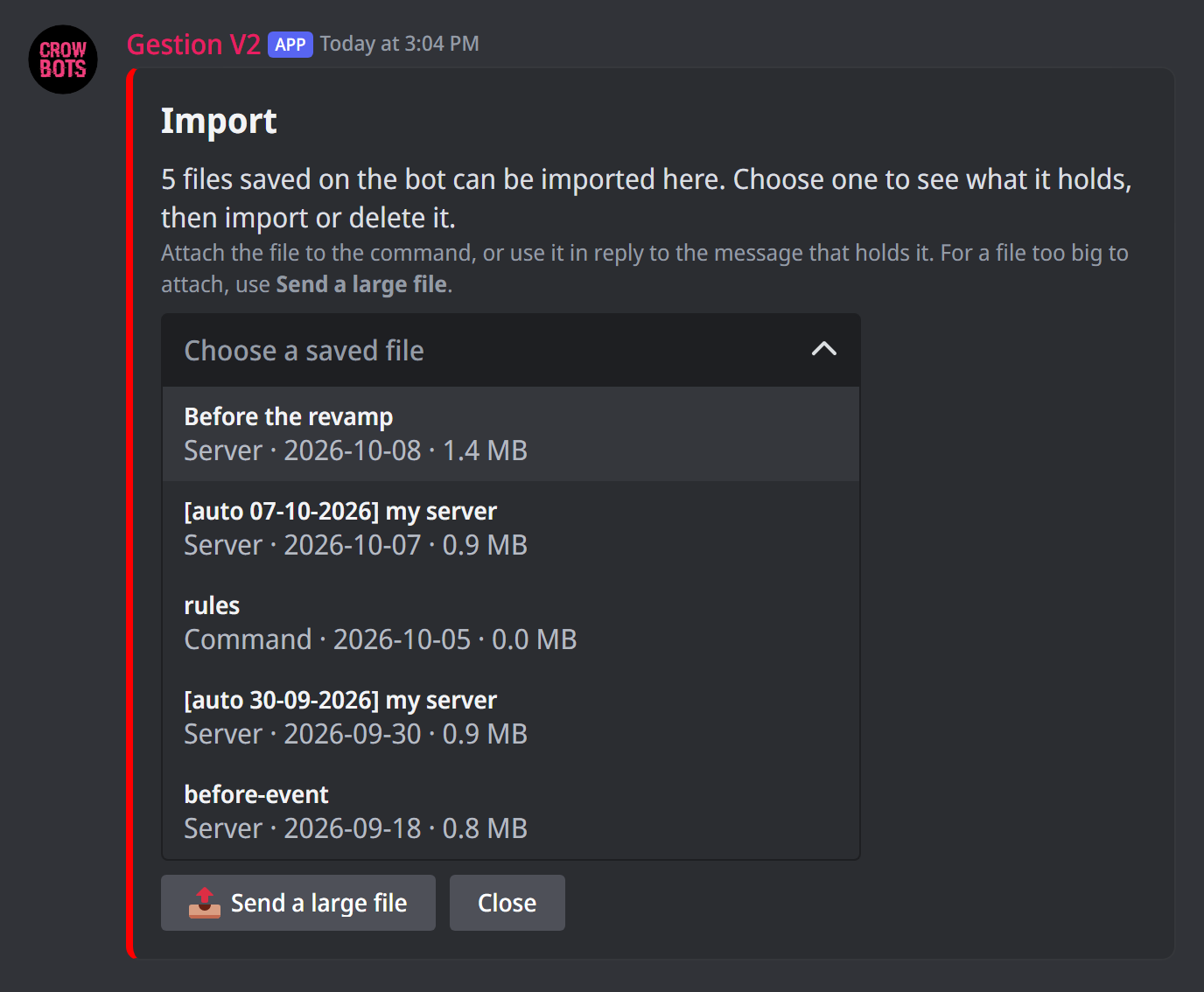
+backup load, or +import without a file, opens the list of the files saved on the bot, newest first. It shows those you could import something of, saved from any of the bot's servers: a backup's structure takes the backup permission. In DMs, only the bot's files are there. Under the list, Send a large file imports a file too big to attach to +import (a file too big for Discord).
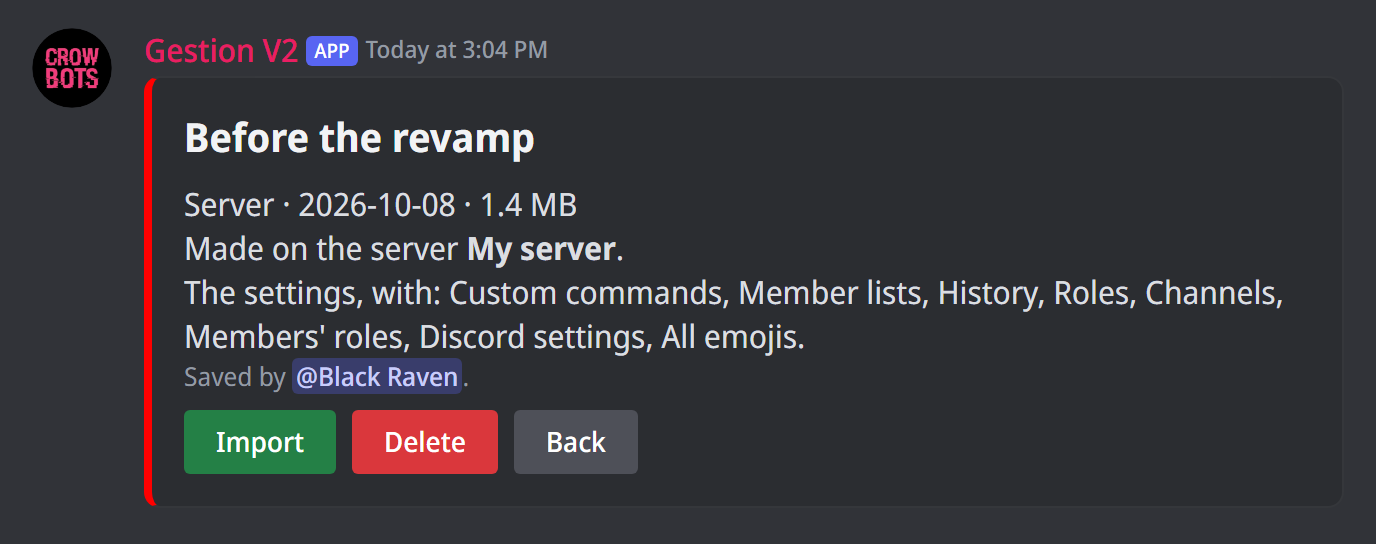
Choose a file: the panel says what it holds, the server it was made on and who saved it.
- Import opens it, as a file attached to
+import(see below); - Delete removes it from the bot, after a confirmation: nobody will be able to import it afterwards. It is greyed out unless you could import all of the file.
The backups made before this version of +backup are already in the list, under their name.
Putting a backup back
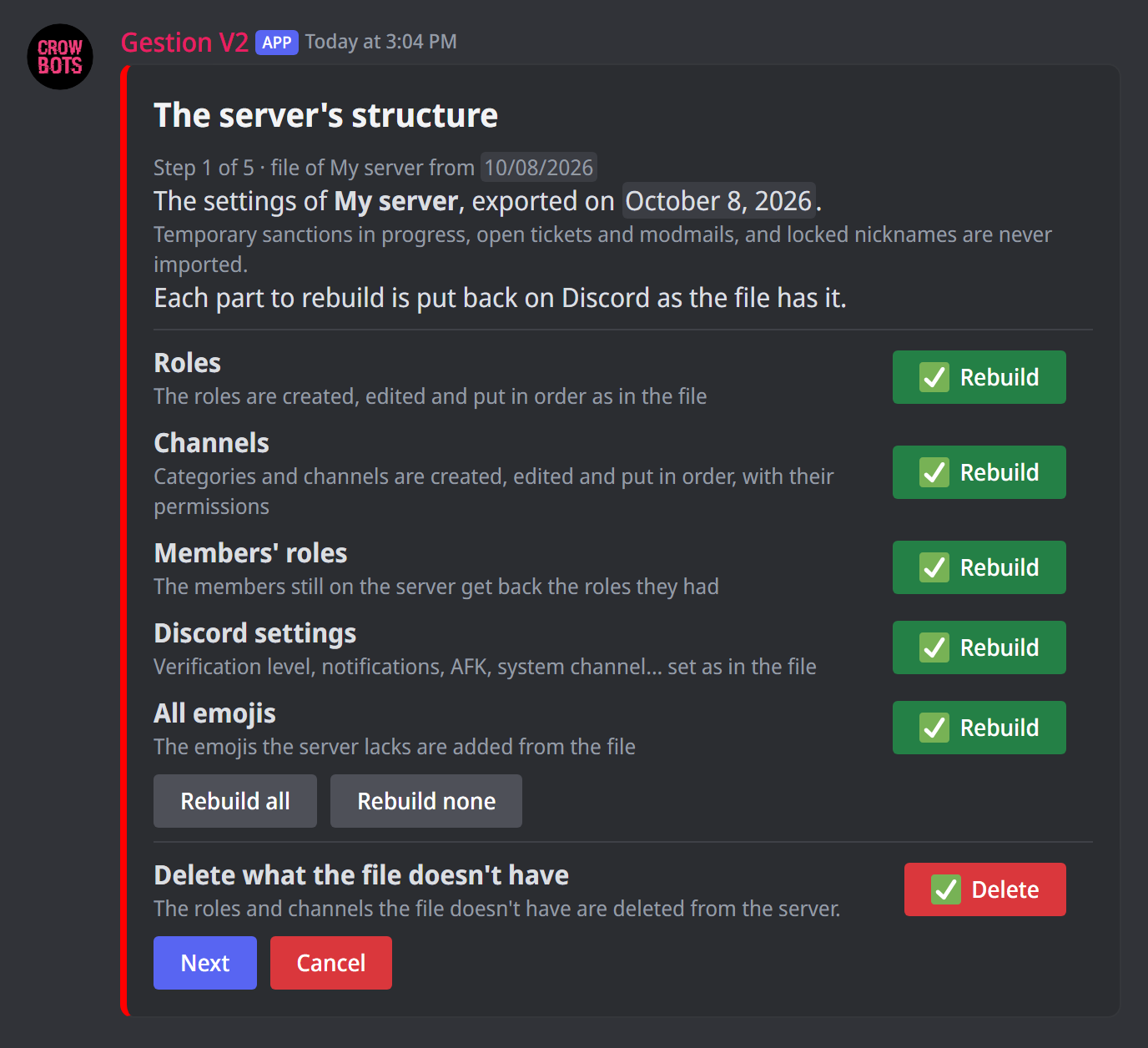
+backup load, choose the backup, then Import.- The first step shows the server structure: each part has its line and its Rebuild button, to put it back as the file has it; Rebuild all and Rebuild none decide for all. On the server the backup comes from, everything is to be rebuilt.
- Delete what the file doesn't have is on for this server: the roles and channels created since the backup (by a raid, for example) are deleted. Turn it off to keep them.
- If the backup also holds the settings, Next goes to their pages, then to the custom commands, as for a settings file. An automatic backup has none: it imports the structure only.
- Next then goes to the items that need a choice if there are any, then to the confirmation, which says what will be created, edited, deleted and put back in order, and how many members get their roles back.
- Import rebuilds the structure, then writes the settings onto what it rebuilt. Nothing is written before.
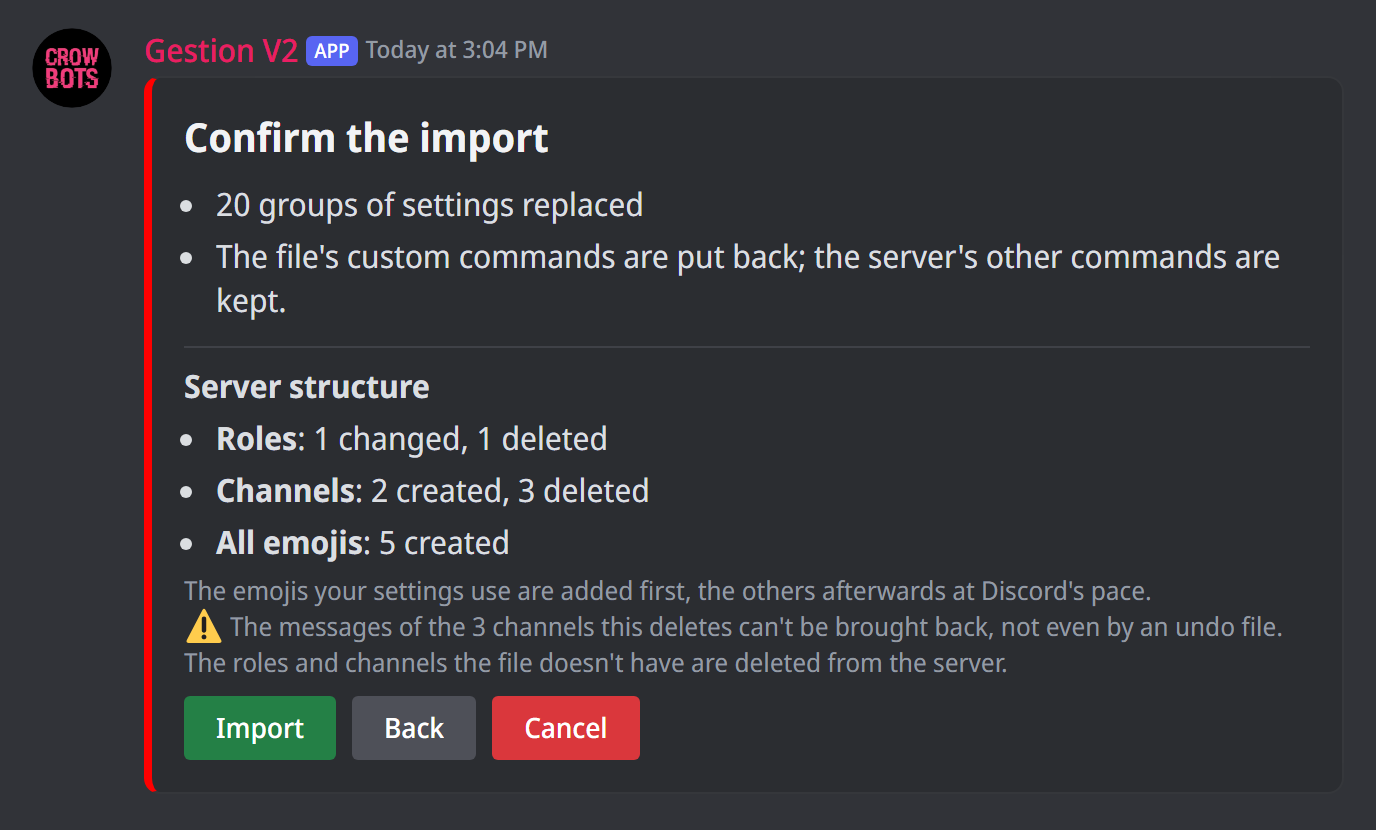
Only what differs from the file changes: a deleted channel is created again, an edited role gets its settings back, what hasn't moved isn't touched. The roles and channels the settings use are restored from the file: you have nothing to choose for them.
The messages of a deleted channel are lost
When the rebuild deletes a channel, its messages can't be brought back, not even by the undo file. The confirmation says so beforehand.
- Members' roles can only be ticked with Roles, and only if you could set the whitelist (
+wl). Only the members still on the server get their roles back. - The bot's role must be at the very top of the role list: it can't touch a role placed above its own, and the confirmation counts them.
- The bot needs the permissions to manage roles and channels, and to manage expressions for the emojis.
- If the channel where you started the import is deleted along the way, the bot sends you the report elsewhere.
Rebuilding a lost server on a new one
Backups are saved on the bot, not on the server: they stay when the server is lost.
- Add the bot to the new server, then type
+backup load: the old server's backup is in the list. - Choose it, then Import. On a server other than its own, nothing is rebuilt or deleted by default: click Rebuild for each part to put back.
- To also remove the channels and roles created with the new server, turn on Delete what the file doesn't have.
- Check the confirmation, then Import.
The settings then go onto what the structure rebuilt. The members who joined the new server get their roles back; import the backup again later, with only Members' roles, for those who arrive afterwards.
If the server has already created many roles and channels within the hour, the confirmation says how long to wait.
Emojis
+backup emoji saves only the server's emojis. On import, Emojis adds the emojis the server lacks, from the file, and gives back their name to those whose name changed.
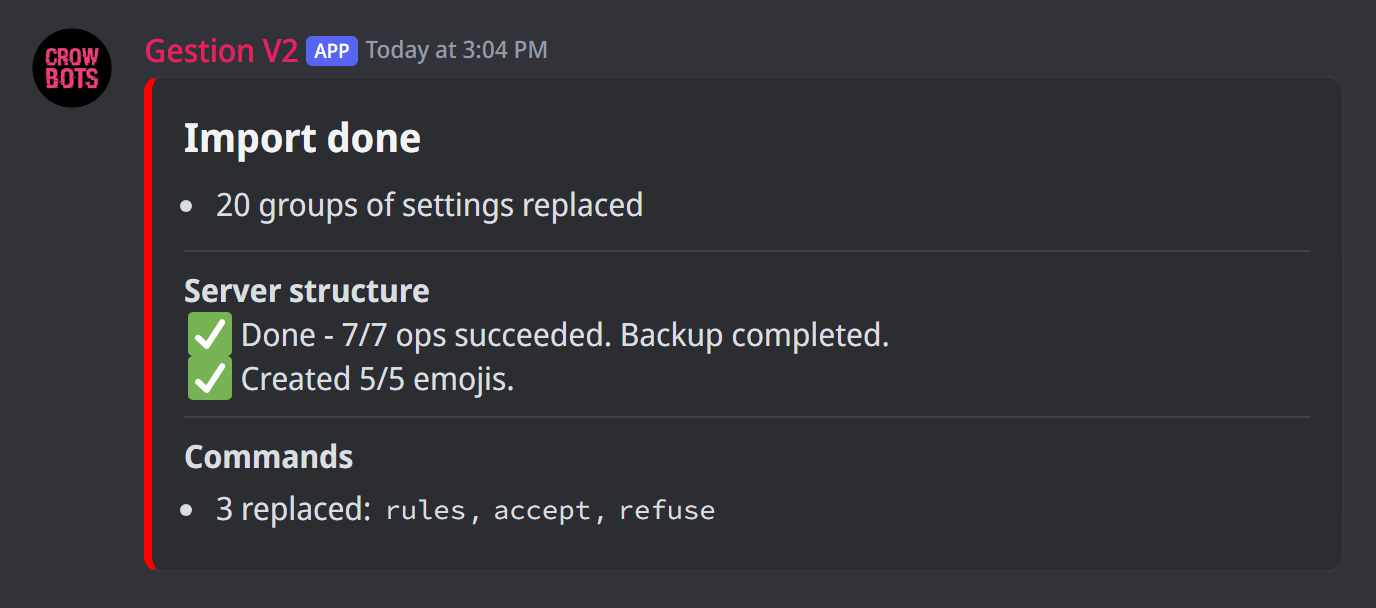
Discord limits how fast emojis can be created. The bot starts adding them as soon as you confirm the import, while it rebuilds the rest: first those your settings use, then the others, at Discord's pace; the adding carries on after the report if some are left. The report says so, and tells you if the adding stopped before the end: import the backup again to add those missing. The server needs free slots: the emojis that don't fit are left out, and the confirmation says so.
Undoing
Before writing, the bot sends you an undo file, to you alone. It holds the server's settings, and its roles, channels, members' roles and Discord settings as they are before the import. Imported on this server, it rebuilds them, deletes the emojis the import added and gives back their name to those it renamed. Everything changed since the import is lost, and the messages of the deleted channels don't come back.
If the undo file is too big to be sent to you here, it comes as a link; if it can't reach you at all, nothing is imported.
Two tools to tidy up
+syncaligns the permissions of the channel you're in with its category's;+sync #channeltargets another channel, a category targets all its channels,+sync allevery channel of the server.+clear duplicate invitedeletes duplicate invites: for each creator and each channel, only one is kept, preferably a permanent one.
If it doesn't work
- "The server's structure can't be rebuilt now": the bot says what prevents it, often a permission it lacks or a Discord limit (the number of roles, channels or emojis). Fix it, then import the backup again. Nothing was changed.
- "The bot couldn't read this server": try again in a moment.
- Some items couldn't be restored: import it again; only what is missing is done again. A role above the bot's is never put back: move its role to the very top.
- "The server's structure was rebuilt, but its settings weren't written": import the file again to finish.
- Items your settings use weren't found after the rebuild: the panel shows them to you; choose what they become, then Import writes the settings.
- "Rebuilding it takes the
backuppermission": only a member who has it can rebuild the structure. - "This file can't be imported": it is damaged; try another backup, an automatic one for example.
Every command
Each command of this guide, with its arguments, its default level and examples: Backups.