
Repairing the settings after a change of application
When the bot changes Discord account, its panels stop answering. The bot sends you a report and repairs them in one click.
On this page
When your bot moves to a new application (create the token), it changes Discord account. Its settings stay, but the messages the old account posted stop working: Discord sends the clicks to the account that posted the message, and no bot can edit another one's message. Members see "This interaction failed".
The bot notices it on its own and sends you a report: what no longer works, and a button to repair it. +repair shows this report at any time.
What the report lists
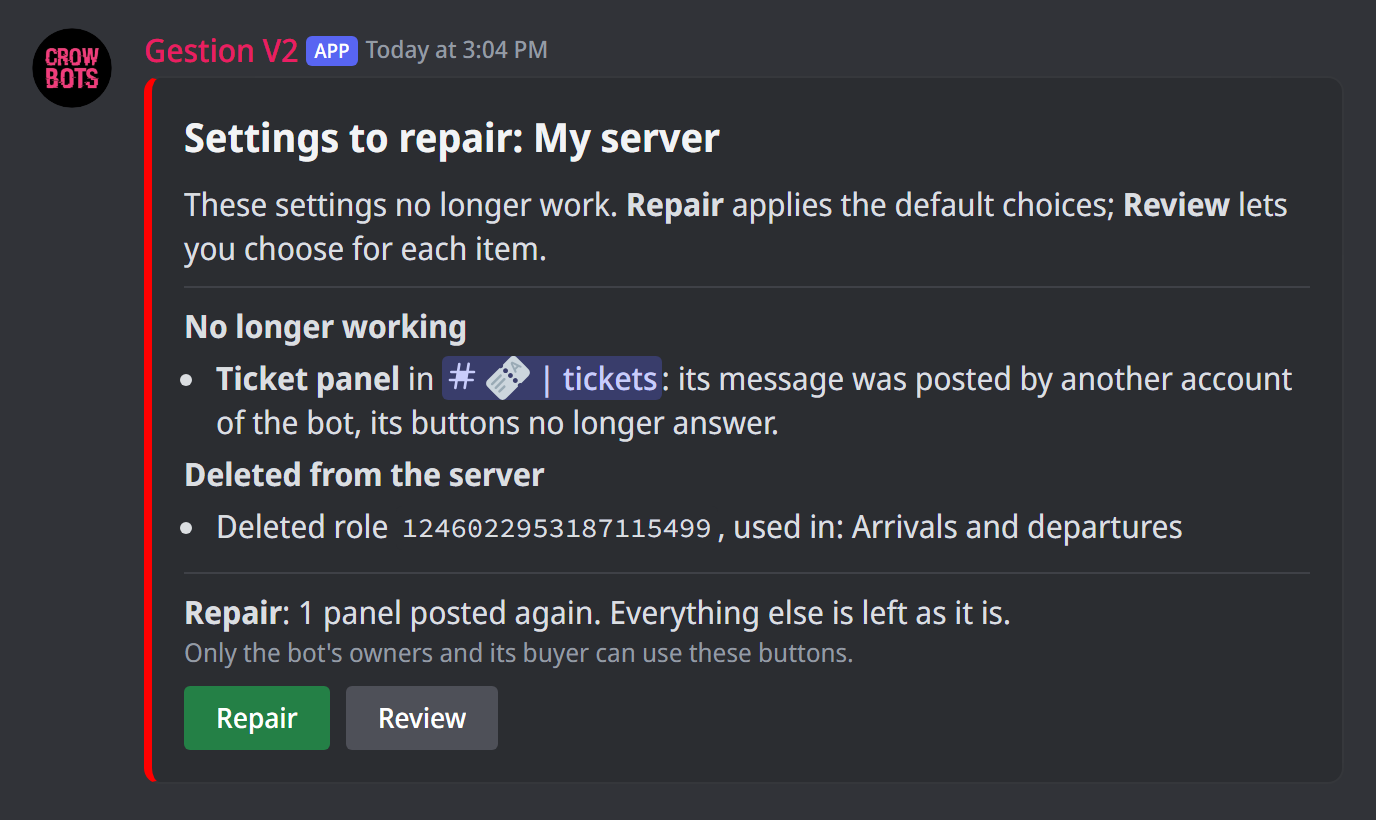
Each server has its page, in three parts.
No longer works, verification first: while its panel doesn't answer, new members can't verify.
- the panels the old account posted, or whose message was deleted: verification, ticket panels, rolemenus with buttons or a menu, forms;
- the running button giveaways the old account posted: nobody can enter them any more, but the draw will still take place;
- the open tickets whose Close and Claim buttons no longer answer;
- the report command, no longer in the message menu.
A reaction rolemenu works as it is: it is not listed.
Deleted from the server: the deleted roles, channels, emojis and custom commands that settings still use, with where they are used.
For an administrator: what the bot can't fix itself, with what to do. A role placed above its own (move its role higher), an integration's role it can't give (pick another one), a channel where it can't write, or a panel in a channel it can't see.
When the report comes
The bot sends the report on its own when something no longer answers because of an account change:
- when it restarts on a new application: to the buyer, in direct messages, one report for every server. If their direct messages are closed, the report goes to each server's system channel;
- when it joins a server: in direct messages to whoever invited it, if they are an owner or the buyer; otherwise to the buyer, and in the server's system channel. This is the most common case: the new account is on none of your servers until you add it.
A report that covers several servers has a menu to go from one to the other, and a Repair all button. When the bot adds a server to a report you already received, it updates it instead of sending a new one.
A server that only has deleted items gets no automatic report: +repair shows them.
Only the owners and the buyer can use the report's buttons, and the +repair command.
Repair in one click
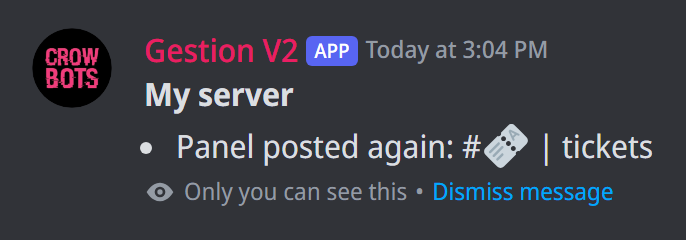
Repair applies the default choices, which the page announces above the button:
- each panel is posted again by the new account, with the old message's text and images when the bot can read it; otherwise with its usual message. The tickets opened from a ticket panel stay tied to the new one;
- each giveaway is posted again, with its prize, its end and its entrants;
- each open ticket gets a "This ticket's buttons:" message with its buttons;
- the report command is added back.
The old message is deleted once the new one is in place, if the bot has the permission to manage messages; otherwise, the bot gives you its link so you delete it. It also keeps it when it couldn't take its images back.
Deleted roles, channels and emojis are left as they are: choose what to do with them in Review. Nothing is ever deleted by default.
The bot checks the server again before repairing: what you already fixed by hand is not touched. It then tells you, in a message only you can see, what was done and what couldn't be, and the report's page shows what is left.
A giveaway that ends in less than a minute is not posted again: its draw takes place as planned.
Review the choices
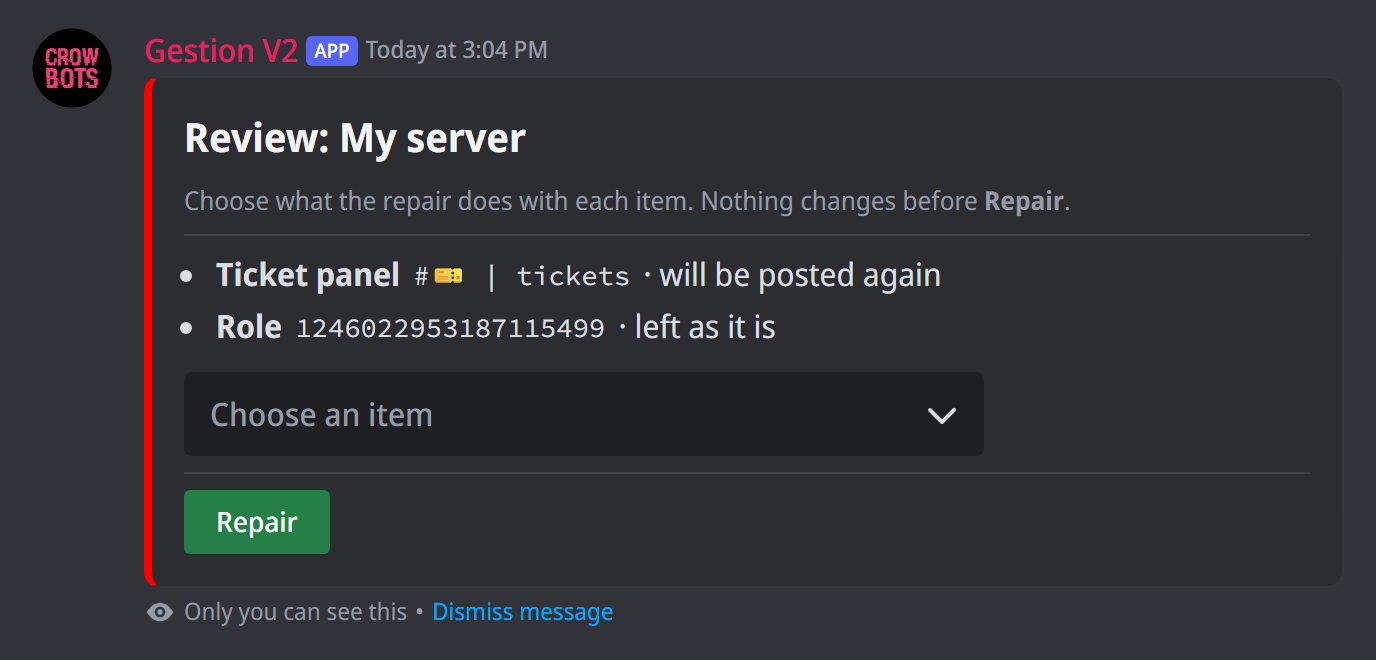
Review lists each item with what the repair will do with it, in a message only you can see. Pick one in the menu to change it:
- a panel: post it again, leave it as it is, or delete the panel and its settings. A ticket panel can also be kept as a draft. Verification is turned off instead of deleted;
- a deleted role or channel: replace it with a role or channel of the server, remove it from the settings, or leave it as it is;
- a deleted emoji or custom command: remove it from the settings, or leave it;
- the open tickets, the giveaways and the report command, on their own page: new buttons for the open tickets or not, the giveaways to post again with their entrants, and the report command added back, turned off or left as it is.
When a replacement clashes with a setting of the server, the page shows it before you repair. This page's Repair applies your choices.
All the commands
This guide's command, with its level and details: Repair the settings.